Vision Manual
Complete step‑by‑step guide — from first login to advanced show control.
Table of Contents
App Download



First Steps
Login Process
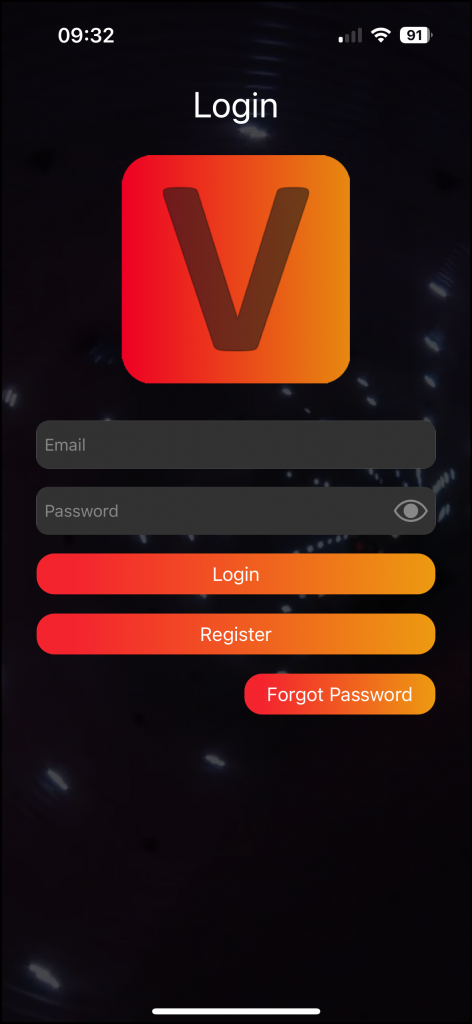
Open the app to access the Login screen.
- ›Already have an account: Enter your email address and password.
- ›Forgot password: Click „Forgot password", enter your email, check your inbox for a reset link, and follow the instructions.
- ›No account yet: Click „Register".
Registration
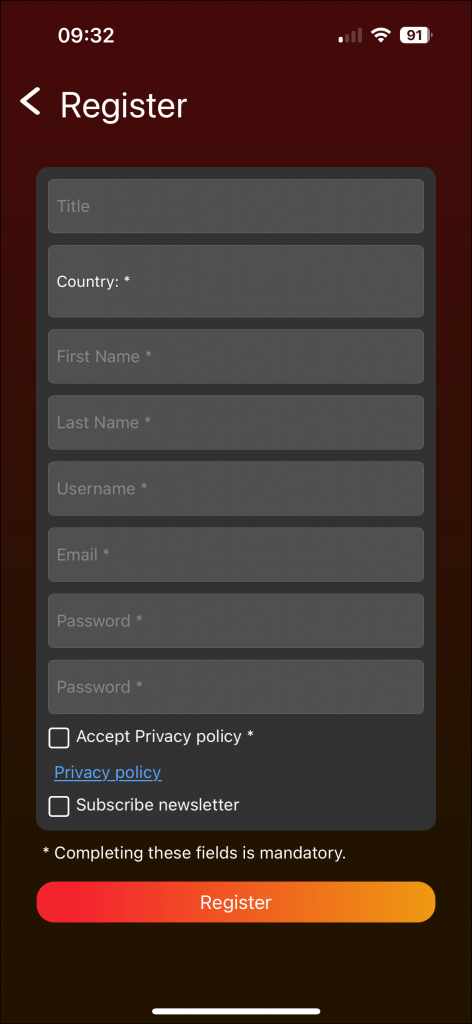
- Fill out all required fields on the registration page.
- Click „Register" to submit your information.
- Check your email for a confirmation message.
- Click the confirmation link in the email. A success message will appear on the website. If you click the link a second time, an error message may appear — you can safely ignore it.
- Return to the Vision App and log in with your credentials.
Prepare App & Grant Permissions
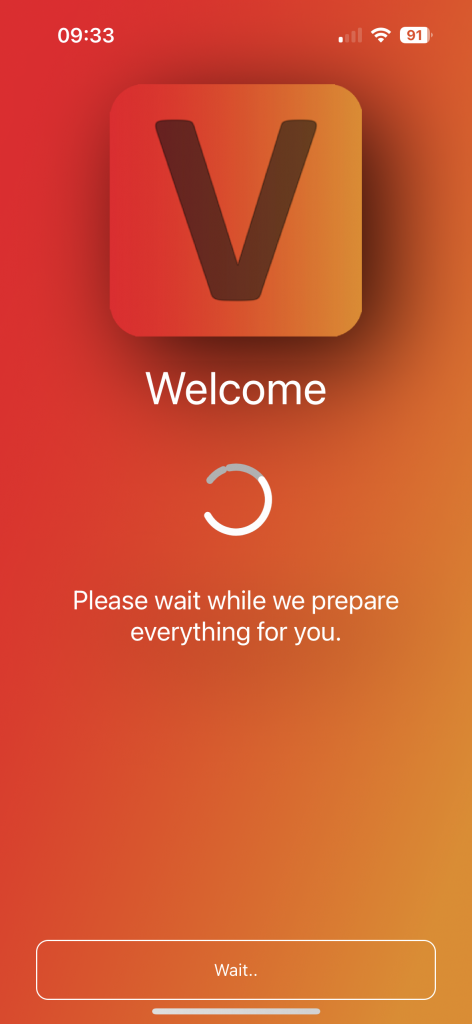
The app is undergoing preparation — this may take some time.
- Click „Next" to proceed.
- Grant permission for Bluetooth by clicking „Request."
- A popup will open — click „Ok."
- Click „Start."
Find Fixtures & Create Network
Discover Page
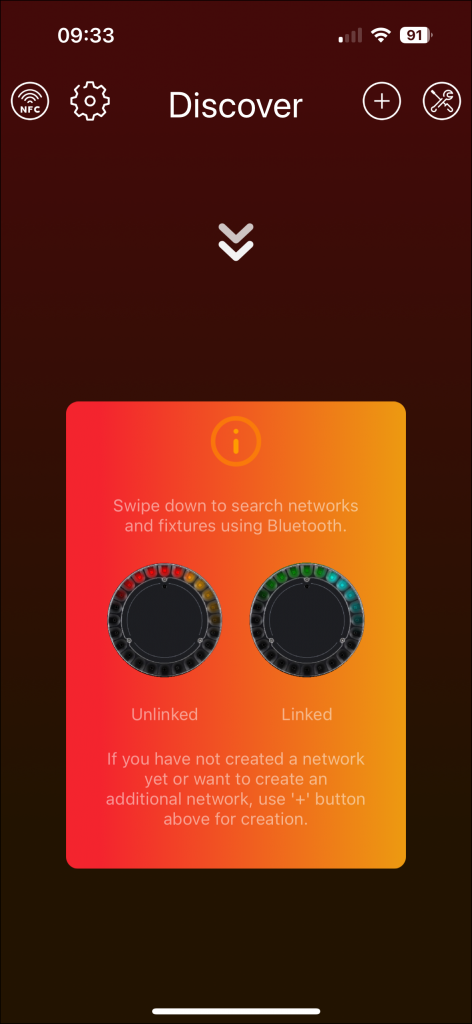
After login you are prompted to the discover page. Ensure Bluetooth is on and the app has full access. Swipe down to search for fixtures and networks.
Scan
A scan discovers Bluetooth fixtures in proximity that are powered on and configured with Vision as input source.
- ›Mobile: Swipe down on the screen to initiate fixture scanning.
- ›Desktop: Press the „Refresh" button with two arrows at the top.


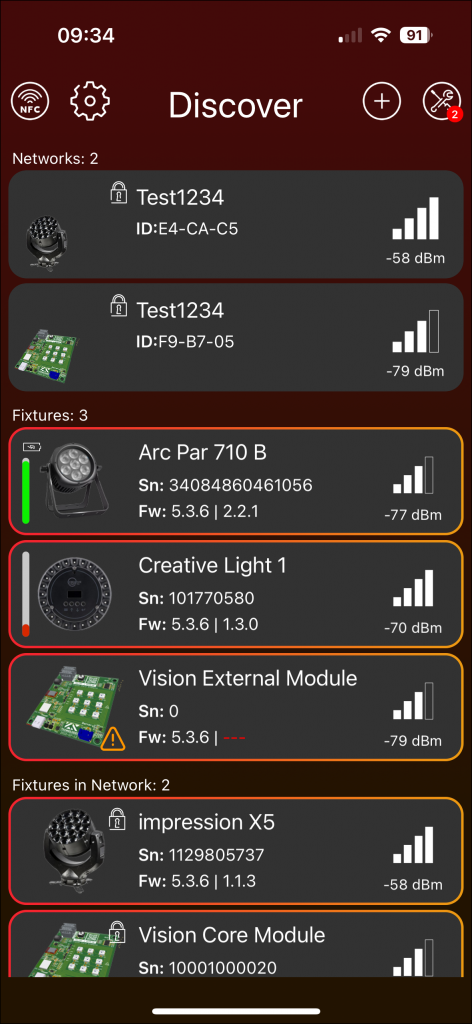
Red Badge

- ›A red badge with a white number signifies required or highly recommended actions.
- ›Click the corresponding icon or frame near the badge to proceed.
- ›Examples: Vision firmware updates, Main-Firmware updates, service counters exceeding 7,000 hours.
Frames
The discovery page showcases various frames after a scan.
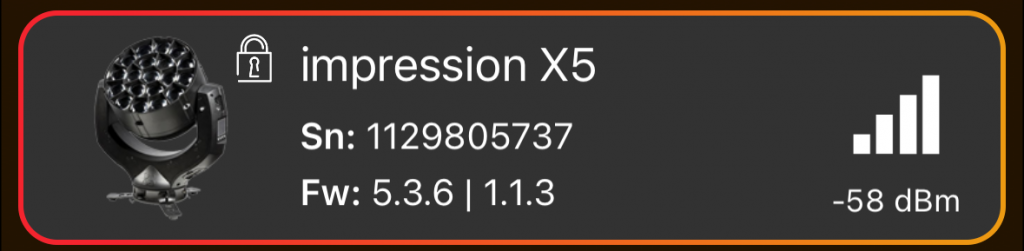
- ›Selection: Click on the fixture image to select or deselect it; a red/orange frame indicates selection. Only selected fixtures are relevant for functions in the Tools Icon.
- ›Bluetooth Connection: Click on the fixture frame (except the image) to connect with the fixture via Bluetooth.
- ›NFC (Android): In the Discover Page, hold your smartphone near the fixture's NFC. The device will automatically detect and connect.
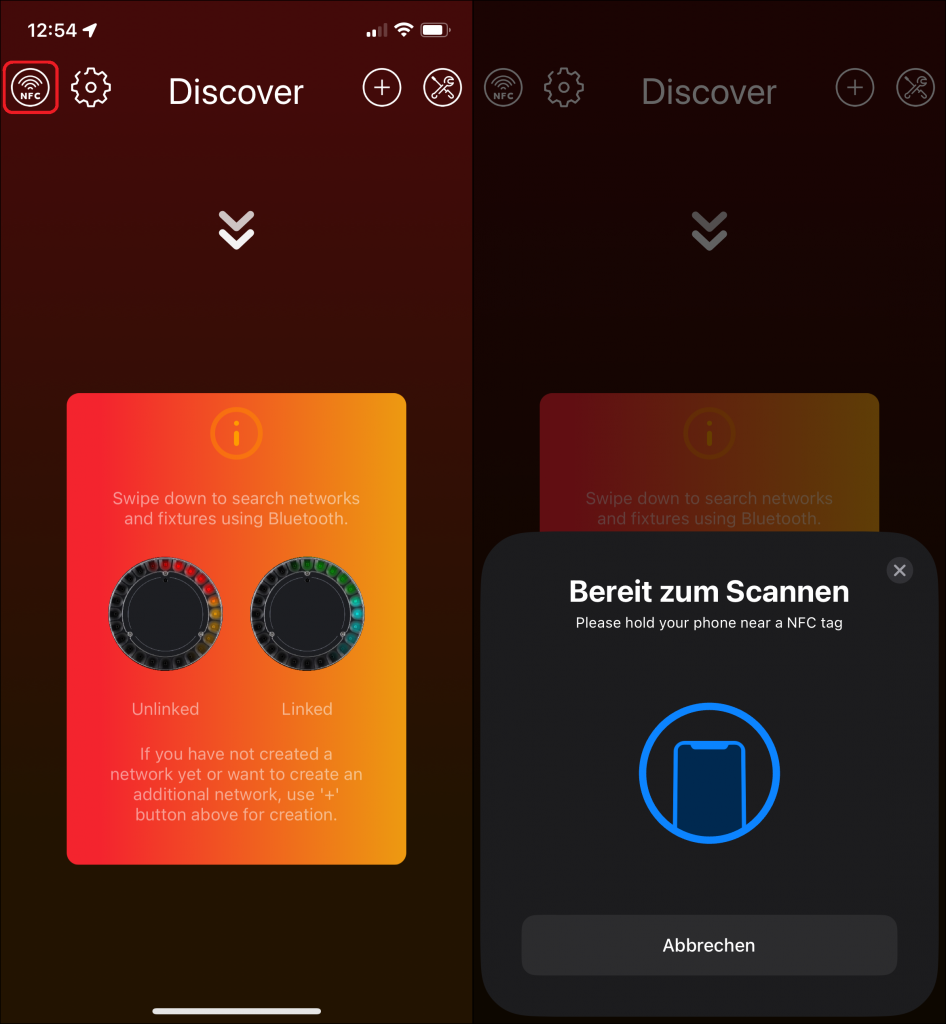
- ›NFC (iOS): Click the NFC logo in the upper left corner, then hold your smartphone near the fixture's NFC.
Icons & Text in Fixture Frame
| Icon | Description | Significance | Action |
|---|---|---|---|
| Red Cross | One or more errors | Serious issue with the device | Click frame to view and address error details |
| Orange Exclamation | One or more warnings | Issues, though not as critical as errors | Click frame to view and address warning details |
| Closed Lock | Linked to a network, password not entered | Authentication required | Enter the correct password to unlock |
| Open Lock | Linked to a network, password entered | Authentication successful | Clicking frame auto-connects; no extra steps |
| Sn | Serial Number | Unique identifier | Used for reference / identification |
| Fw | Firmware versions | iQ.Mesh + Main-Firmware | Red text = newer version available. Consider updating. |
Network Frame
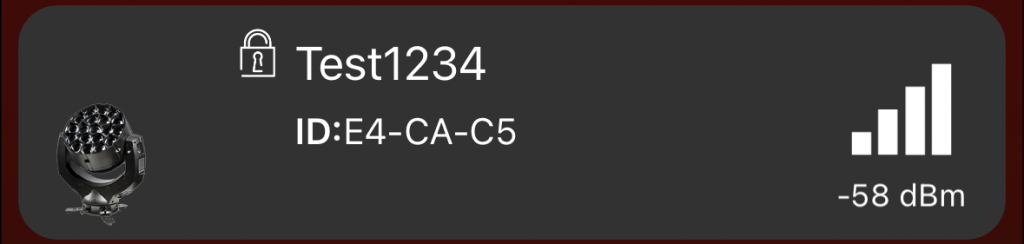
- ›Click on the network frame to access the network.
- ›Icons and text are similar to the Fixture Frame.
- ›ID — a unique alphanumeric value to distinguish between different networks.
Tools Icon

The Tools Icon (wrench and spanner) opens a popup for Vision Updates, Fixture Updates, and RDM Manager. Functions affect only selected fixtures.
Plus Icon

Click the Plus Icon to create a new network. The icon pulsates when no network is detected, indicating that it is recommended to create one.
Settings Icon

The Settings Icon (gear) opens the settings page. In the discover page, settings are reduced compared to the network settings.
Fixture Page
After clicking on a fixture in the discover page, the app connects and opens the fixture page with various frames and icons.
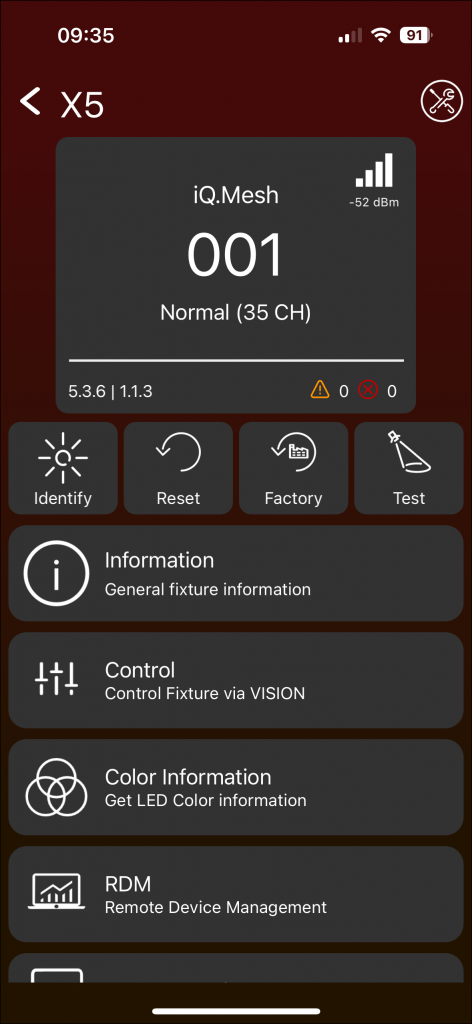
Info-Panel
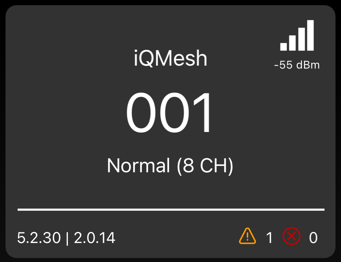
The Info-Panel displays:
- ›Input Source: iQ.Mesh (tap to change)
- ›DMX Address (tap to change)
- ›DMX Mode (tap to change)
- ›Signal strength (top right)
- ›iQ.Mesh firmware & Main-firmware (bottom left)
- ›Warnings and errors (bottom right)
Identify
Use this function to highlight your fixture for identification purposes.
Reset

Two ways to reset:
- ›Warm Reset: Restarts the fixture without cutting power. A controlled reset to reinitialize internal settings without disrupting the DMX network.
- ›Cold Reset: Completely cuts and restores power. More drastic; suitable when a device is unresponsive or encounters a serious error. Disruptive to the DMX network during the power-off period.
Factory Default
Instructs the device to revert to its original manufacturer-determined settings.
Test

Activate different test modes: Pan Tilt Test Mode, Lamp Zoom Test Mode, and All Test Modes.
Information
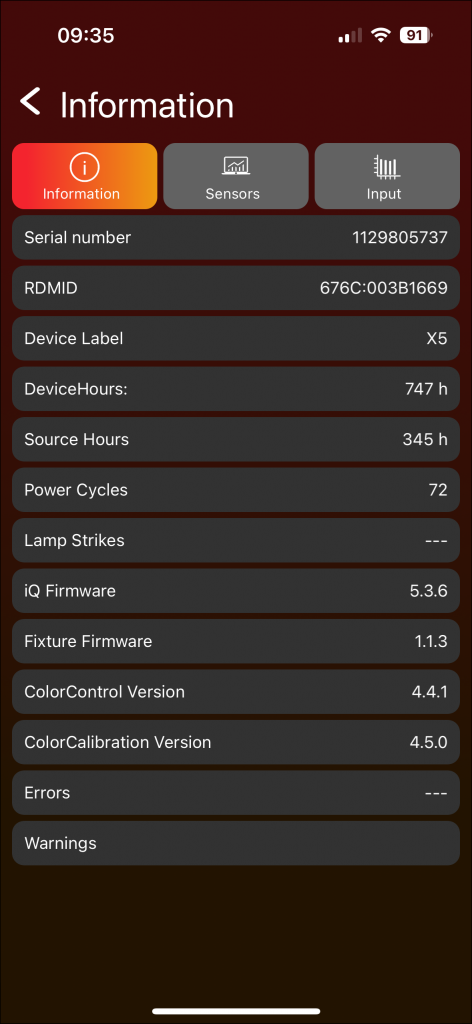
- ›Information tab: View various fixture information and detailed error/warning messages.
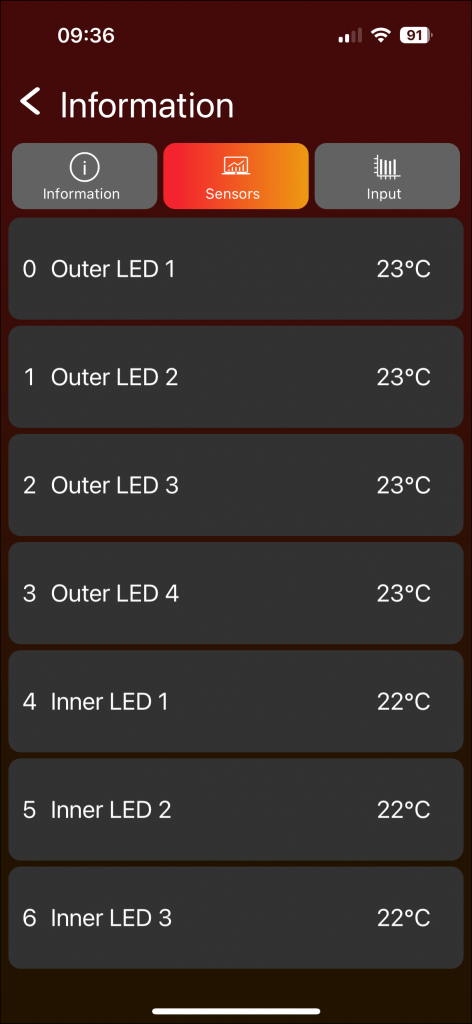
- ›Sensors tab: View sensor data from the fixture.
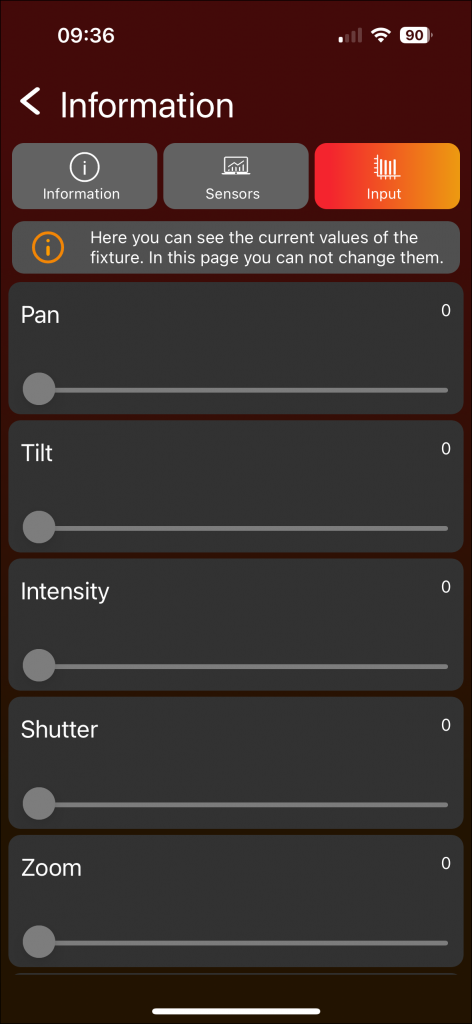
- ›Source Input tab: View and change the source input configuration.
Control
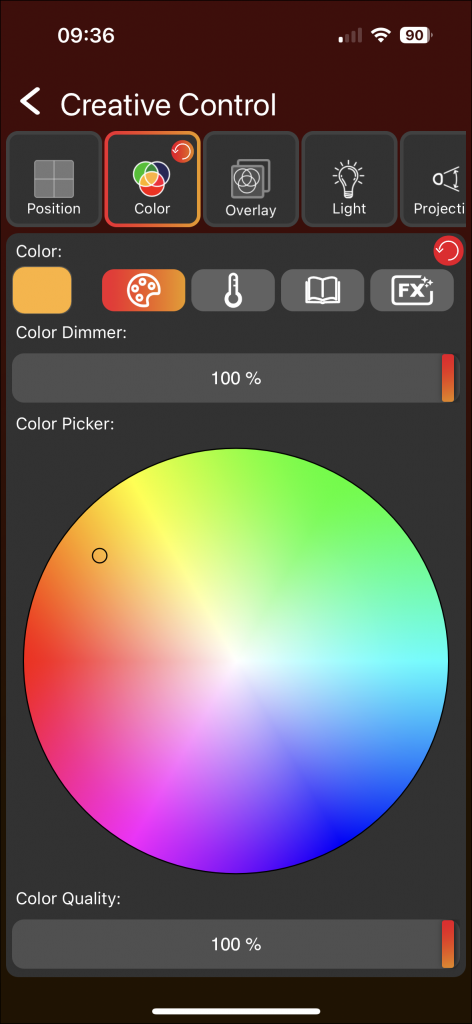
Control the individual fixture. Detailed information on how control works can be found in the „Network Shell – Control" chapter below.
Network Creation
To control one or multiple fixtures, set up a control network first and link all fixtures into it. A setup wizard guides you through all steps.
1. Create Network Page
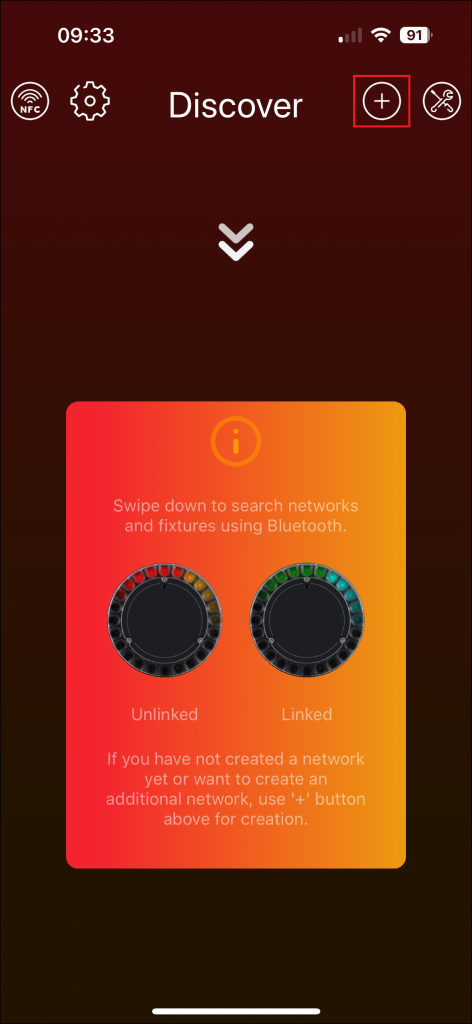
- Click the plus icon in the Discover Page to start the wizard. If no network is found after a scan, the plus icon will pulse orange.
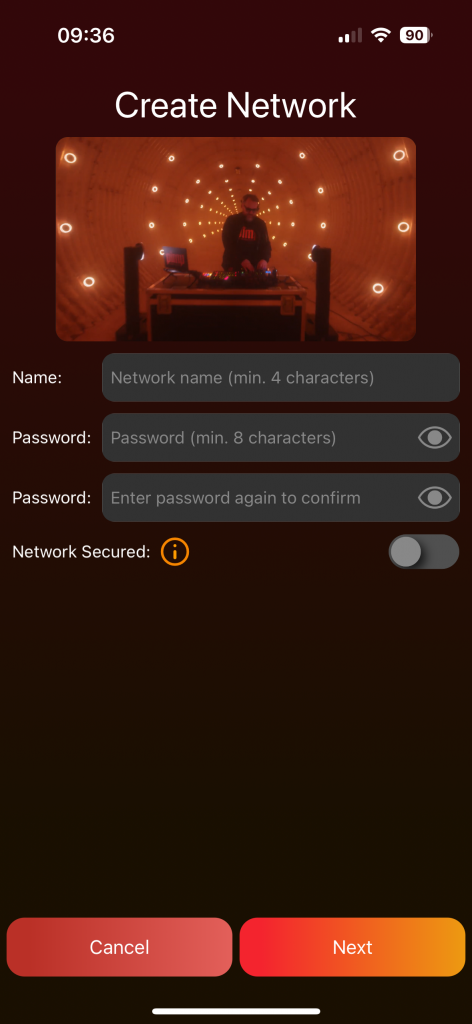
- Enter a network name and password.
- Toggle password visibility with the eye icon if needed.
- Activate the secured network with the On/Off Switch (deactivated by default).
- Click „Next" to proceed.
2. Link Fixtures Page
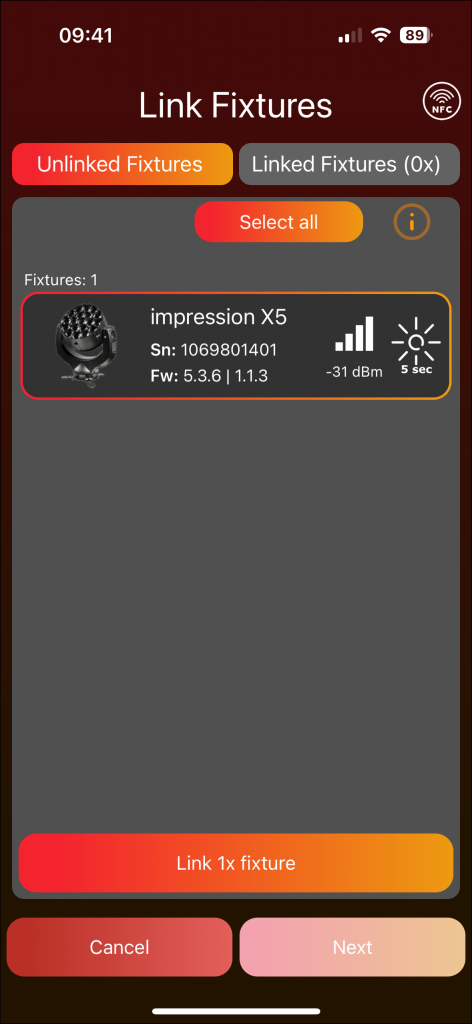
The left tab displays „Unlinked Fixtures" and the right tab shows „Linked Fixtures".
Unlinked Fixtures:
- Scan for available fixtures (swipe down on mobile / „Scan" button on desktop).
- Highlight a fixture by clicking the sun icon for easy identification.
- Select fixtures for linking, then click „Link fixtures." A popup shows the linking process.
- A results popup shows the outcome for each fixture — click on a frame for more information.
- After clicking „Close," an automatic scan will start for adding further fixtures.
Linked Fixtures:
- Successfully linked fixtures are displayed. To remove fixtures, select them and use the remove button.
- Proceed by clicking „Next" and then „Connect" to establish a connection to the mesh network.
- If issues arise, click „Try again" until it succeeds.
NFC:
- ›iOS: Click the NFC Icon, then hold your smartphone near the fixture's NFC.
- ›Android: Hold your smartphone near the fixture's NFC — it will auto-detect and connect.
3. Name Fixtures Page
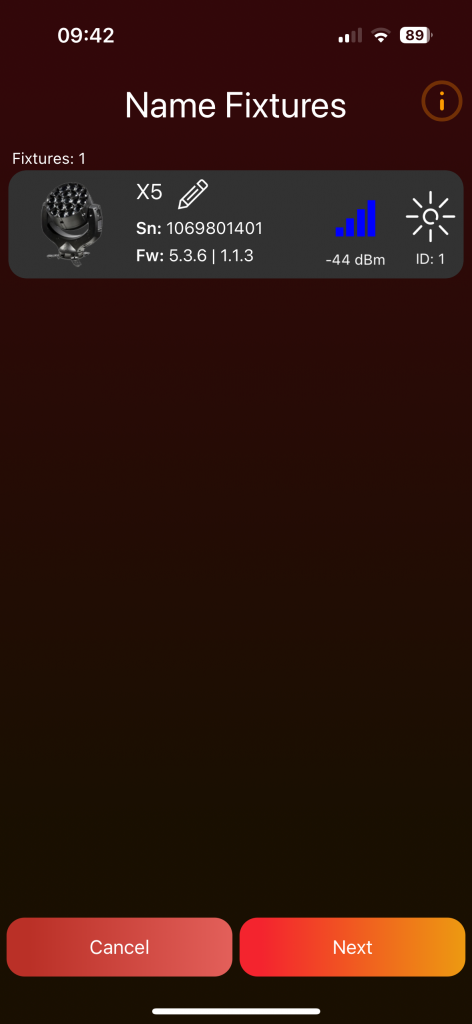
- Rescan fixtures in the network (swipe down on mobile / „Refresh" button on desktop).
- Change a fixture's name by clicking on it or the edit pencil. Renaming is useful for alphabetical ordering on the Light Page.
- One fixture serves as the master
- Click „Next" to continue.
4. Groups Page
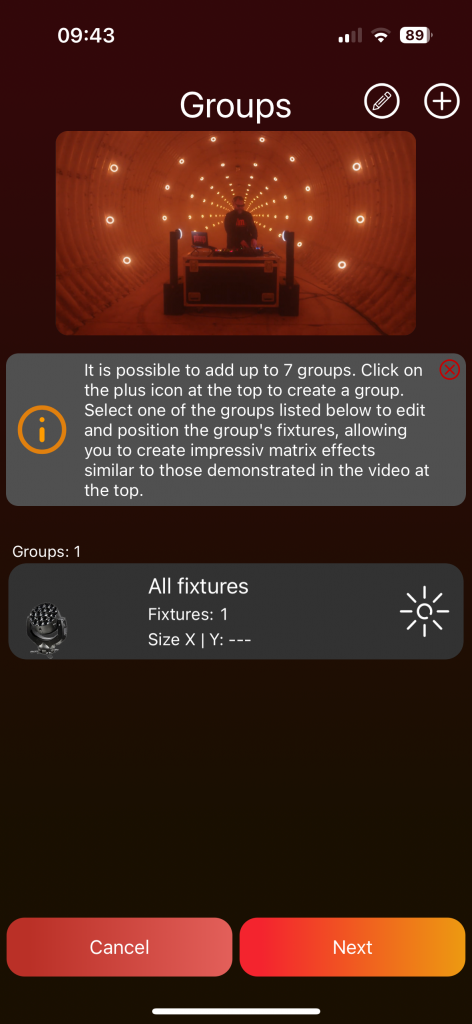
- ›The „All fixtures" group is auto-created and cannot be deleted.
- ›Add a new group by clicking the plus icon at the top.
- ›Enter a name, select fixtures, and press „Add." A popup will ask if you wish to position the fixtures — we strongly recommend doing so for powerful matrix effects.
- ›Create up to 7 groups.
- ›Click on a group frame to add/remove fixtures and position them.
Position Fixtures:
- ›Position fixtures in a 2D space. Select a geometric shape, click a fixture to highlight it, and drag & drop to place it.
- ›The orange rectangle defines the available area — enlarge or reduce it by dragging the orange line.
- ›Thin gray lines serve as positioning guides. Activate/deactivate them with the sliders at the top.
- ›If a circle is chosen, an additional degree offset can be defined.
- ›To rotate a fixture, double-click on it and choose the desired clockwise rotation in degrees.
5. Finish Page
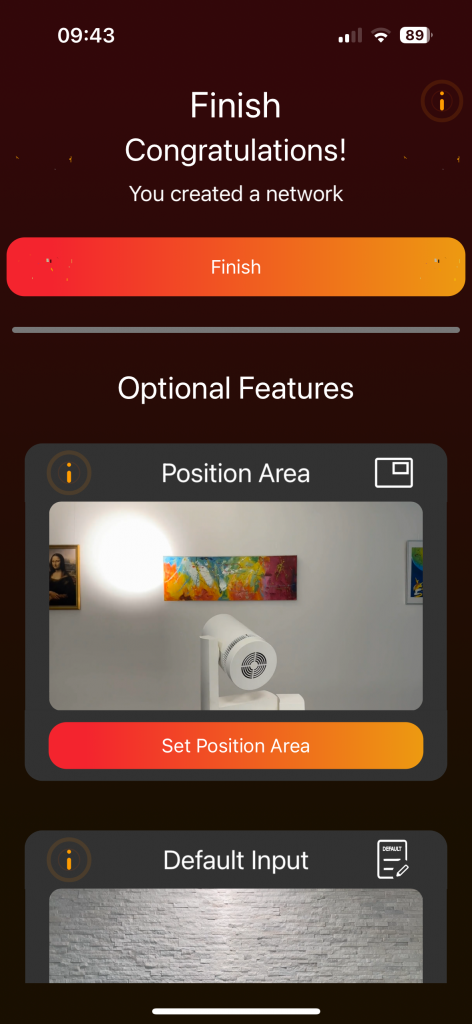
- ›Click „Finish" to conclude the network creation process.
- ›Optional features such as „Position Area", „Default Value", and „FX Range" are accessible below. Detailed explanations can be found in the Settings section.
Control Network
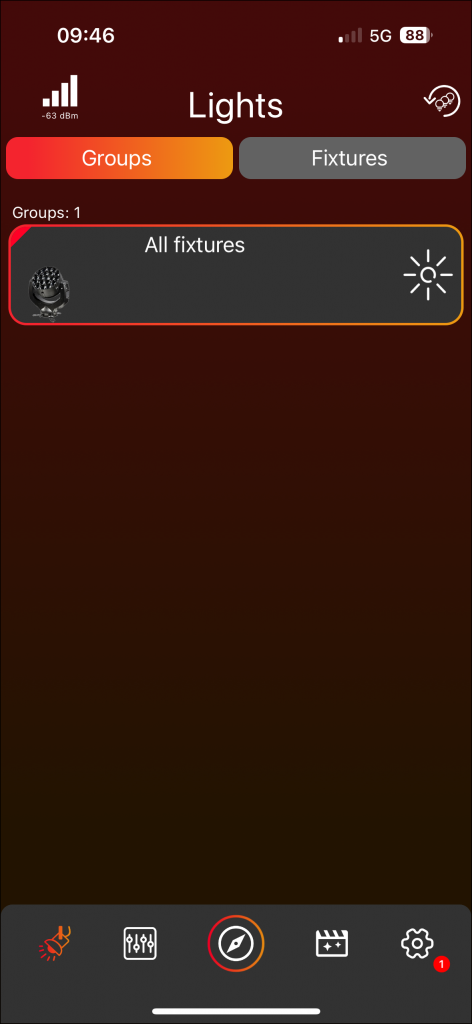
General Information
Wording Lexicon
Pan, Tilt, Zoom, and Light Intensity are referred to as components. Pan and Tilt collectively are referred to as Movement.
Signal Strength

At the top, an icon displays the signal strength to the network.
| Orange loading circle | Not connected but actively searching for the network. |
| Red cross | No connection. Click the icon to search for the network again. |
Reset


- ›3 light bulbs icon: Resets all components for all groups and fixtures.
- ›1 light bulb icon: Resets all components only for selected groups and fixtures.
Highlight


Click the sun to illuminate the fixture or group. While active, the sun is displayed in yellow. Click once more to deactivate.
Fader

Faders are designed to scroll more sensitively based on the touch point's distance to the fader.
Page Navigation (Shell)
Click either the Shell Icon or the associated name to access the page.
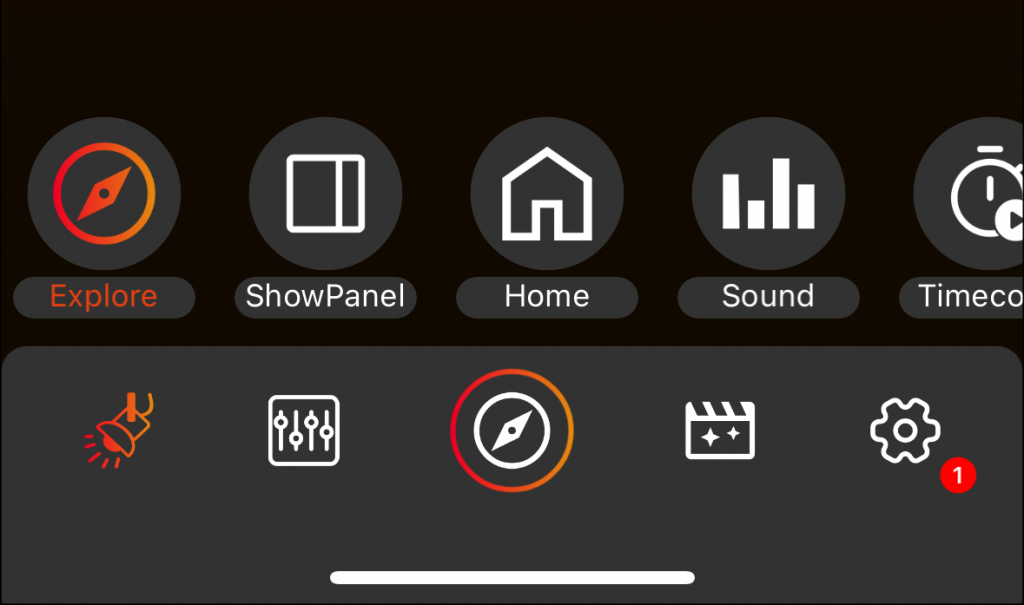
Shell is on the left side. Main pages: Control, Home, Scenes, Settings. Special pages: Explore, Showpanel, Sound, TimeCode. Bottom: Leave Network. The „Control" page combines the Light page and Control page of mobile.
Shell is at the bottom. Main pages: Lights, Control, Special, Scenes, Settings. Special pages (swipe up on special icon): Explore, Showpanel, Home, Sound, TimeCode.
Lights Page
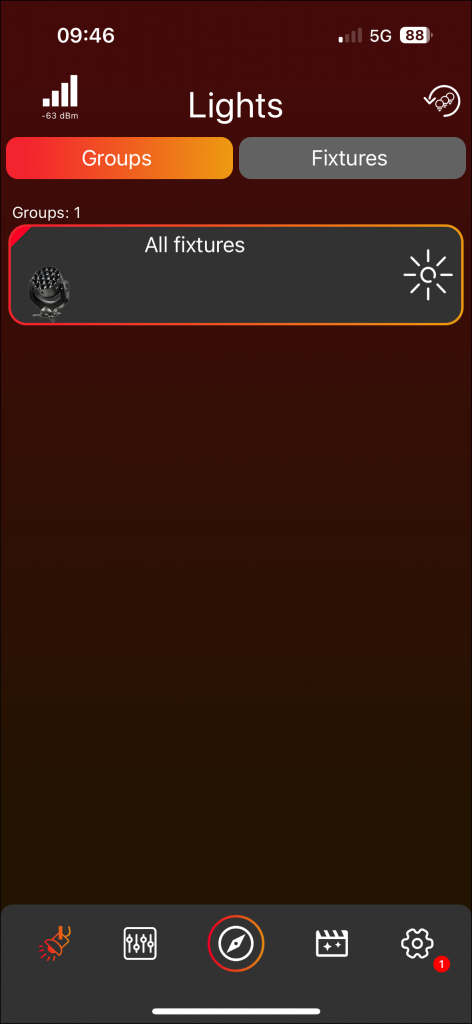
Groups

In the „Groups" tab view, all groups are displayed. Click on a group frame to select or deselect it.
Fixtures

Navigate to the „Fixtures" tab view to see fixtures within the selected groups. If no group is selected, all fixtures in the network are shown.
Example:
Group 1 comprises Fixture 1 and Fixture 2.
- Choose Group 1 → set Light Intensity to 100 → both fixtures illuminate.
- Reset all components.
- Open „Fixtures" tab → select only Fixture 2.
- Set Light Intensity to 100 → only Fixture 2 illuminates.
When „Groups" tab is active, the selected groups dictate control. When „Fixtures" tab is active, control goes to individually selected fixtures.
If a component is set for a group or fixture, small icon „bubbles" appear in the frames. Click on a bubble to delete it.
Highlight

Select the sun icon to highlight a fixture; it illuminates until the sun icon is clicked again. The sun icon turns yellow while active.
Control Page
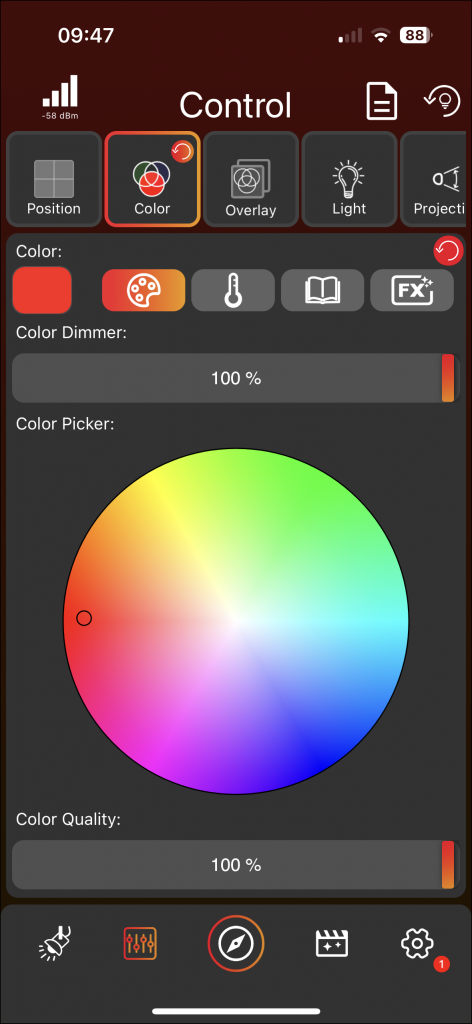
Components Tab View
- ›Click on Position, Color, Overlay, Light, Projection, or Special tabs to access the corresponding views.
- ›The tab view may be scrollable. Only supported components of your fixture will be displayed.
- ›A grey fader cursor indicates a default value; a red‑to‑orange brush cursor indicates a set value.
- ›When multiple groups with different values are selected, fader cursors display in different colors to indicate varied values.

Components Detail
| Position | Color | Overlay | Light | Projection | Special |
|---|---|---|---|---|---|
| Position static | Color (static or FX) | Overlay Intensity (static or FX) | Master Intensity (static or FX) | Zoom static | Fog |
| Position FX | Overlay Pattern | White Intensity (static or FX) | Zoom FX | Fan | |
| Overlay Color | Strobe | Focus | |||
| Overlay Strobe |
Static vs. FX
- ›Position Static vs. FX: Static is adjusted via Joystick, Faders, or 2D plane. FX is set via the FX button — select from different movements centered around the static value.
- ›Zoom Static vs. FX: Static is adjusted via fader. FX is configured using the FX button for different zoom movements centered around the static value.
- ›Color Static vs. FX: A single component that can be either. Static is set via Picker, Temperature, or Color Book. FX is set in the FX section.
- ›Intensities (Master / White / Overlay): Static if set with the fader, FX if set with the FX button.
Reset Specific Component
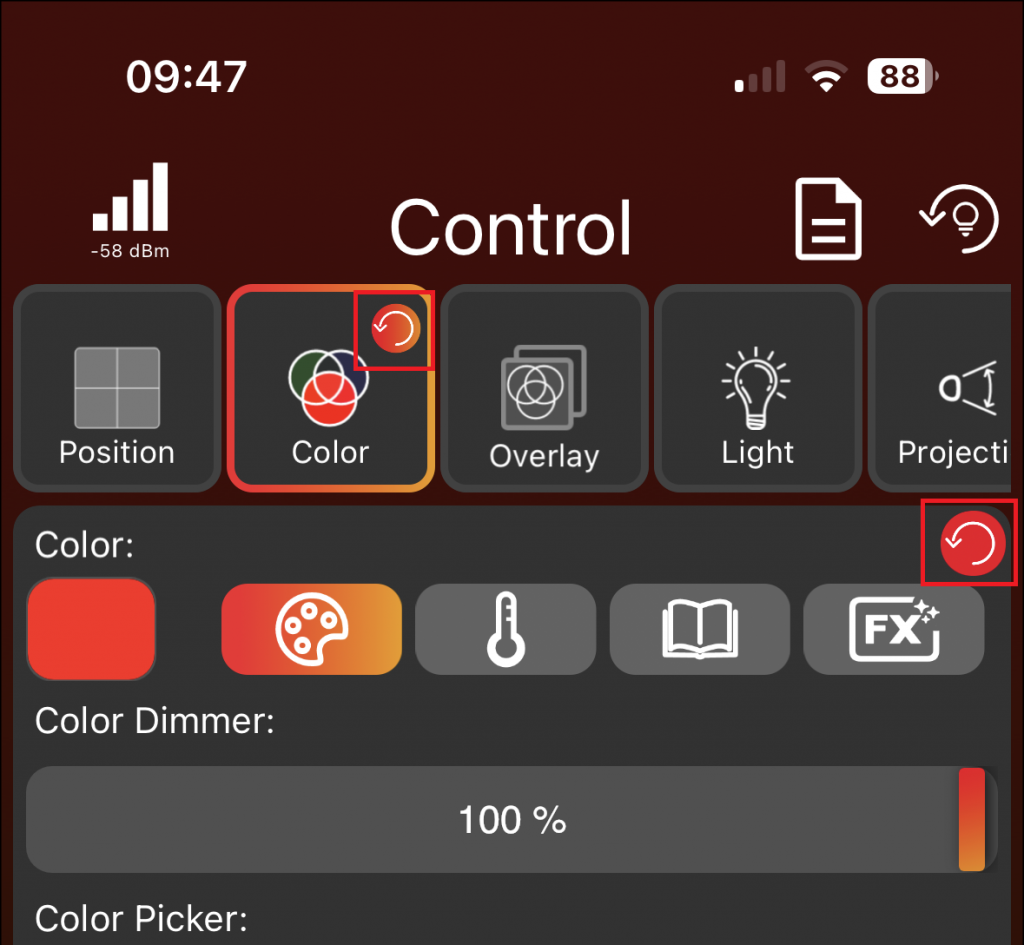
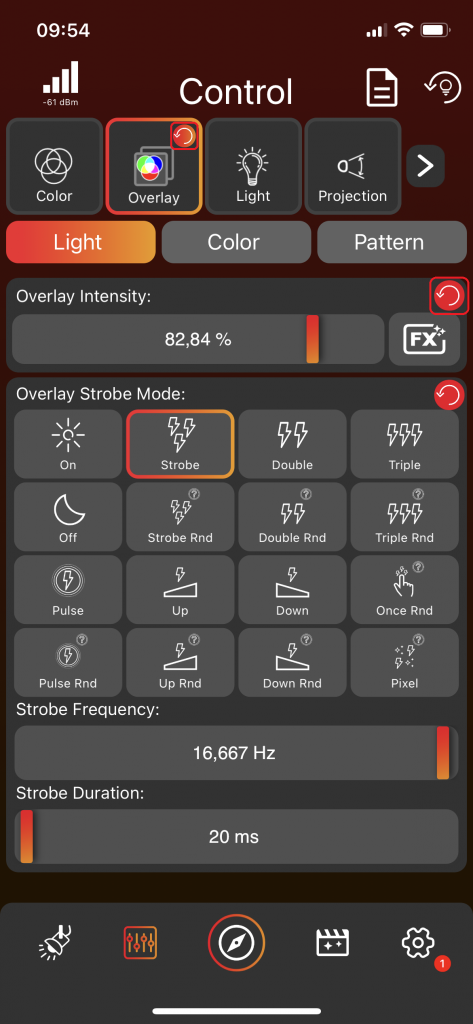
When a component is set, small red/orange circles with a reset icon appear. Click to reset only that component for all selected groups and fixtures. A reset icon in the Tabview resets all components in that tab; a reset icon near a specific component resets only that one.
FX Page Explained
Each FX value consists of up to 6 FX Scenes. The following uses color as an example — other FX components work similarly.
1. Change Color & Dimmer
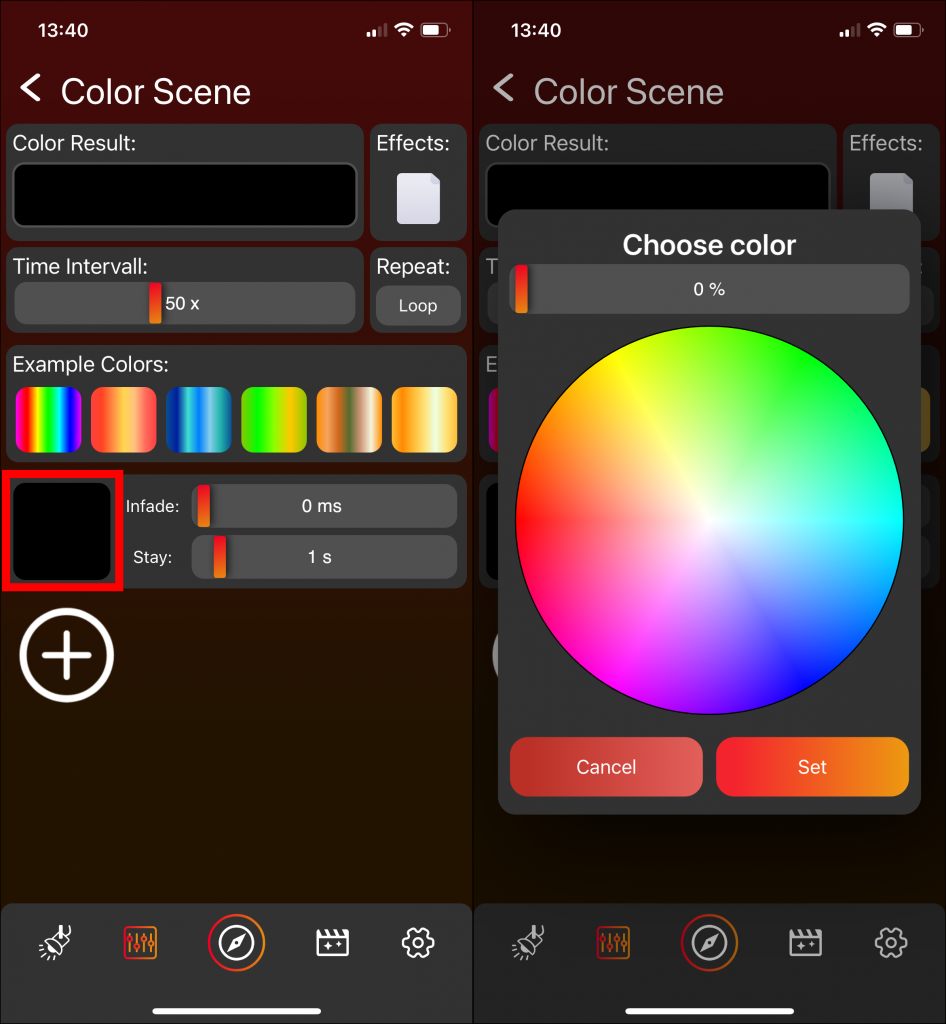
Click on the square on the left to change the color and dimmer value. A popup opens to choose color and dimmer.
2. Change Infade & Stay Time
Adjust using the faders of the FX Scene. Values are relative to the Time Interval value.
3. Add FX Scenes

Click the plus icon to add more FX Scenes (up to 6).
4. Delete FX Scene
Click the minus icon to delete the last FX Scene.
5. Change Speed
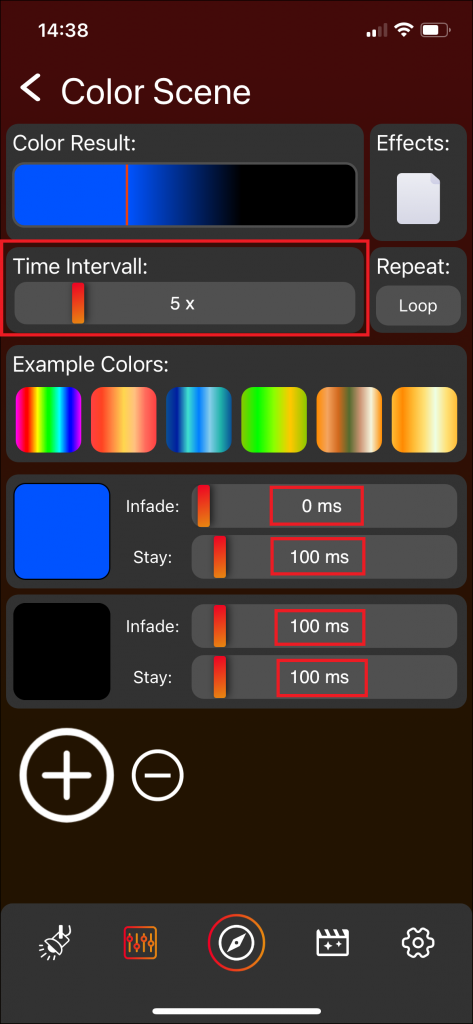
Adjust with the Time Interval fader. A smaller value indicates higher speed. Changes affect the Infade and Stay Time of each FX Scene.
6. Result
The Color Result on top shows a combination of all FX Scenes as an overview.
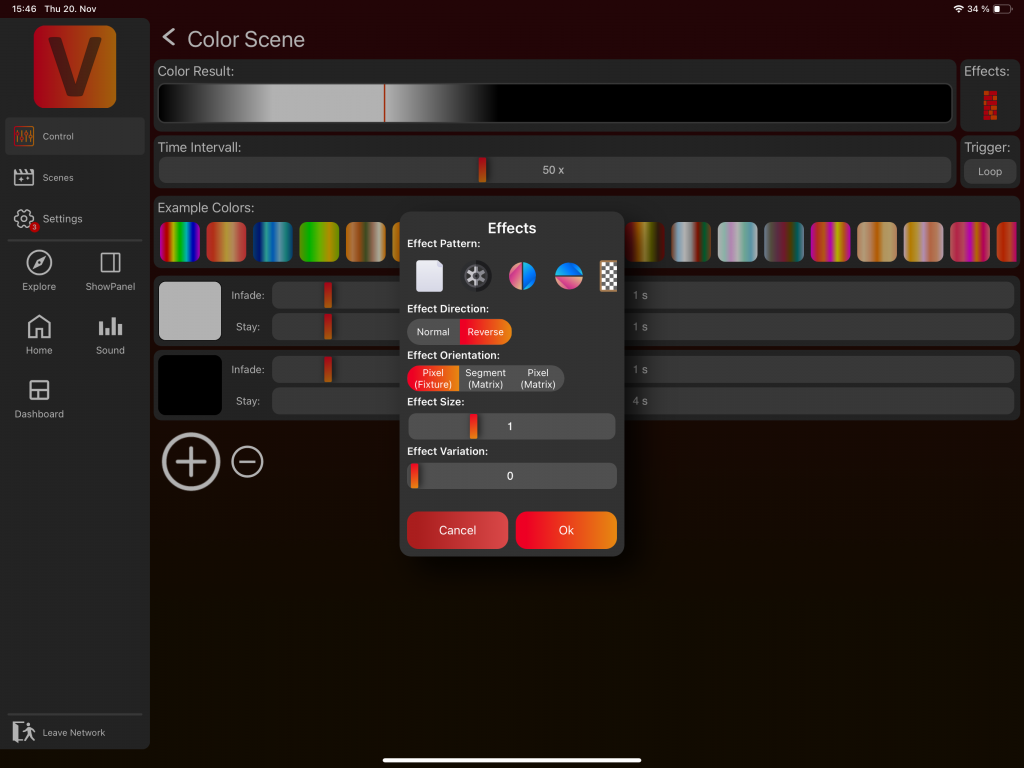
7. Effects
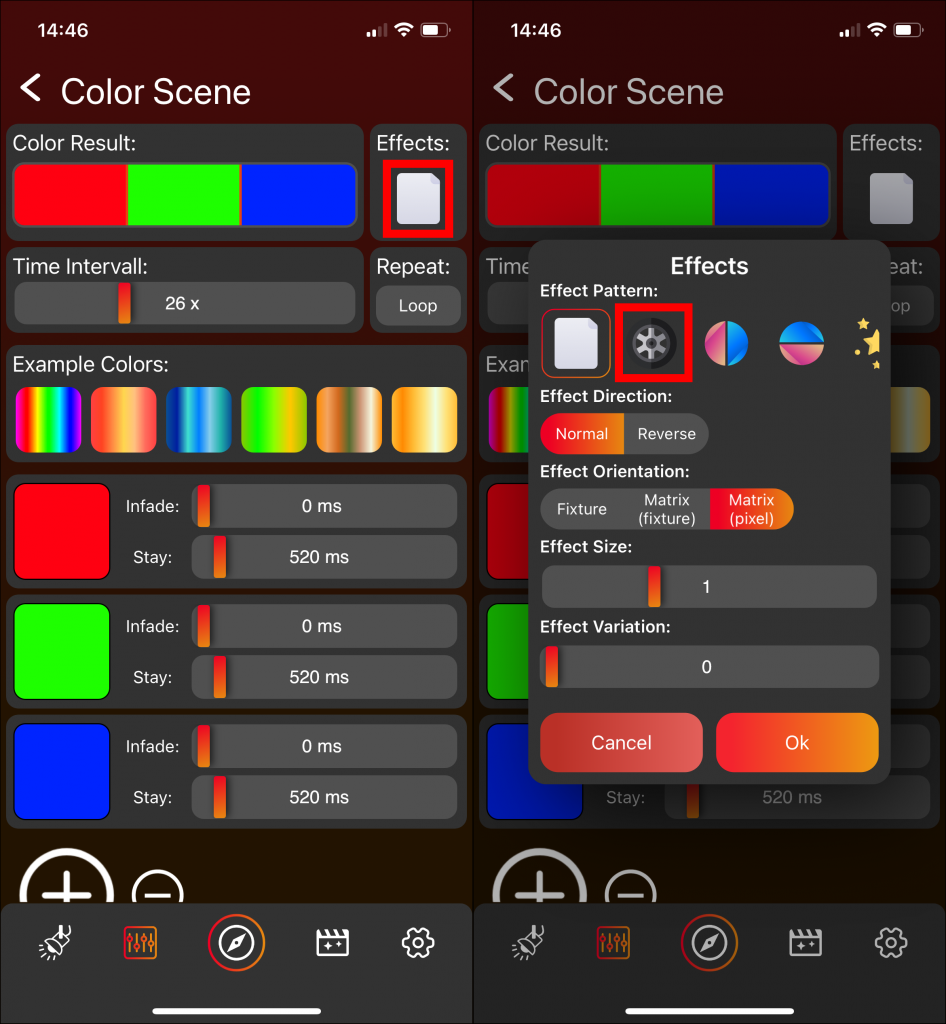
By default, FX Scenes play sequentially. Select a Pattern (e.g. „Wall") to stretch the FX Scenes across the available space. Effect Orientation options:
- ›Pixel (Fixture): Each fixture separately displays the effect.
- ›Pixel (Matrix): All fixtures form a matrix with individual pixel control.
- ›Segment (Matrix): All fixtures form a matrix with whole-fixture segments.
8. Repeat
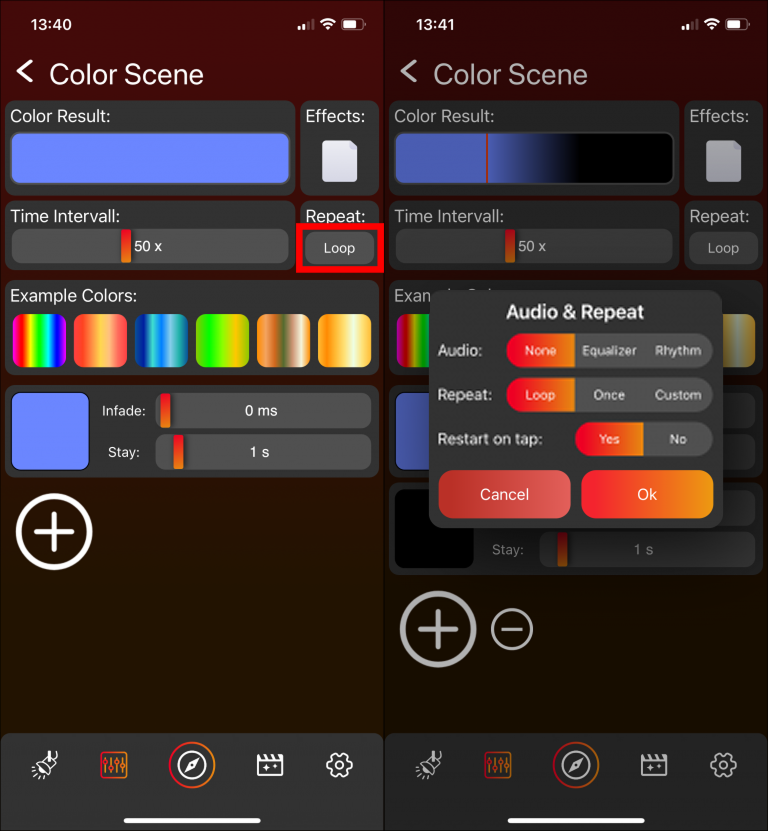
Set the repeat count. The default value is a loop.
9. Example Colors

Select from one of the example FX Color Scenes.
Sound Effects
Create custom sound effects. The examples use the Color component, but you can create sound-based effects with any FX-capable component (Master Intensity, Zoom, etc.).
Volume/Amplitude-Based Color Sound Effect
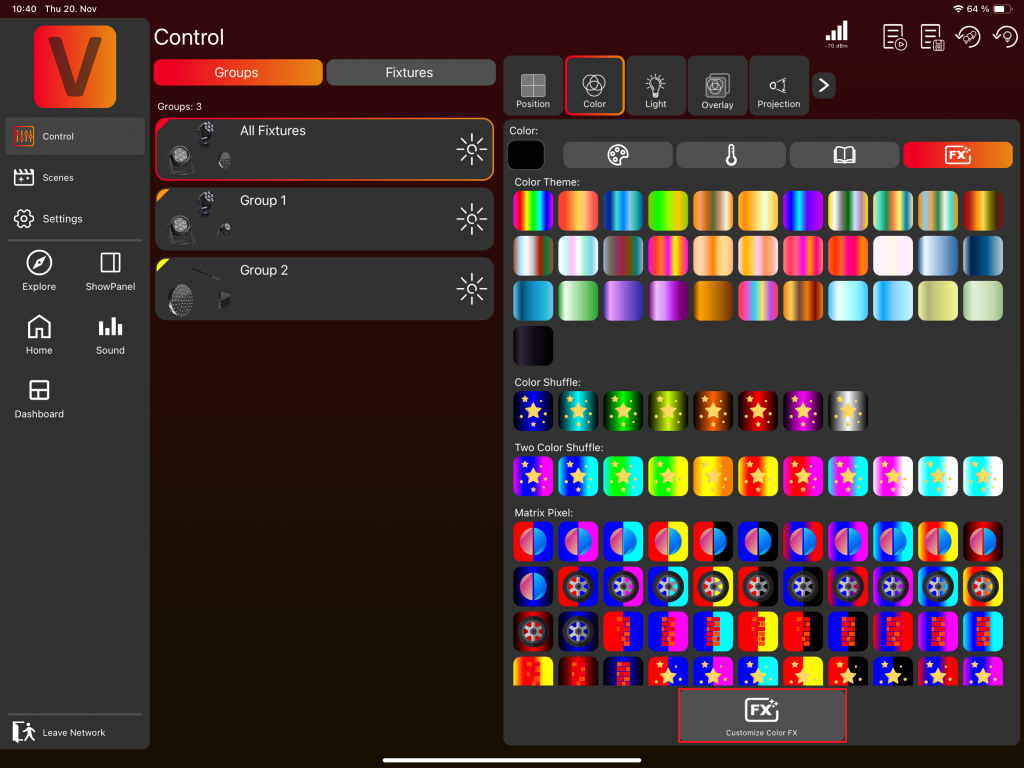
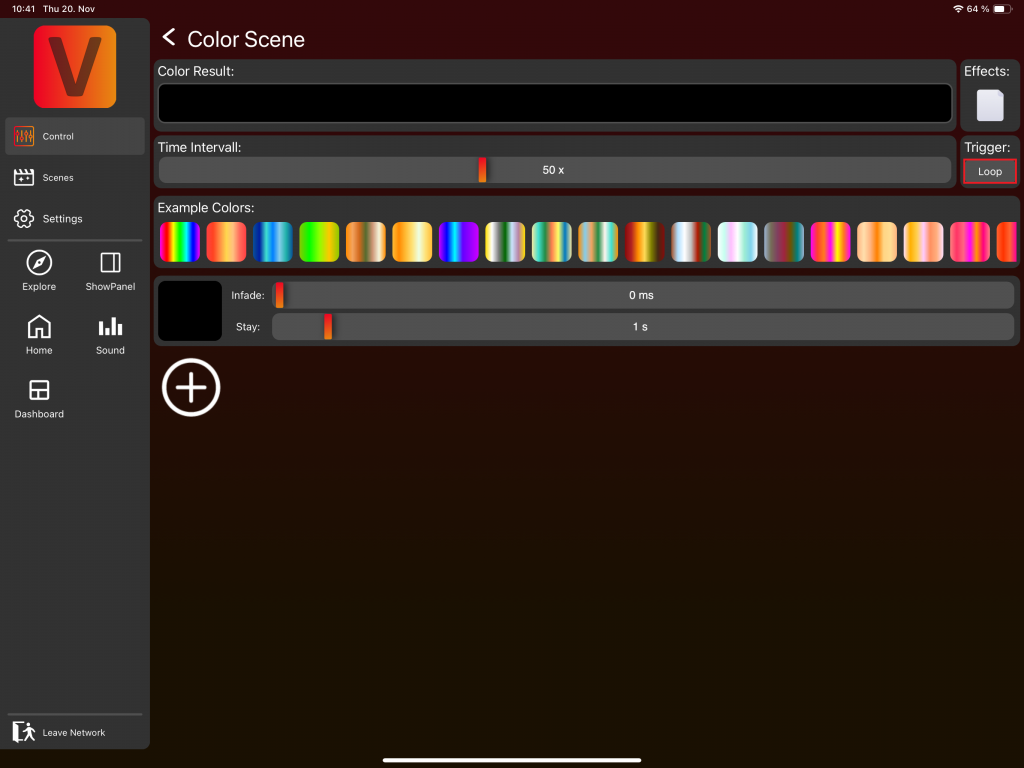
- Navigate to Customize Color FX.
- Click on the trigger „Loop". A popup will appear.
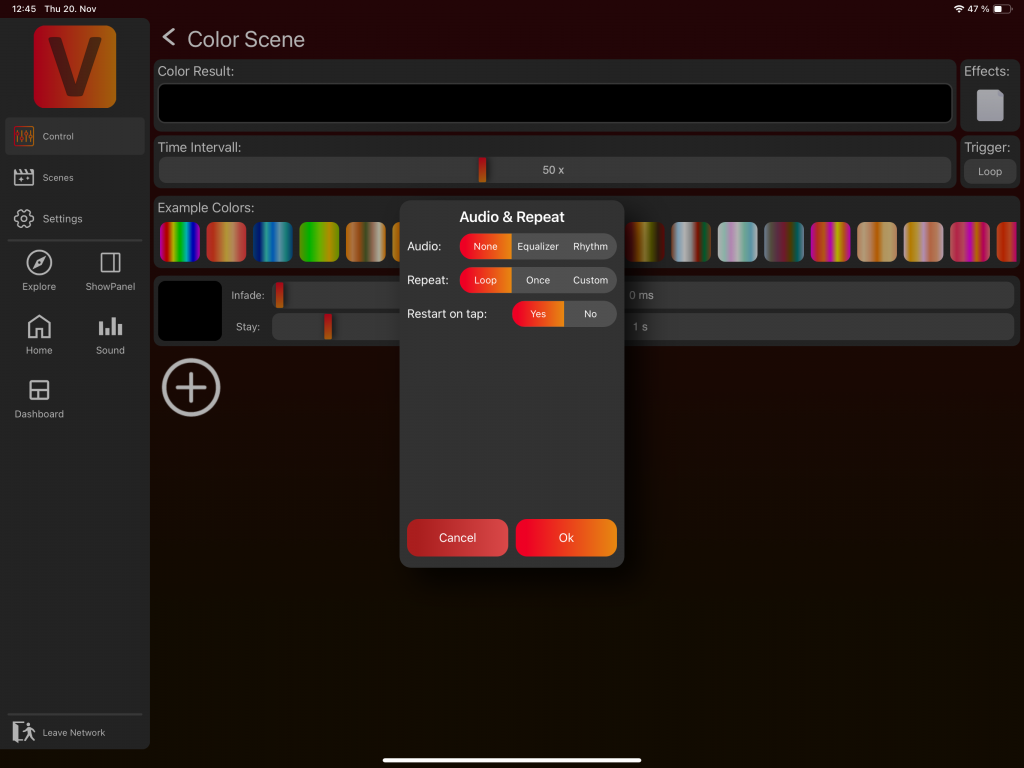
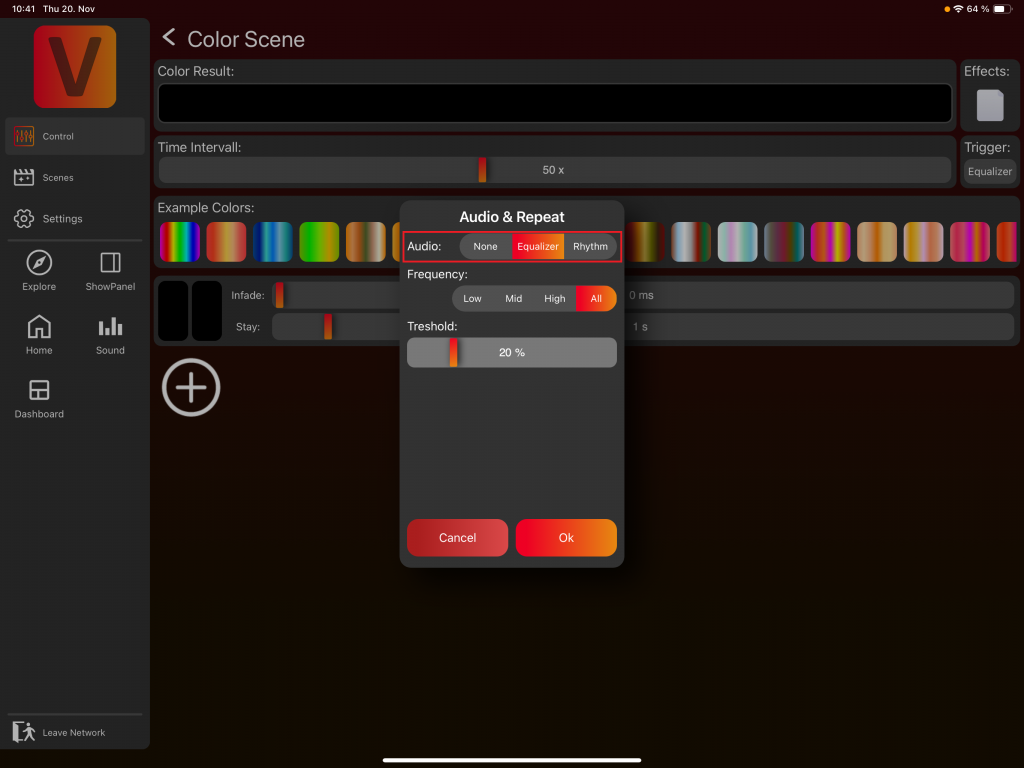
- Select Equalizer to create a volume-based sound effect.
- Choose the frequency range: Low (Bass), Mid (Midrange), High (Treble), or Full Band.
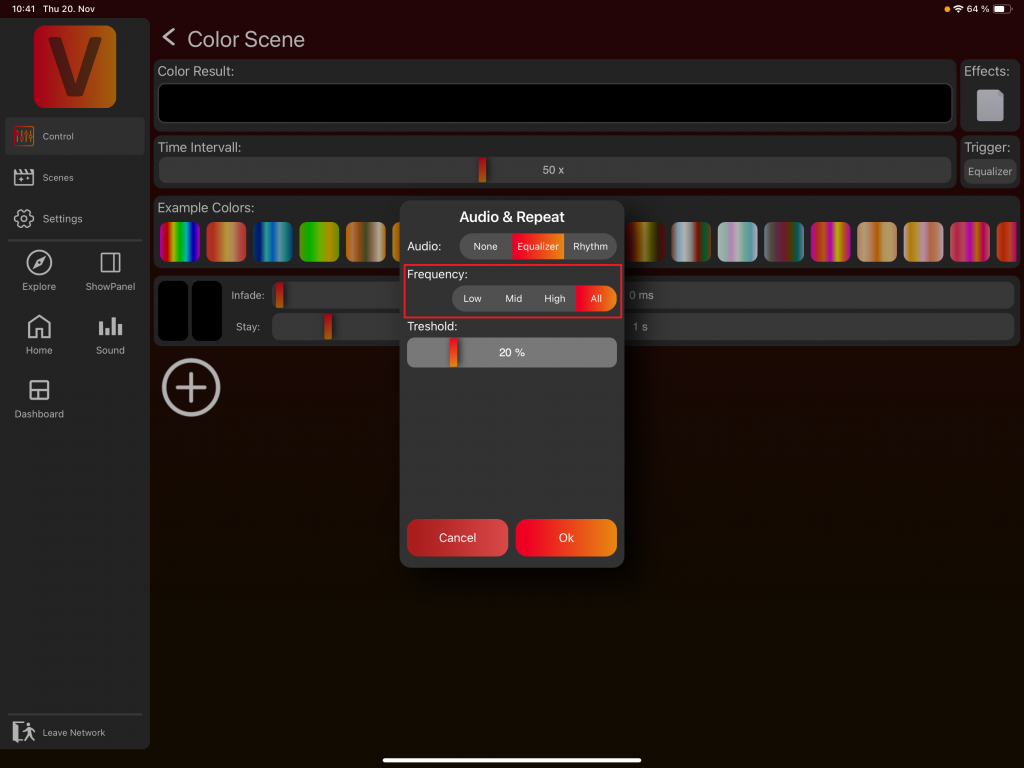
- Set the volume threshold (20% is a good default).
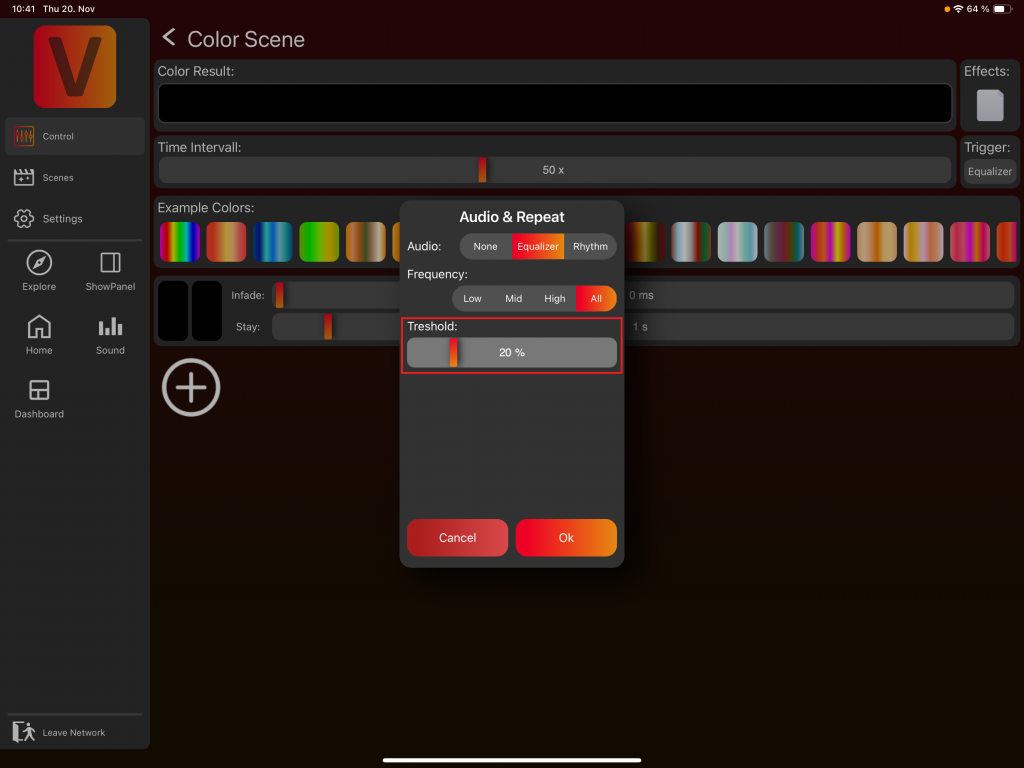
- Close the popup.
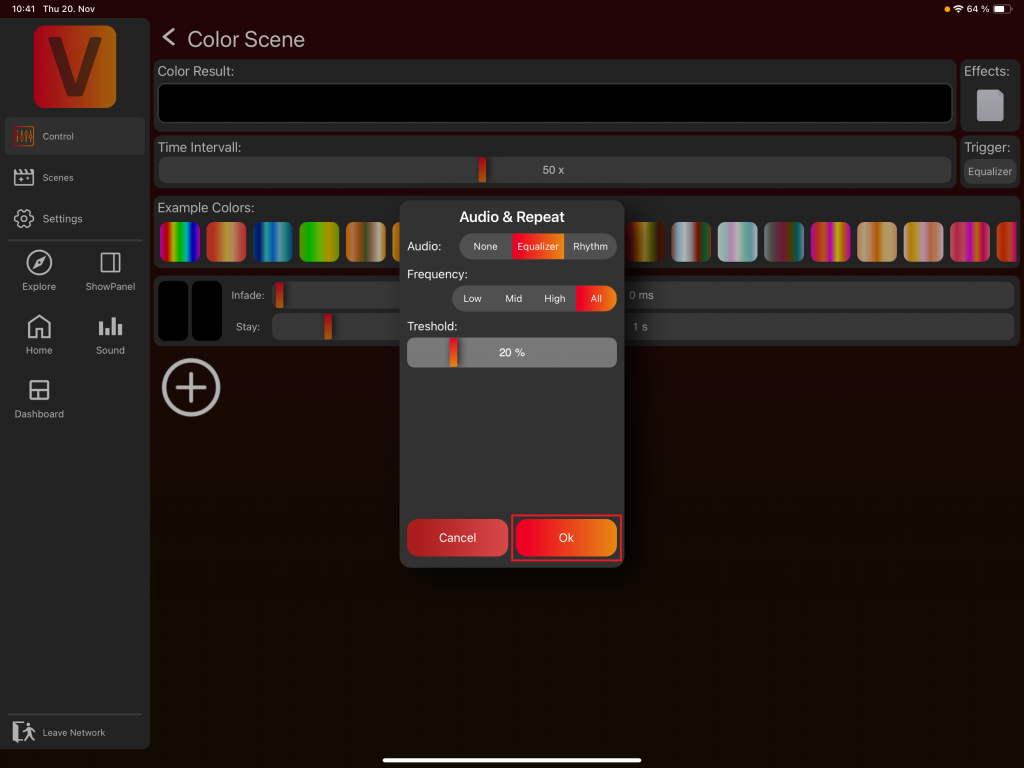
- Select a minimum color and a maximum color (e.g. Black → White).
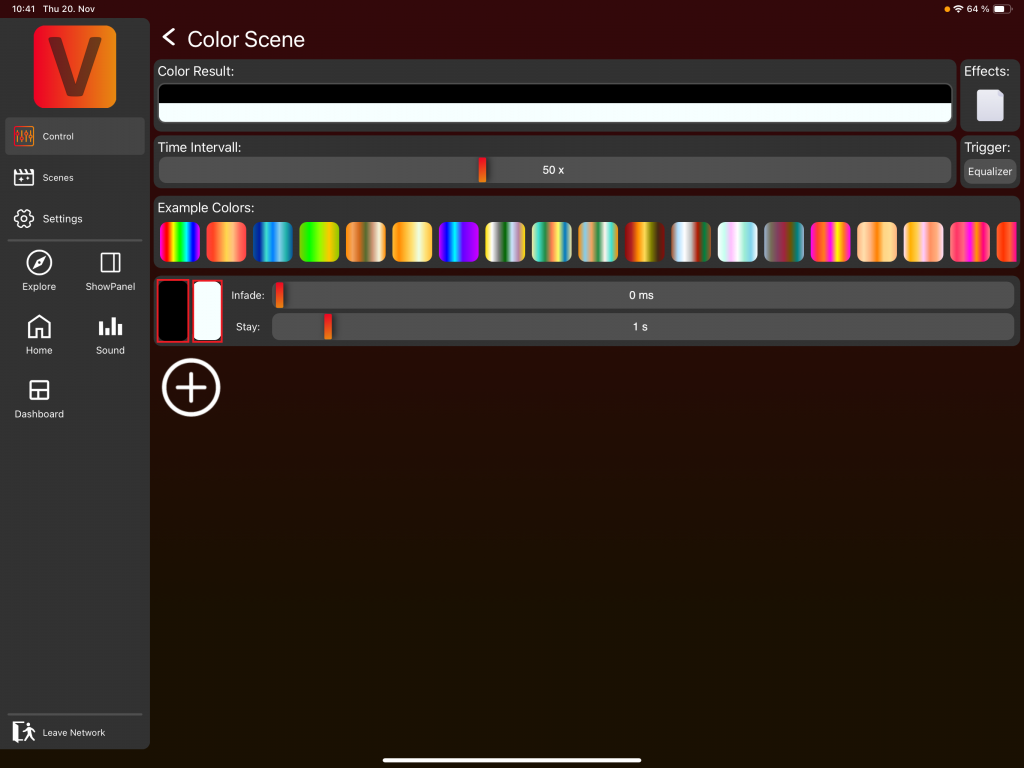
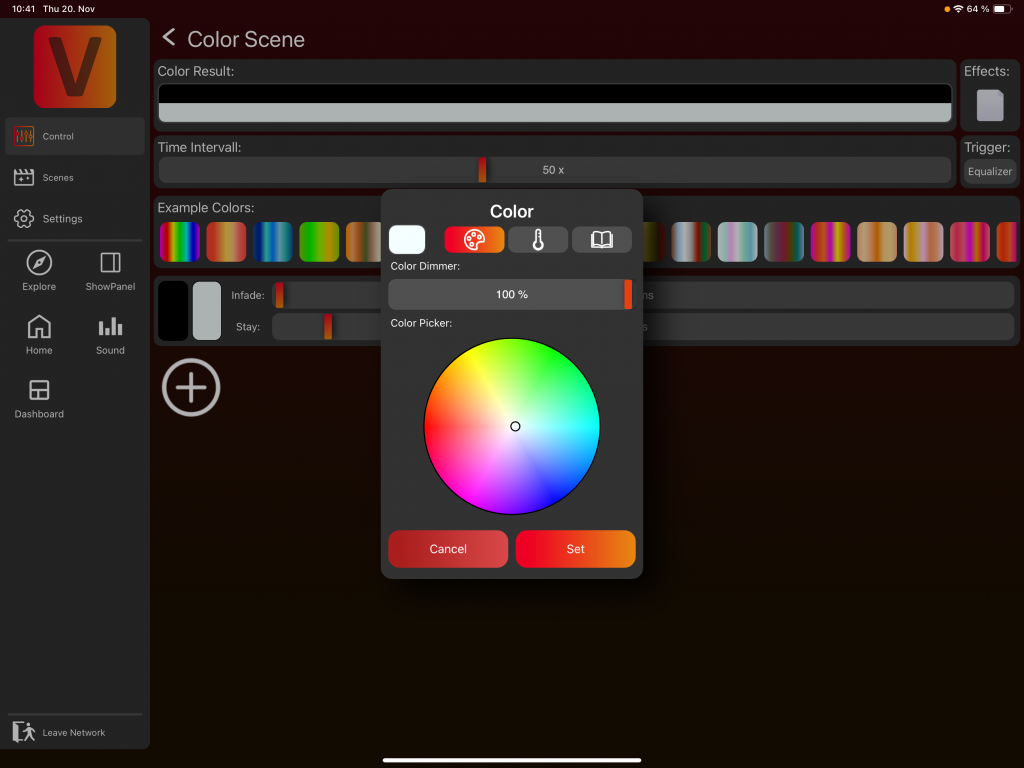
How it works:
The app continuously measures volume over the last 20 seconds and determines the range between lowest and highest values. The effect starts with the minimum color once volume reaches the threshold. At 0–20% volume, nothing happens (below threshold). Just above 20%, the minimum color is shown. At 100%, the maximum color is shown. Everything in between is a mix.
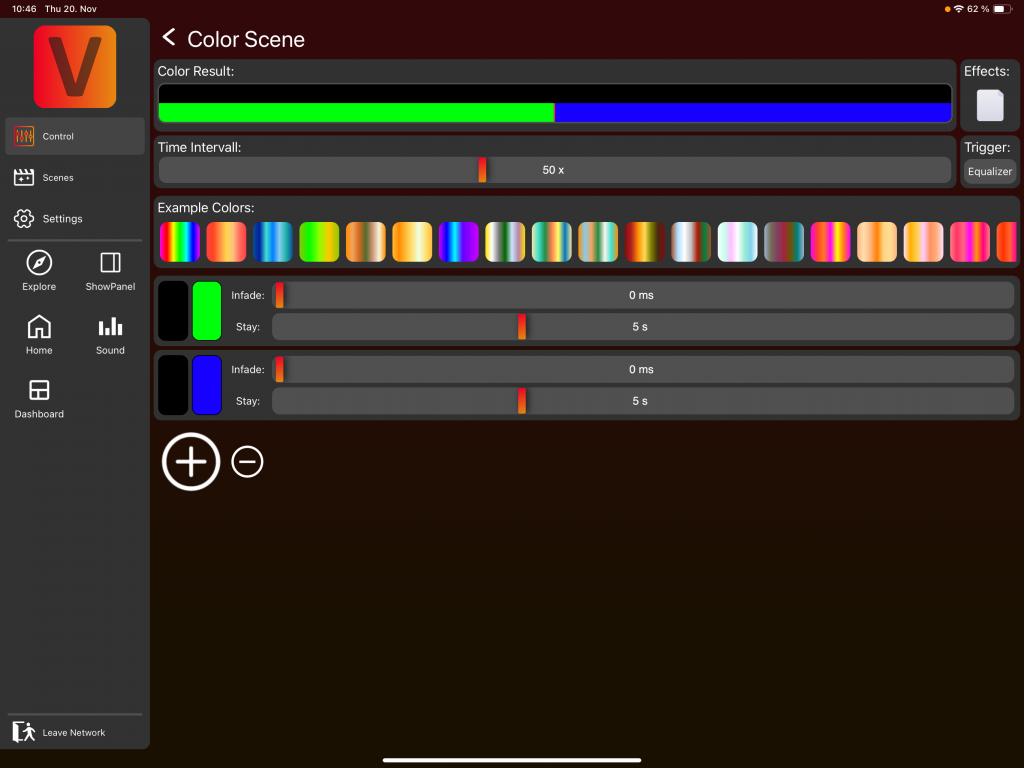
You can make the effect more advanced by using multiple FX scenes. For example:
- Scene 1: Black → Green (5-second stay time)
- Scene 2: Black → Blue (5-second stay time)
During the first 5 seconds, the color transitions from black to green based on the volume. During the next 5 seconds, it transitions from black to blue.
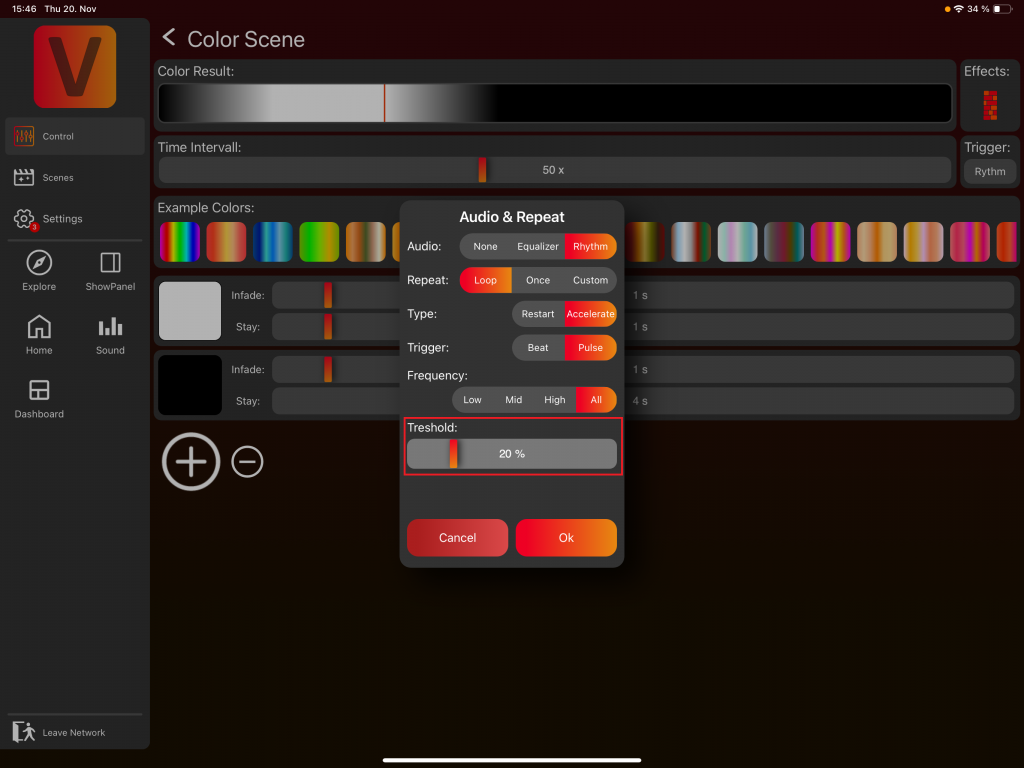
Rhythm-Based Color Sound Effect
- Navigate to Customize Color FX.
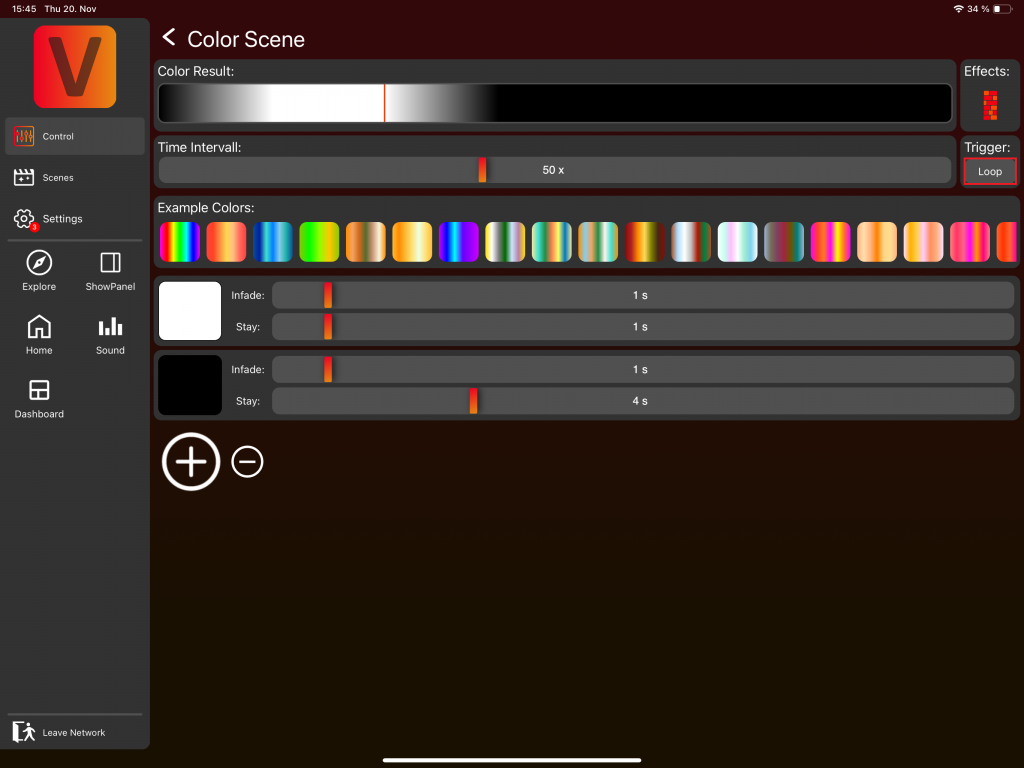
- Create your base dynamic effect (e.g. a wall effect with white followed by black).
- Click on the trigger „Loop". A popup will appear.
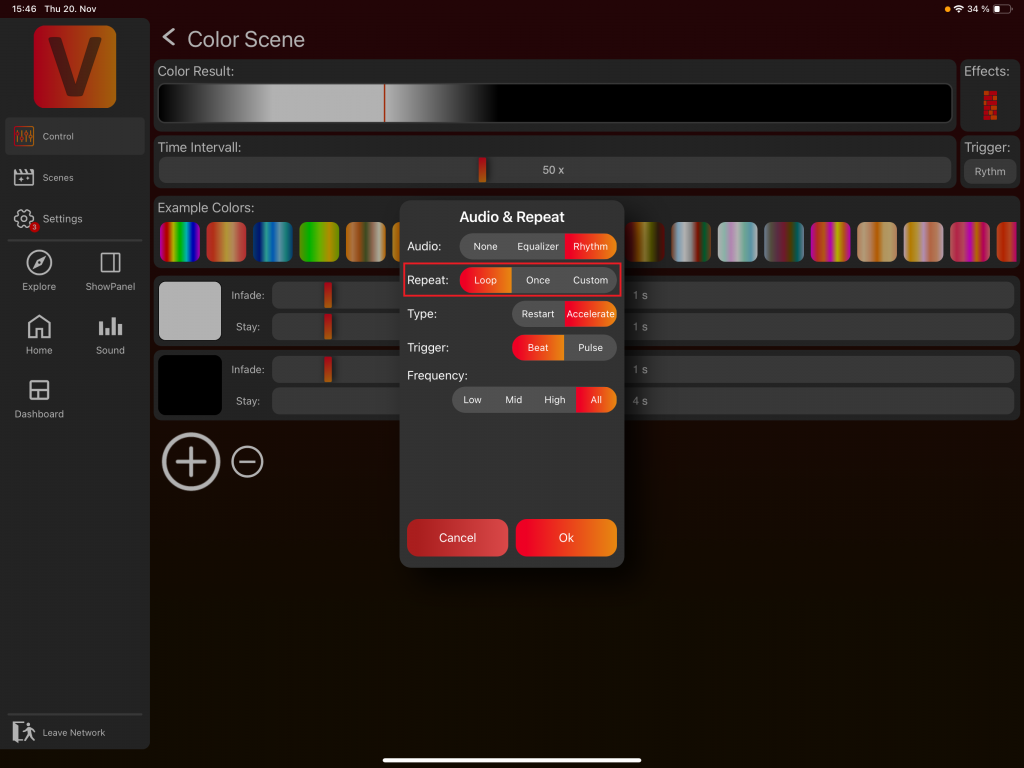
- Select Rhythm to create a rhythm-based sound effect.
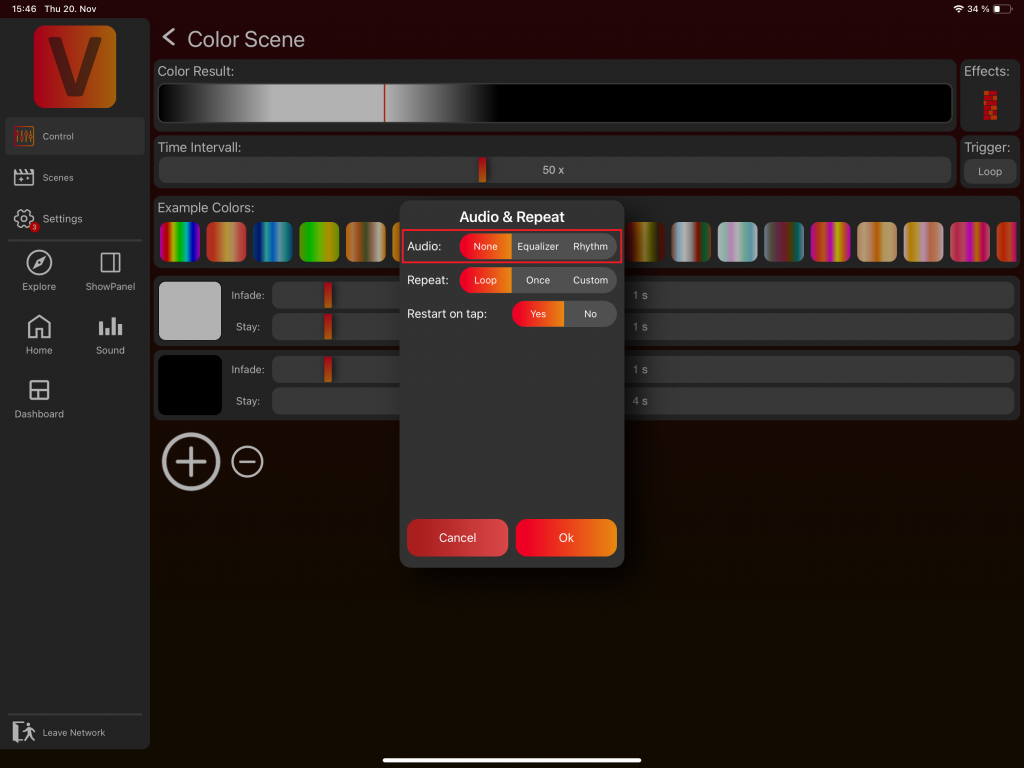
- Choose a repeat count (typically Loop for endless).
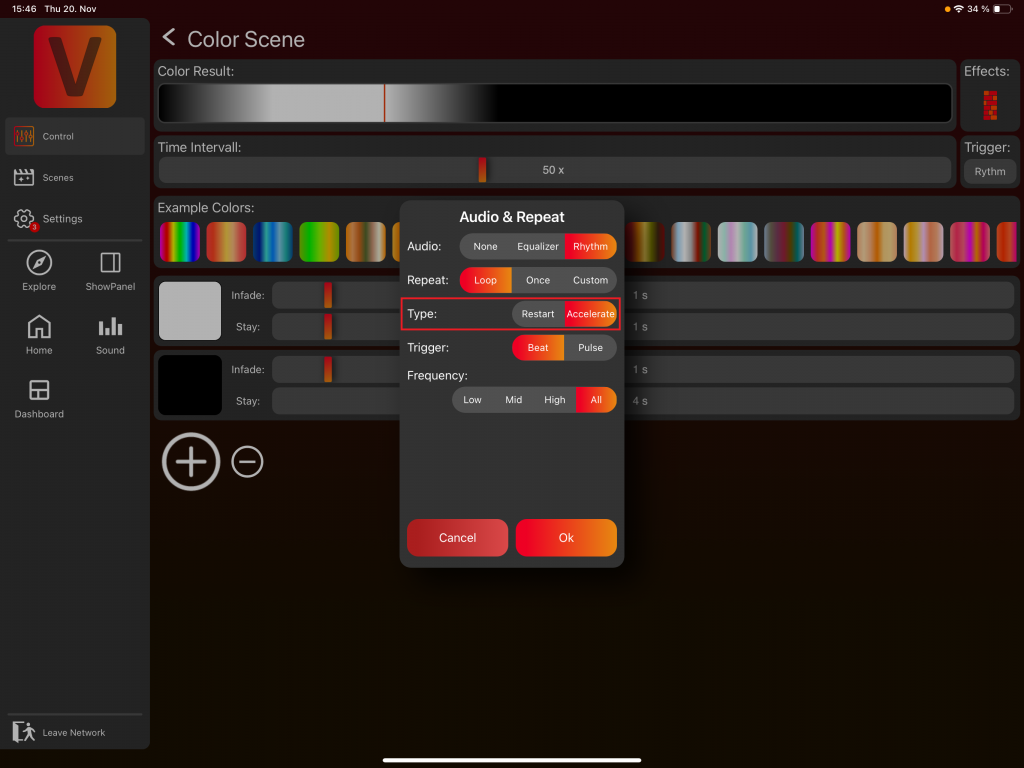
- Define the trigger type:
- Restart: Effect restarts from the beginning when triggered.
- Accelerate: Effect briefly speeds up when triggered.
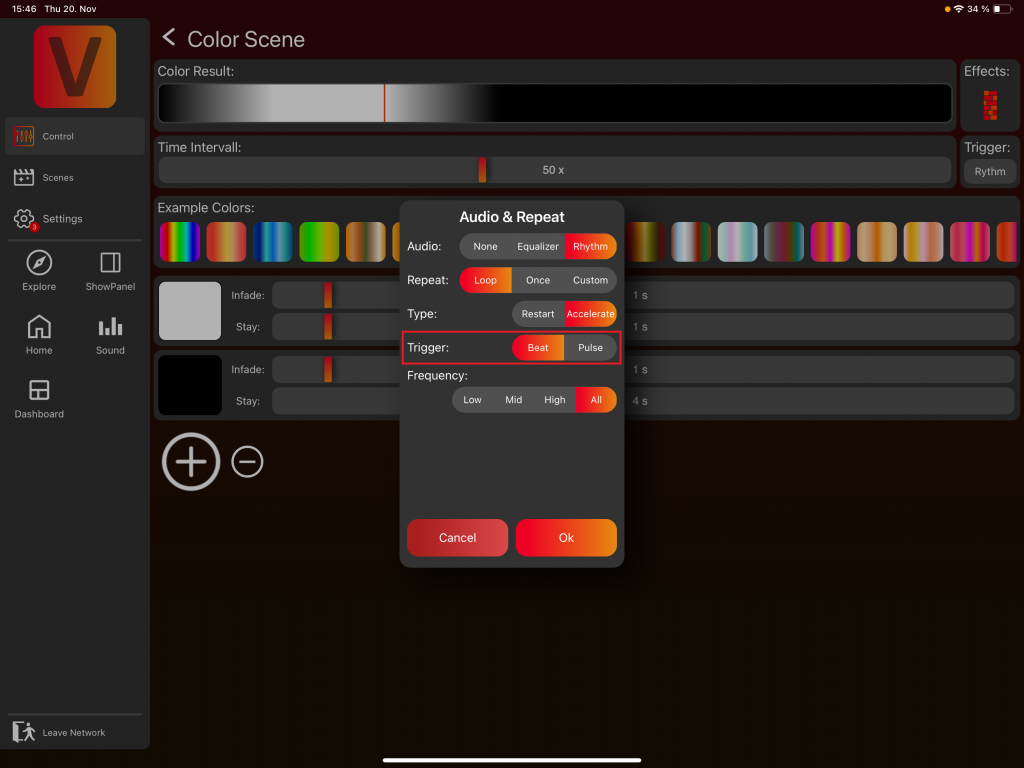
- Choose the trigger: Beat (detects repeating beat patterns) or Pulse (reacts to individual audio peaks).
- Select the frequency range.
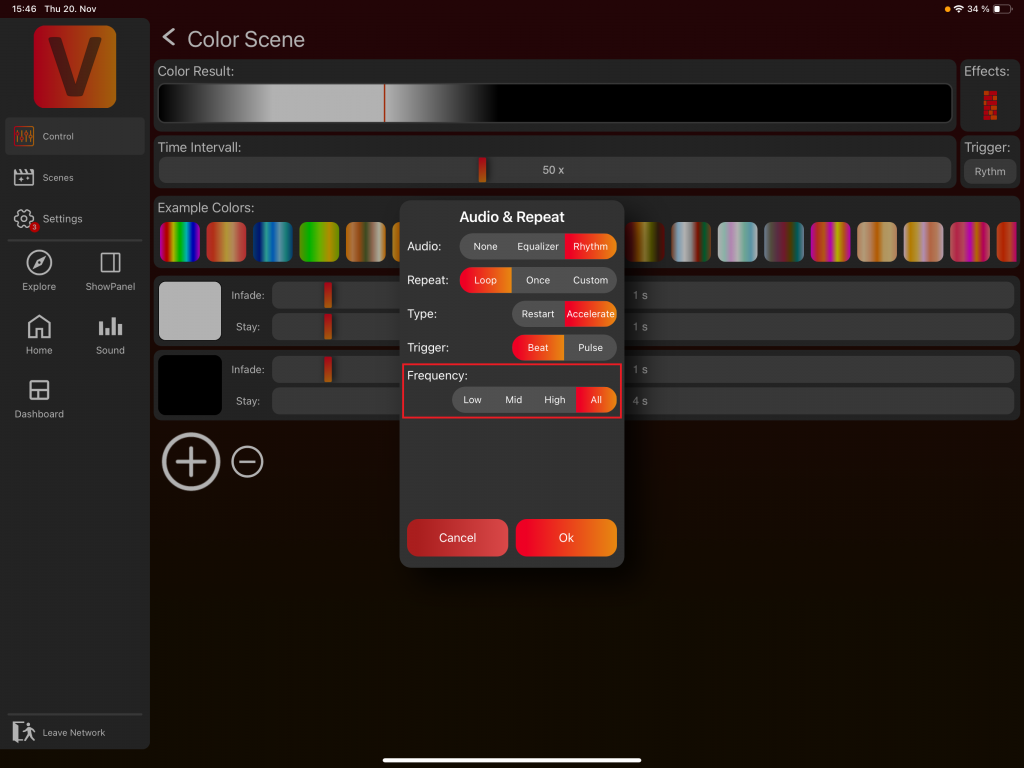
- If Pulse is selected, set the volume threshold (20% is a good default).
App Pages
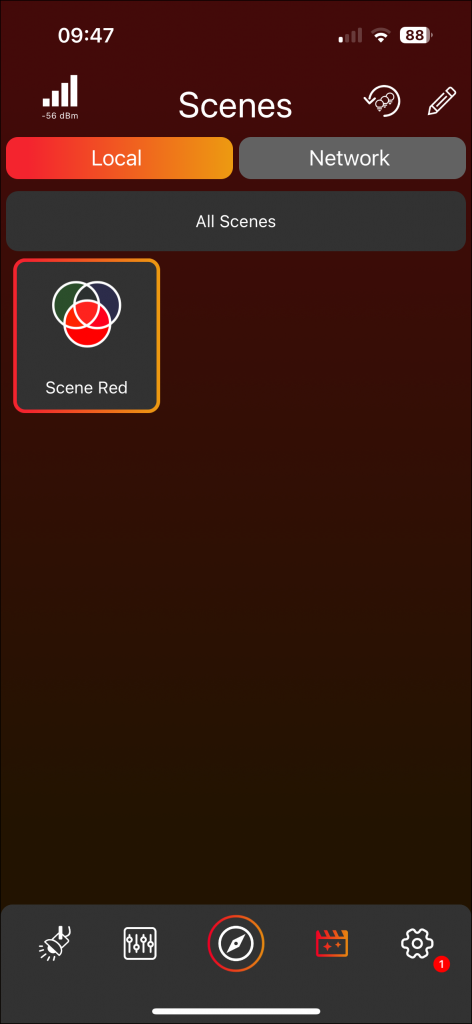
Scenes Page
Page Division
- ›Local: Stored on your local device (phone/tablet).
- ›Network: Stored in the cloud for the current network (requires internet). Allows seamless device transitions and collaboration.
Edit Mode
Click the edit pencil at the top to enter edit mode (checkmark to deactivate). Edit mode enables creation, renaming, and deletion of scenes, sequences, and folders.
Folder Item
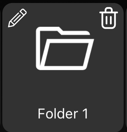
- ›Click to view contents. In edit mode: trash icon to delete (empty folder first), pencil to rename.
- ›Subfolders, scenes, and sequences can be organized within.
Scene & Sequence Item
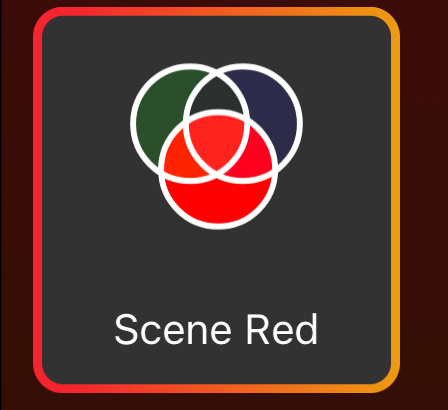

- ›Click to activate; click again to deactivate.
- ›Center bubbles represent the scene/sequence components.
- ›A „Blank" icon (bottom left) means „leave blank" for unused components was selected.
- ›A play icon (bottom right) distinguishes sequence items from scene items.
Create Scene
- Go to the Lights Page and select the groups or fixtures for the scene.
- Move to the Control Page and set the desired components.
- Click the edit pencil, then the plus icon, and choose „Scene."
- Click on component bubbles in the frames to remove them. Use „Restore" to undo removals.
- Add a name and set an infade time with the fader or „Set" button.
- Choose the trigger: Set (toggle on/off) or Flash (active only while pressed).
- Choose what happens with unused components:
- Set default: Saves default values of unused components.
- Leave blank: Does not save unused components.
- Custom: Decide per component individually.
- Click the save icon to complete.
Create Sequence
- Provide a name and set repetition frequency.
- Specify an overall infade time and choose trigger (Set / Flash).
- Choose unused component handling.
- Add scenes to the sequence. There are two ways:
From existing Scenes
The Scene page opens — select the desired scene. A popup will ask whether to Link Scene (changes to the original are reflected) or Copy Scene (independent duplicate).
From current Control Page
A new page opens where you create a new scene from the current groups/fixtures and their components. Click the save icon. This scene will only be saved within the sequence.
- Add up to six scenes. Click each to adjust infade and stay time. Note that the infade time is separate from the stay time (e.g. 2s infade + 5s stay = the scene fades in over 2 seconds then stays for 5).
- Use the trash icon to delete and arrows to reorder scenes.
- Click „Save" to store the sequence.
Activation Logic
„Set default" example:
Scene 1 = dimmer 100, Scene 2 = pan 100. Activating Scene 1 illuminates; activating Scene 2 stops illumination and moves pan. Only Scene 2 is active. Deactivating Scene 2 returns to defaults.
„Leave blank" example:
Scene 1 = dimmer 100, Scene 2 = pan 100. Activating Scene 1 illuminates; activating Scene 2 moves pan but fixture stays illuminated. Both scenes are active. Deactivating Scene 2 returns pan; Scene 1 stays active. Deactivating Scene 1 stops illumination.
Settings Page
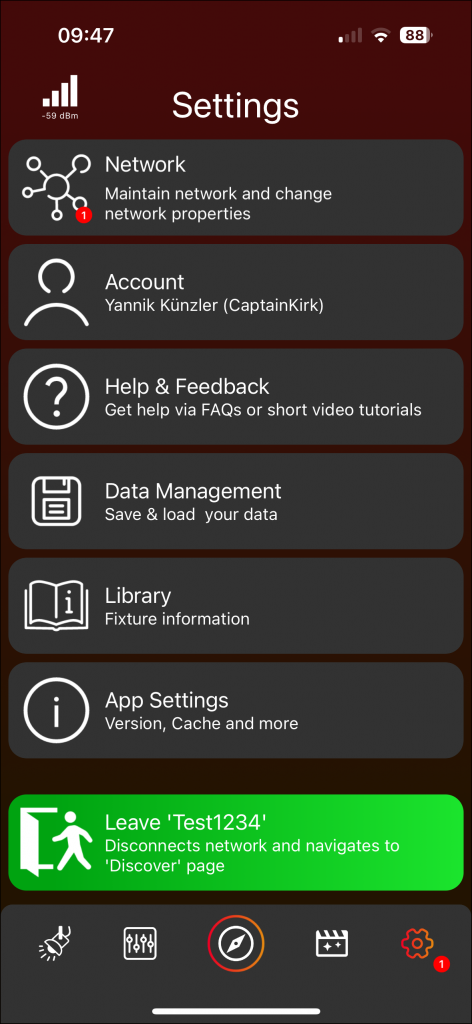
Network Settings
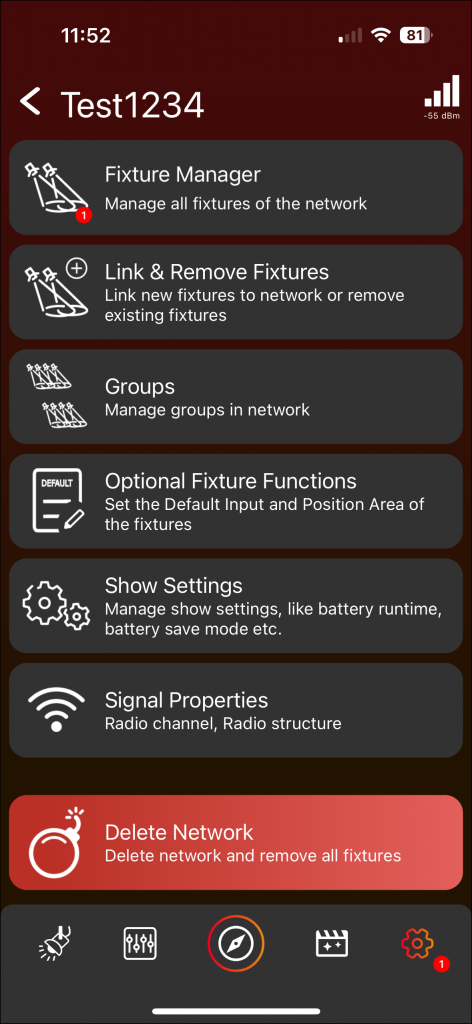
Fixture Manager
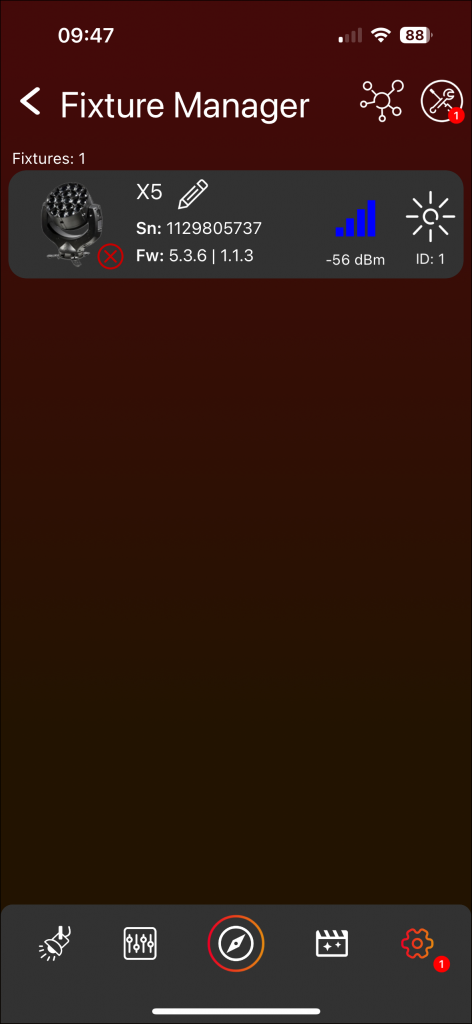
- ›View all network fixtures. A red-bordered frame indicates a non-responsive fixture (turned off, too far away, or unlinked).
- ›Swipe down (mobile) or press Refresh (desktop) to rescan.
- ›Tools Icon: Fixture Updates and RDM Manager (affects all fixtures in the network). Vision Updates must be done from the Discover Page.
- ›Network Icon: Restructure the network (advanced). This eliminates currently unavailable fixtures.
- ›Click a fixture frame for details, sun icon to highlight, or name to rename.
Link & Remove Fixtures
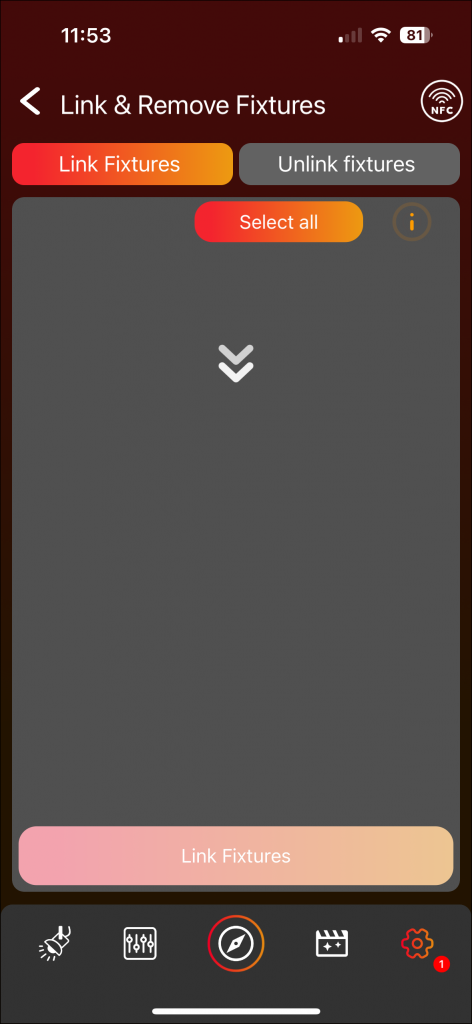
Left tab shows unlinked fixtures; right tab shows linked. Scan, highlight, select and link. Removing requires an active connection.
Groups
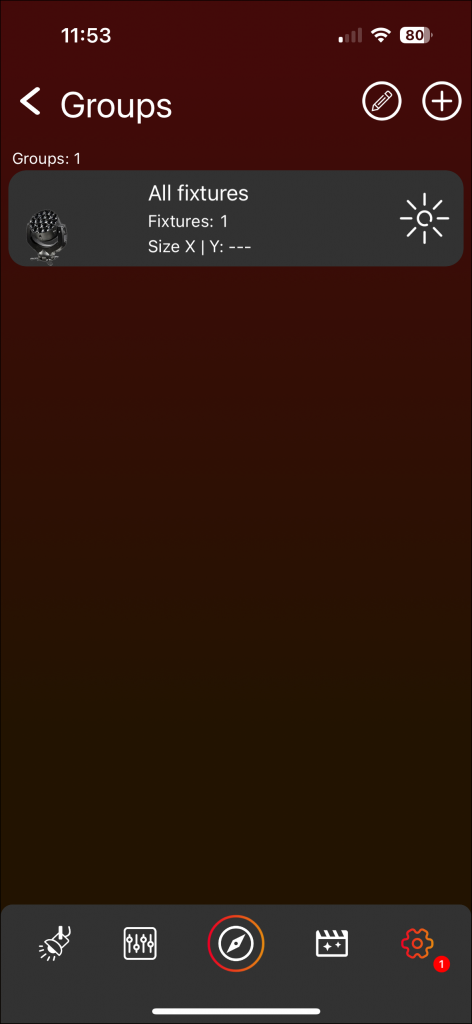
Manage groups (same as during network creation). Up to 7 groups. Position fixtures for matrix effects.
Optional Fixture Functions
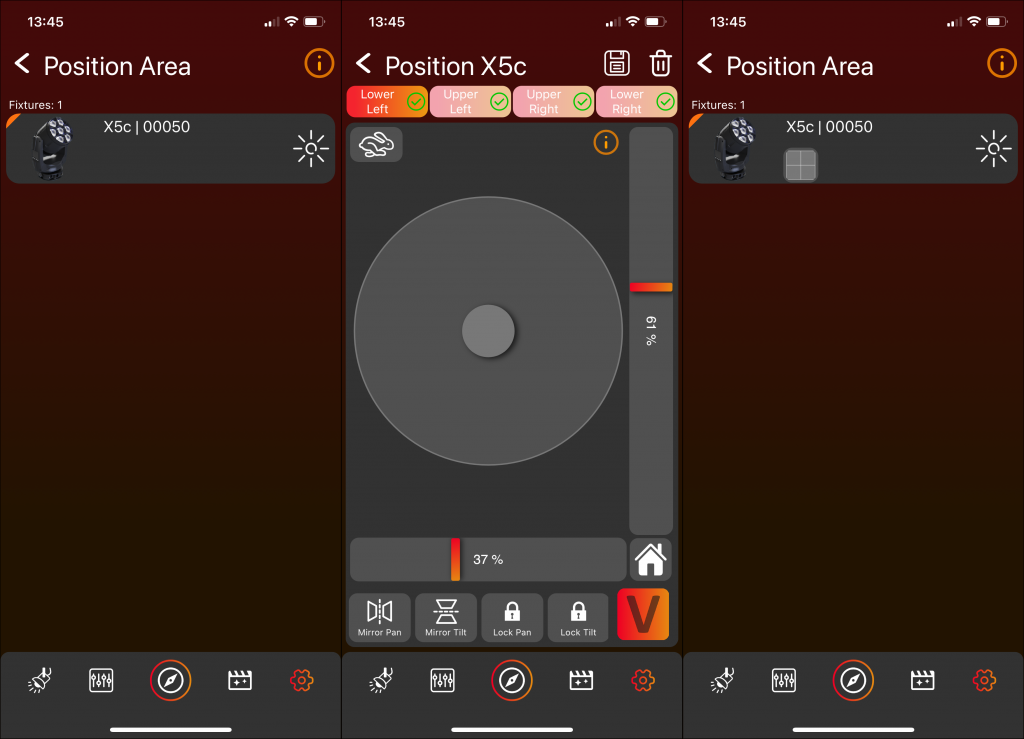
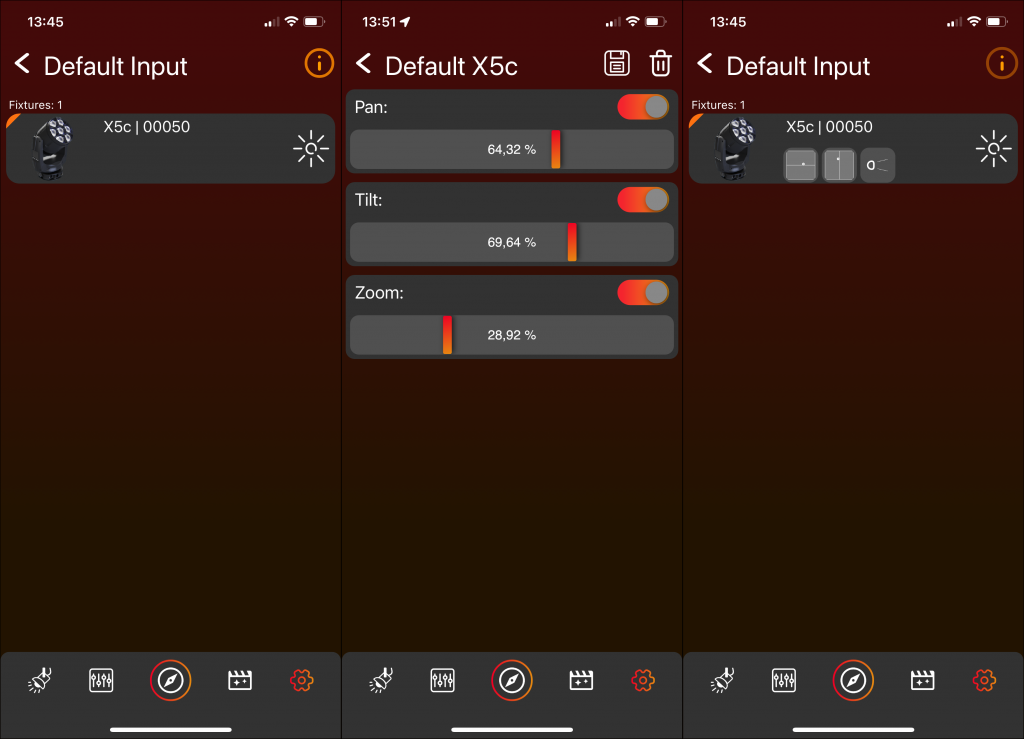
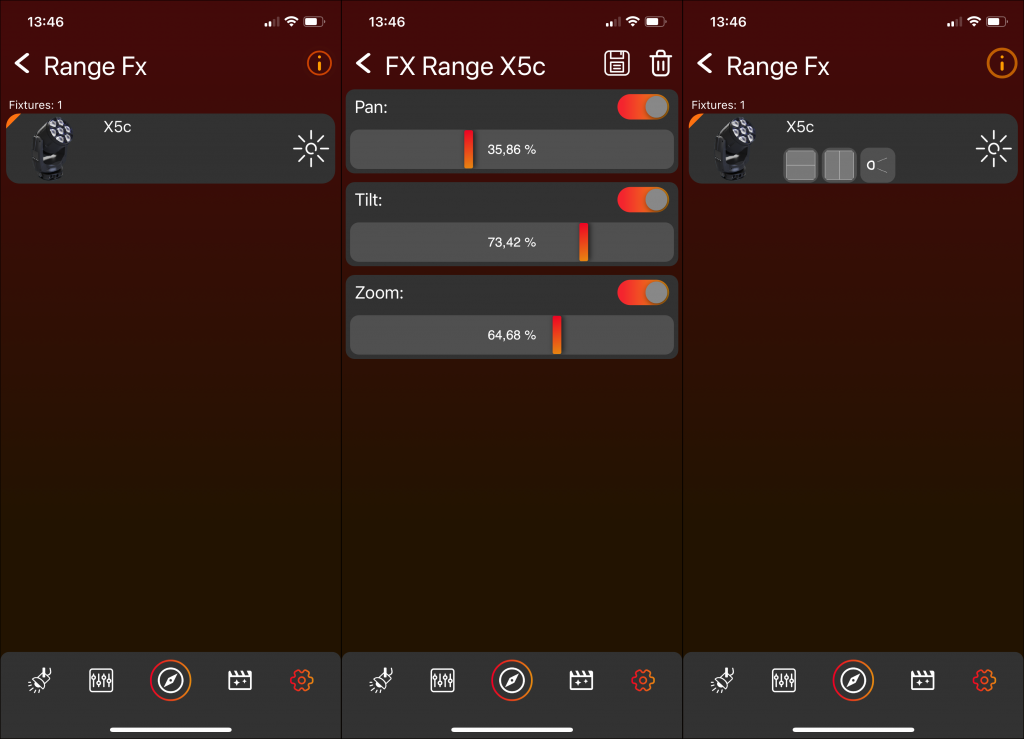
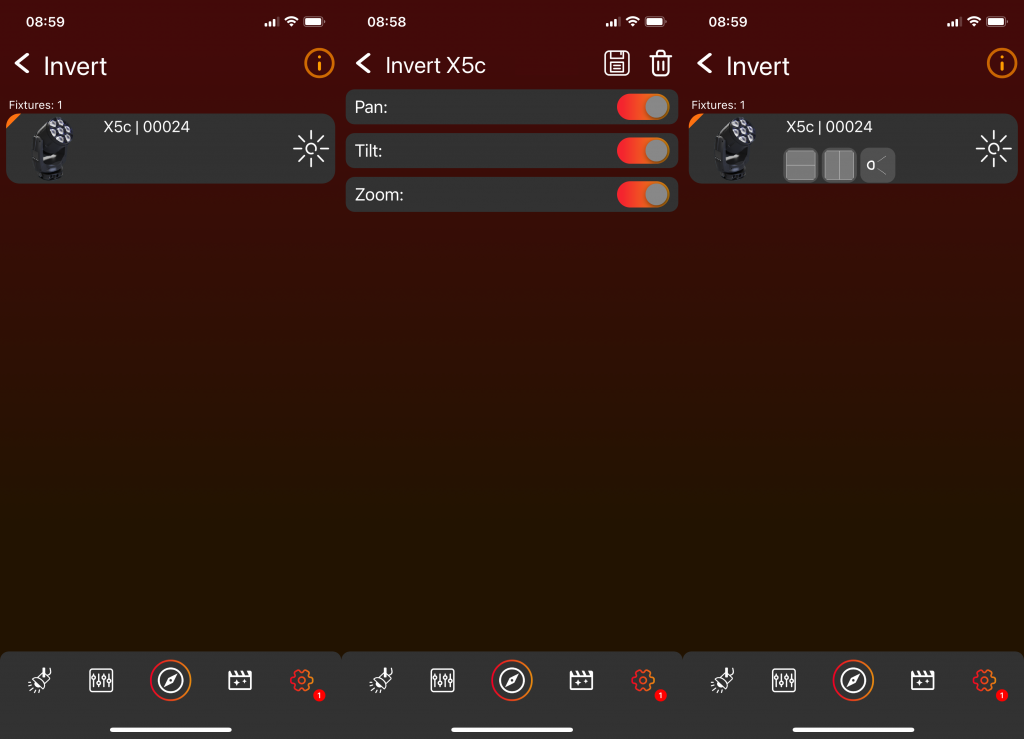
Show Settings
- ›Minimum Runtime: Guaranteed runtime for battery fixtures (may reduce output).
- ›Anti-Theft Mode: Blue & red police effect when fixture is moved.
- ›Emergency Mode: White light when power supply is cut off (battery fixtures).
- ›Turn on/off all fixtures: Wake-up support required for turning on.
- ›Standby Mode: Sets all fixtures to standby.
Delete Network
Deletes the network and removes all associated fixtures.
Help
Designated for future help videos — currently under development.
Data Management
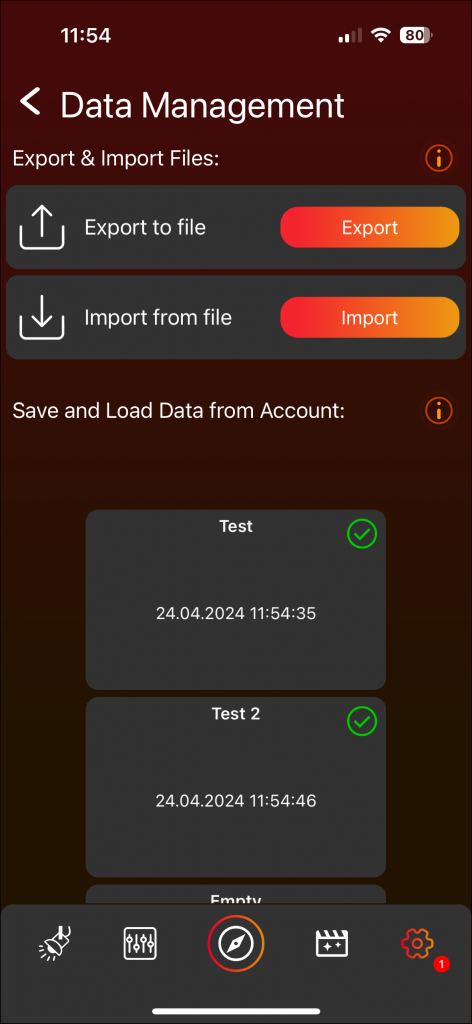
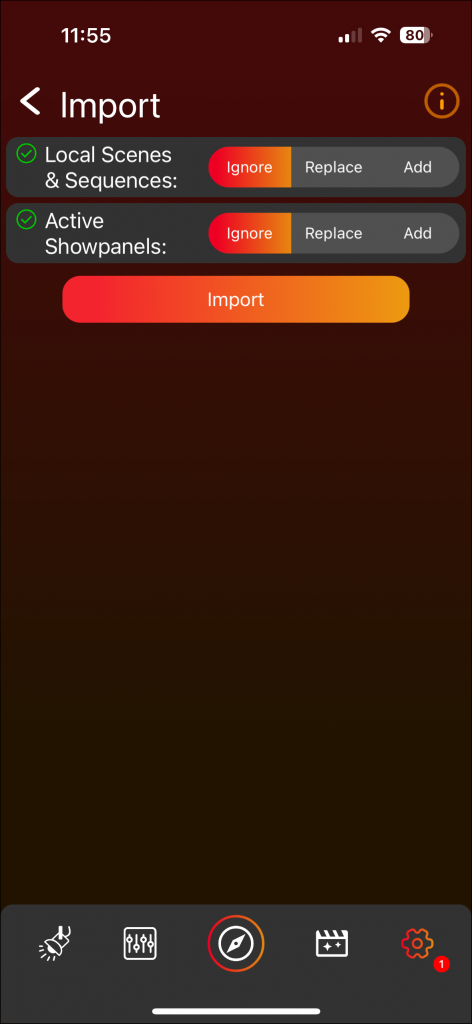
- ›Export to File: Click „Export", ensure scenes and sequences are selected, and generate a file.
- ›Import from File: Choose a file to import. Options: Add (merge), Replace (substitute), or Ignore (exclude).
- ›Cloud Stacks: Save scenes & sequences to one of ten stacks. Green checkmark = in sync; orange warning = divergence. Load, override, or replace as needed.
Library
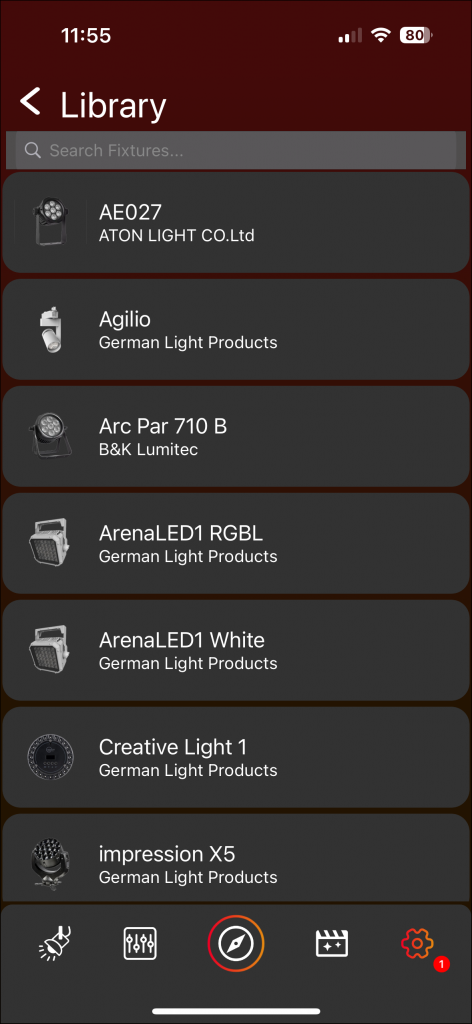
Browse all supported fixtures. Click for details, „Website" for the manufacturer page, or „Release Notes" for documentation.
App Settings
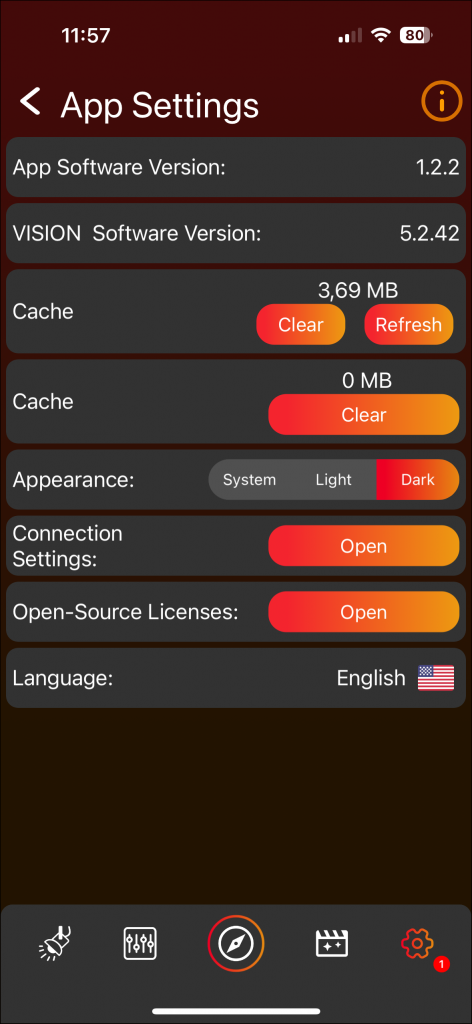
- ›View App Software Version and Vision Software Version.
- ›Developer Mode: double-click version number, confirm with „Ok", enter code 7248.
- ›Library Data: clean and refresh.
- ›Appearance: Light, Dark, or System mode.
- ›Connection Settings (advanced): MTU Size and BLE Scan Time.
- ›Diagnostic data toggle — strongly recommend enabling for crash info.
- ›Open-source license summary.
Leave Network
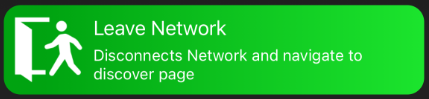
Click to exit the network and return to the Discover Page. The network then becomes accessible to other users.
Explore Page
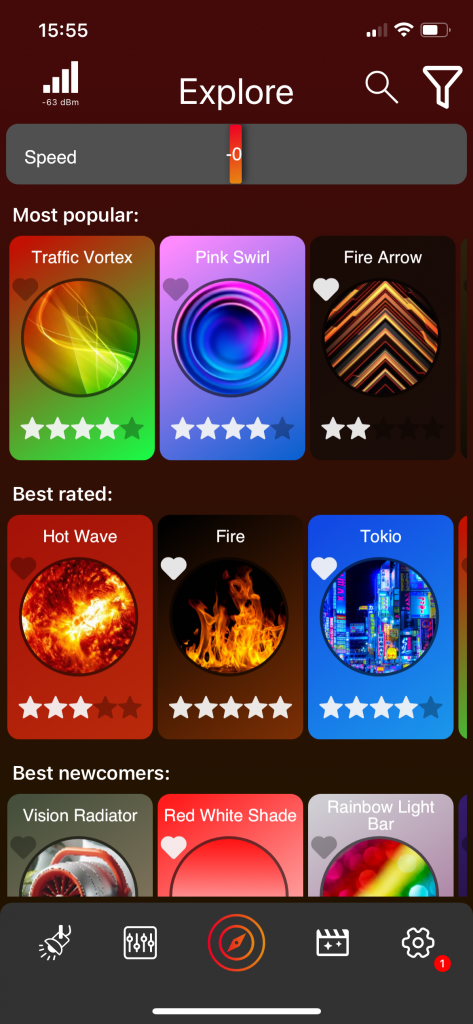
Browse community templates structured into categories (Most Popular, Best Rated, Best Newcomers, etc.).
Template Frame

- ›Template Name: Displayed at the top.
- ›Play Template: Click the round image in the center to play the template on the selected groups or fixtures.
- ›Favorite: Click the heart icon at the top left to mark as a favorite.
- ›Rate Template: Click the stars at the bottom to rate the template.
- ›Detail View: Click anywhere else on the template to open a detailed view.
Speed Fader & Filter
- ›Speed Fader: Adjusts speed of all FX components of selected templates. Static-only templates are not affected.
- ›Filter Icon: Filter templates by components. If multiple components are selected, at least one must be part of the template for it to be displayed.
Search View
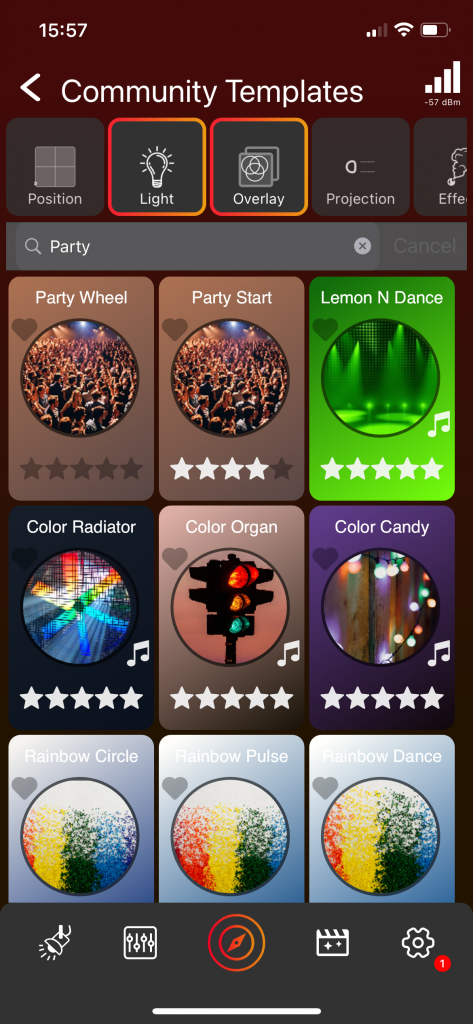
Click the magnifying glass icon to open the search view. This view includes a filter function on top and a search bar where you can search for template names or descriptions. There is no separation into categories in this view.
Template Detail View
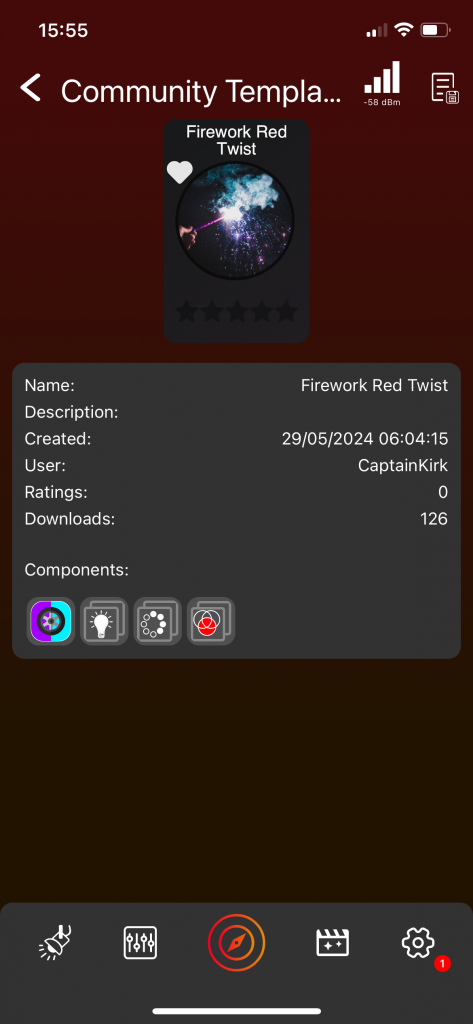
Click anywhere on the template frame (except the image, stars, or heart) to open the Detail View. Here you can see detailed information including description, upload date, and the components the template uses. Click the save icon at the top to save the template locally for offline access.
Sound Templates
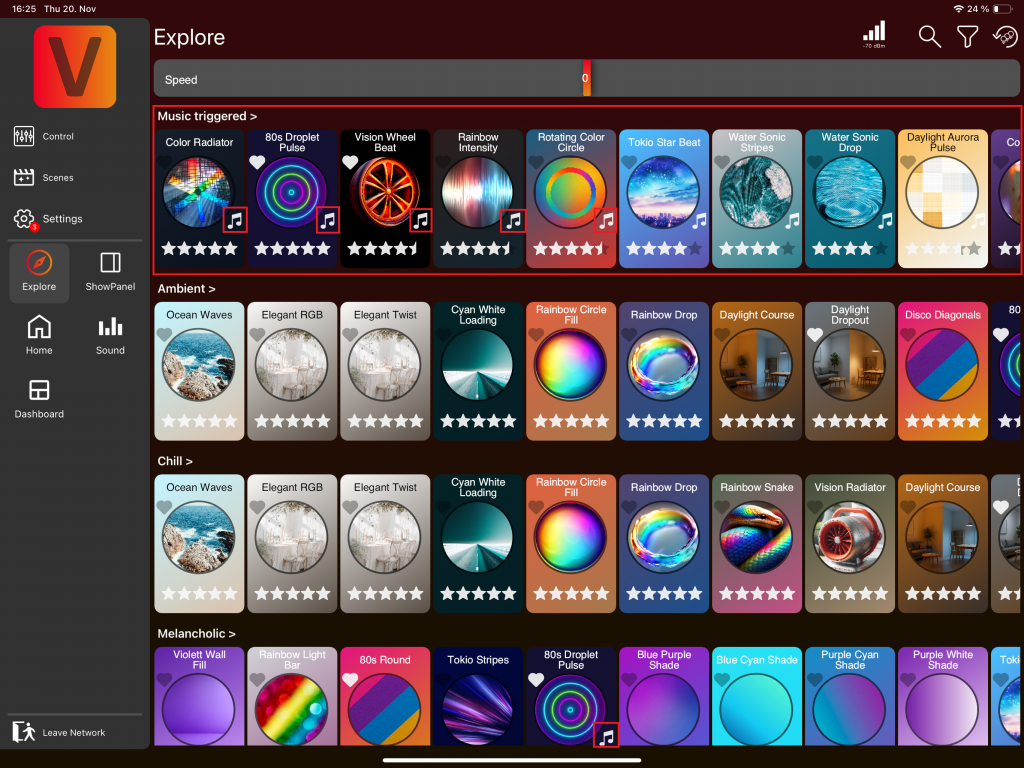
The Explore page has a dedicated section for music-triggered templates. You can recognize these templates by the music note icon displayed on the right side of the template's preview image.
Showpanel
The first time you visit the Showpanel Page, you'll be prompted to download recommended Showpanels if you have an internet connection. It's highly recommended to proceed with the download.
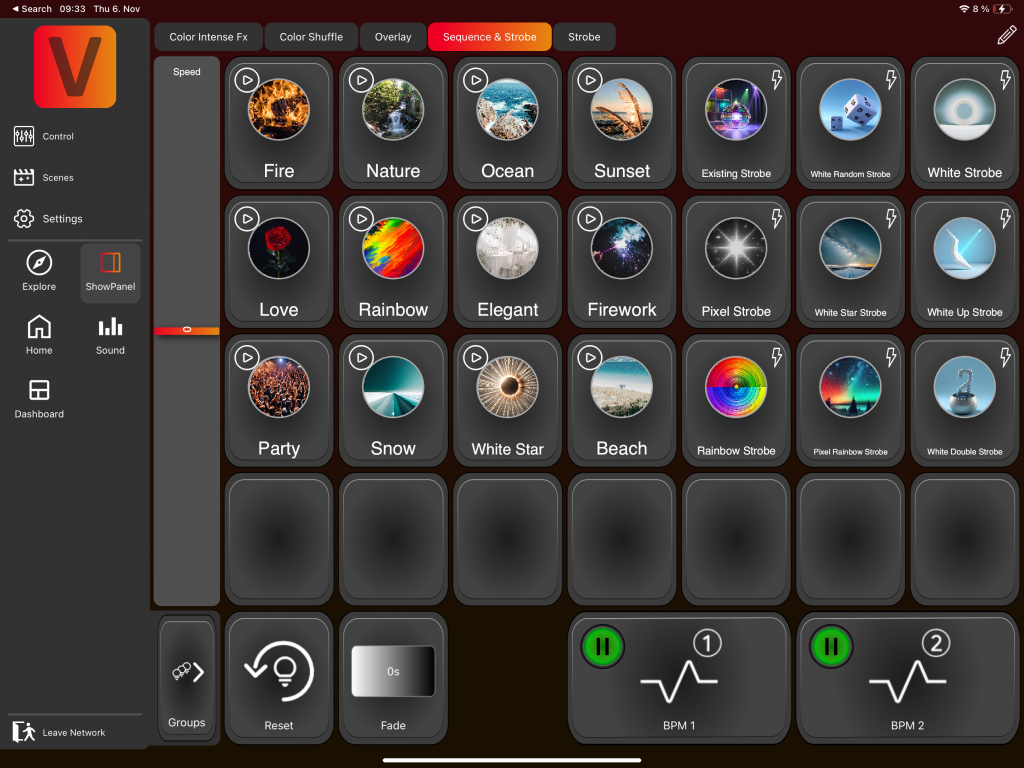
The Showpanel Page can include several Showpanels, like „Color Intense FX", „Color Shuffle", etc. Clicking on the corresponding tab view switches to that specific Showpanel. The current Showpanel is highlighted with a blue-green fade in the tab view:
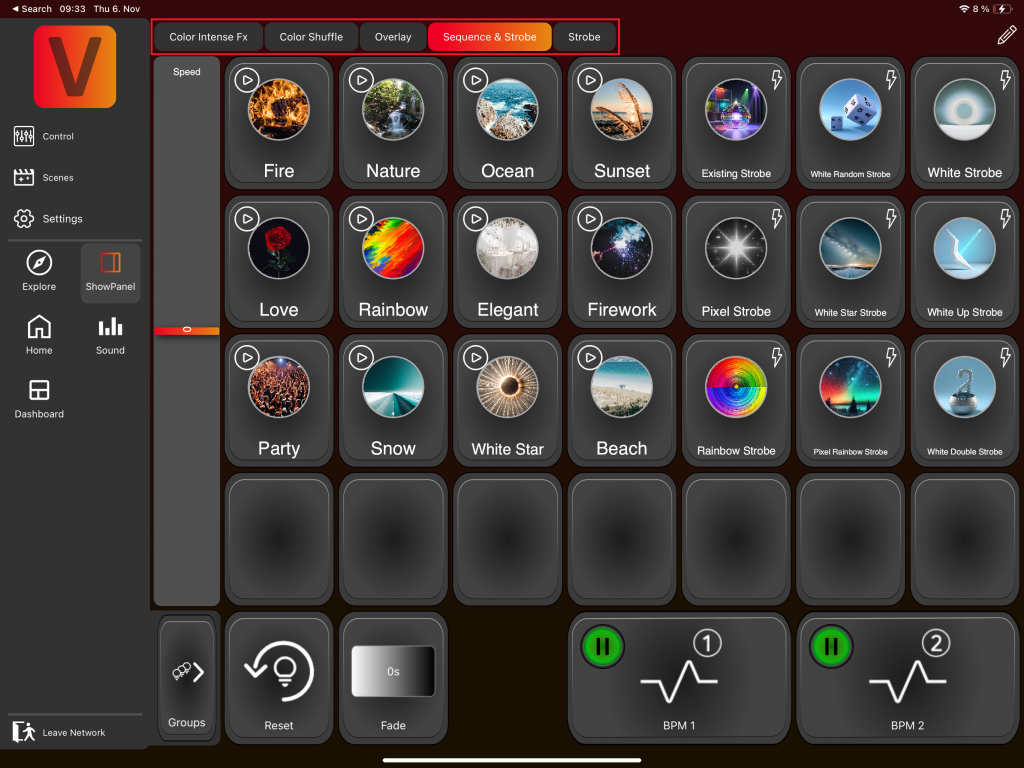
A Showpanel can consist of Template Scenes and Template Sequences. They can be activated by clicking on them:
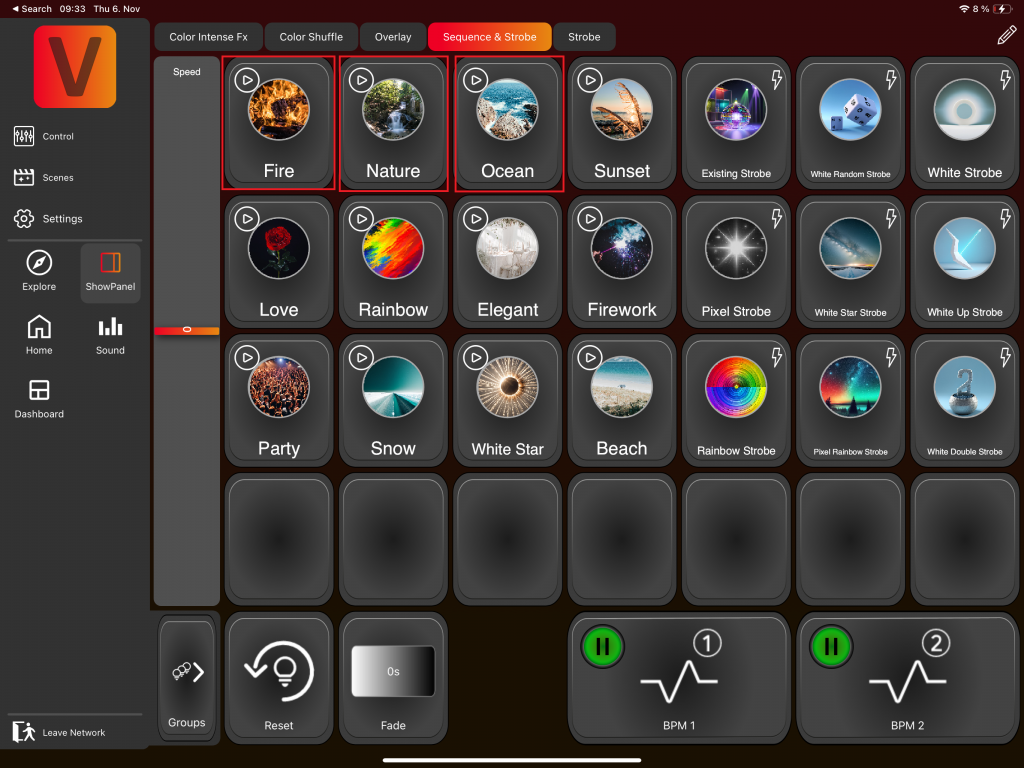
Edit Mode
The edit mode can be activated with the edit pencil in the top right:
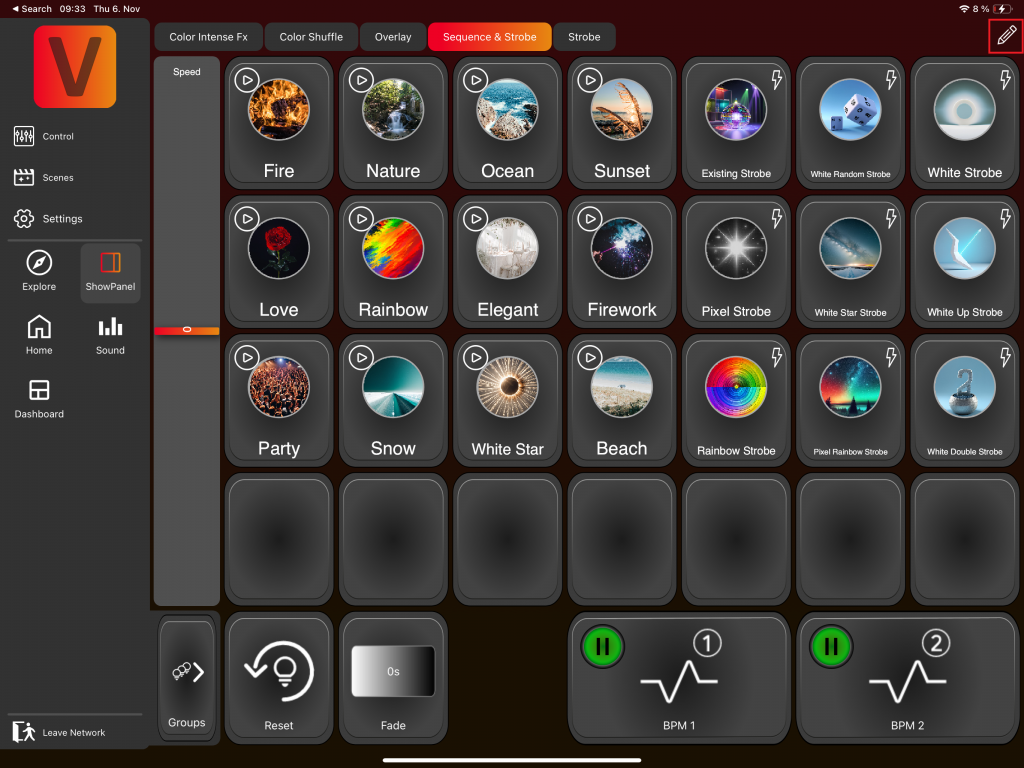
To deactivate the edit mode, click on the green checkmark in the top right:
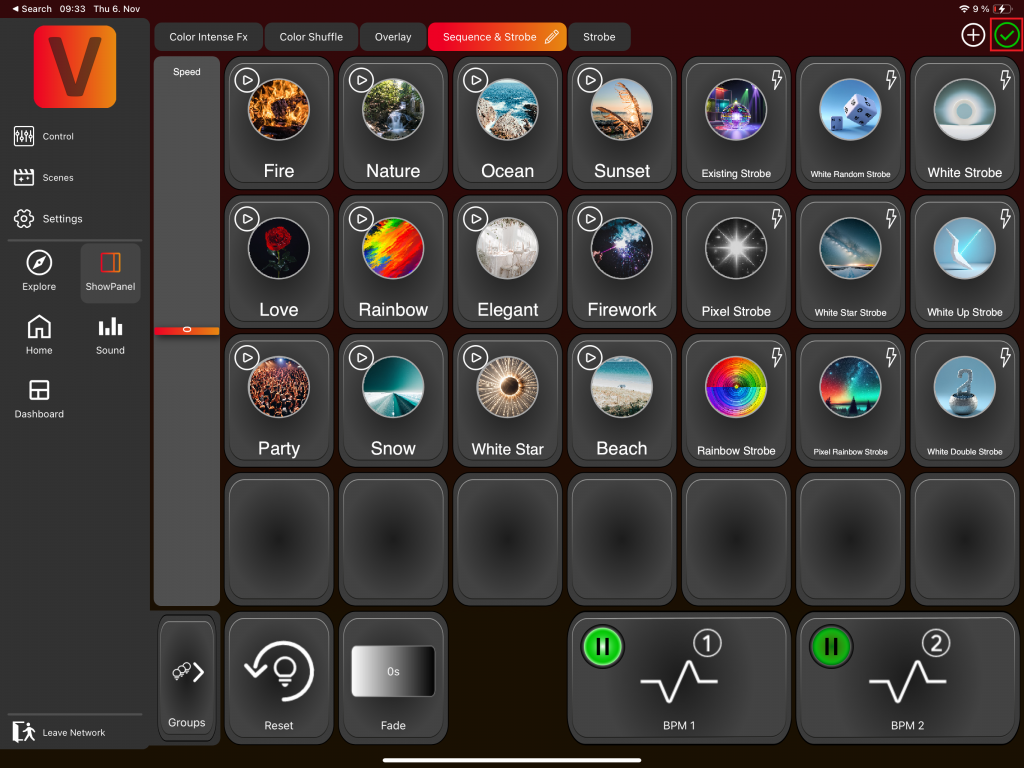
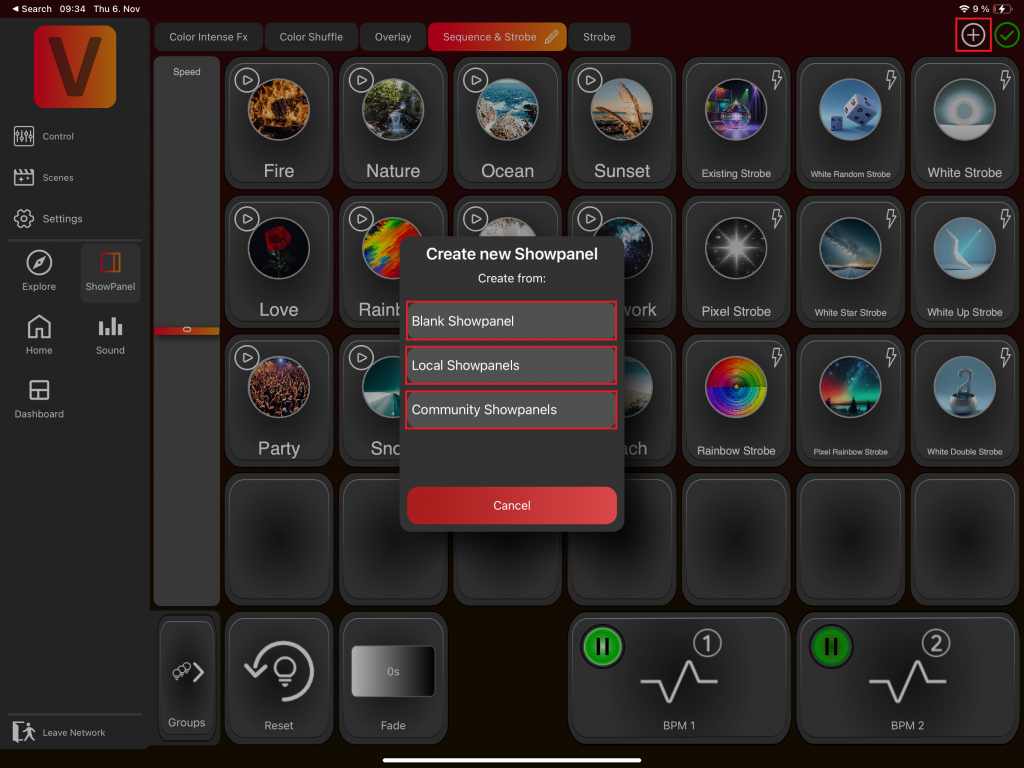
When edit mode is active, you can click the plus icon at the top to create a new Showpanel. You have the option to create a new blank Showpanel, use one of your local Showpanels, or select a Showpanel from the community:
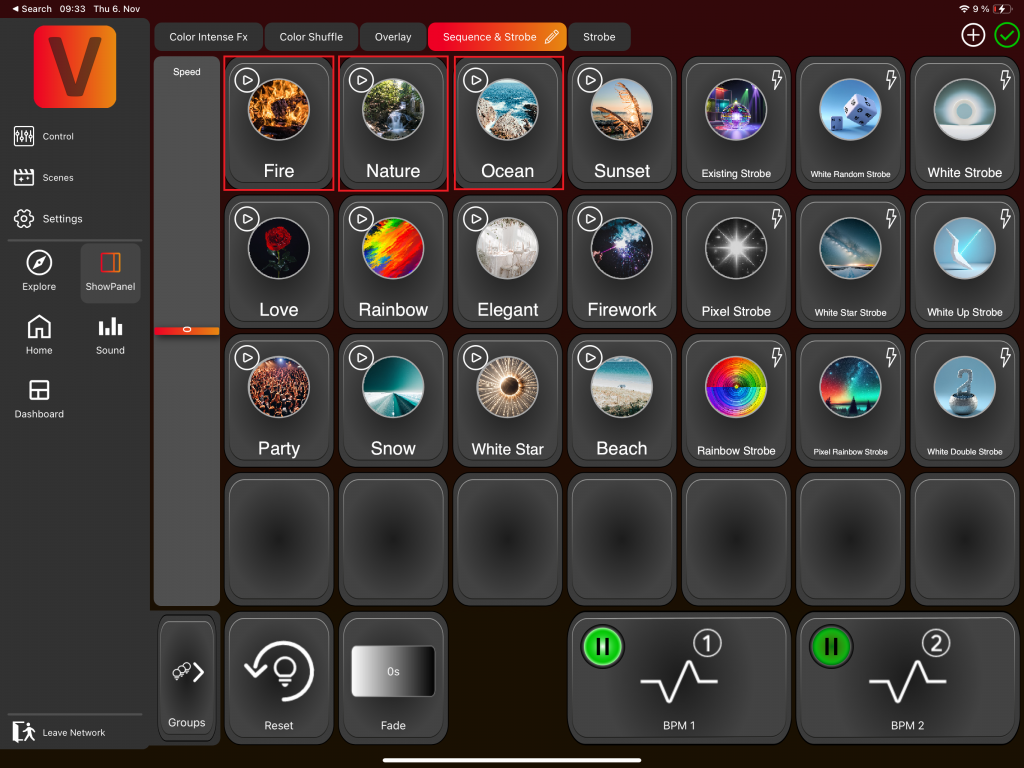
When the edit mode is active you can click on a Template Scene or Sequence to edit it:
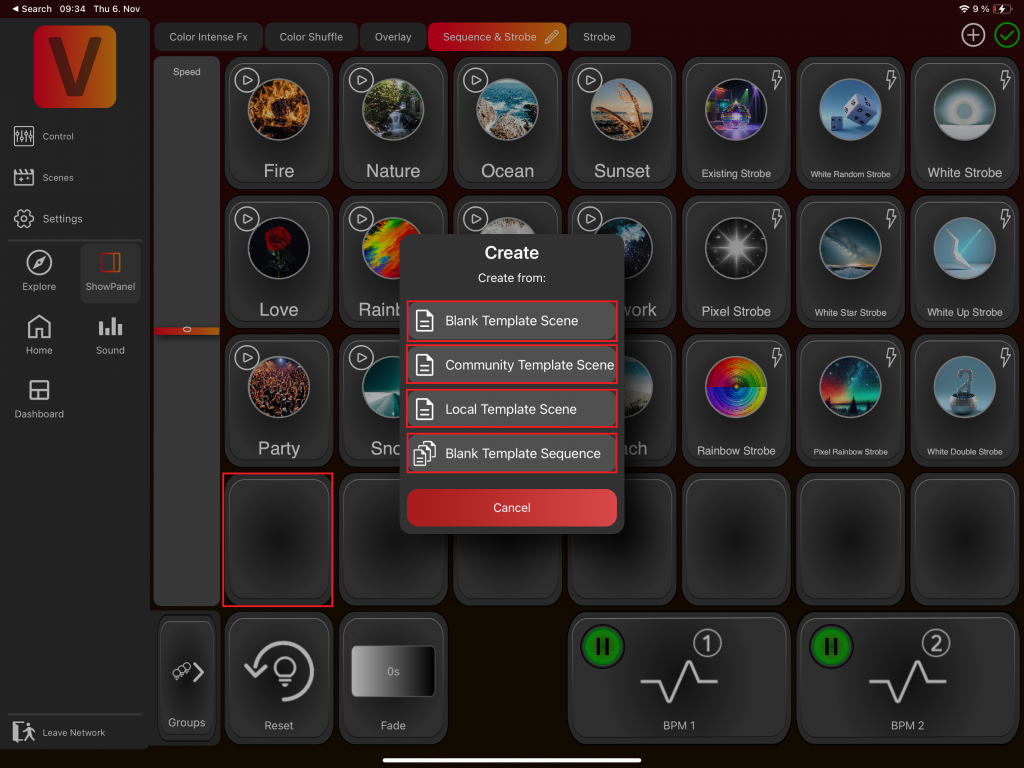
When the edit mode is active you can click on an empty item to create a new Template Scene or Sequence. Creating a Template Scene is similar to creating a Scene on the Scene Page, and creating a Template Sequence follows the same process as creating a Sequence. When creating from Local or Community templates, the selected template serves as the foundation. If you choose Blank, the process begins from scratch:
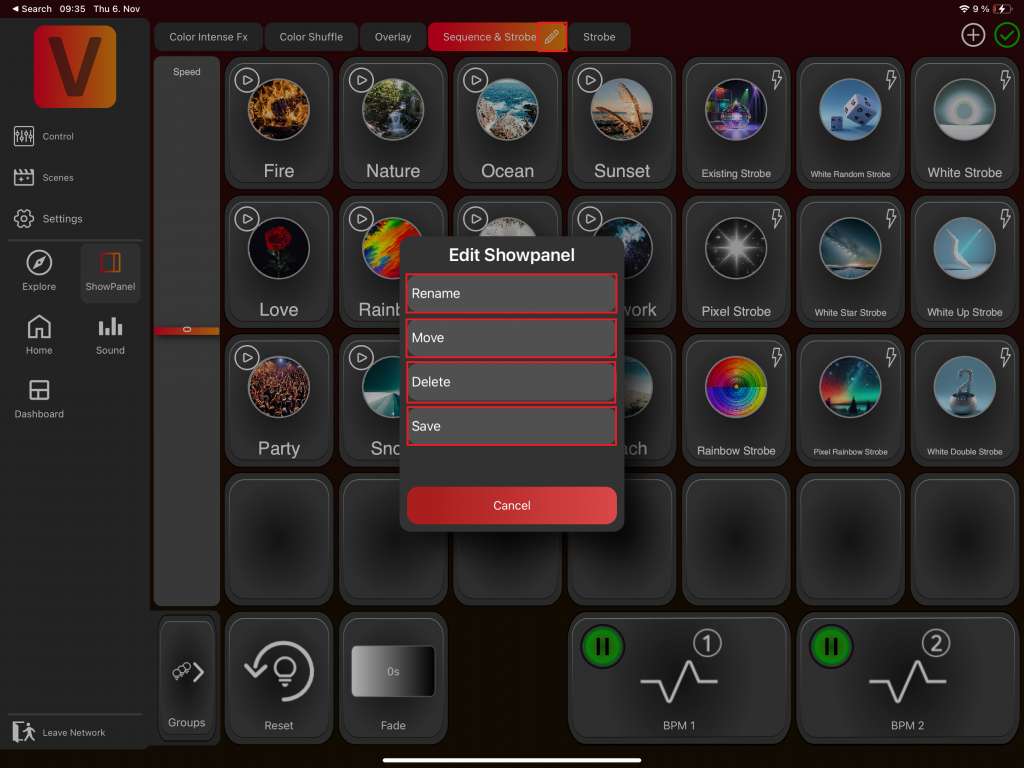
When edit mode is active, you can click the edit pencil close to the current Showpanel to rename it, move it in the tab view, or delete it:
Template Scene & Sequence Item
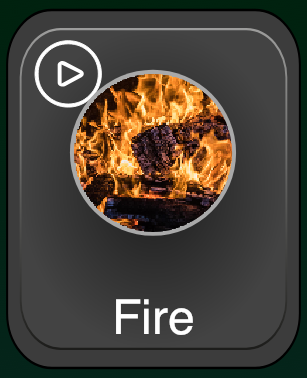
- ›An image (if no image is set, a description will appear — we recommend adding an image for clarity).
- ›A name.
- ›Top-left icon: The trigger icon (indicates the trigger type).
- ›Top-right icon: A flash icon indicates if it is a flash Template Scene/Sequence.
Triggers
| Trigger | Type | Description | Icon |
|---|---|---|---|
| Play | Scene | Clicking starts the Template Scene and it plays until its end | — |
| Flash | Scene | Active only while pressed |  |
| Play | Sequence | Plays scenes sequentially with predefined timing |  |
| BPM 1 | Sequence | Next scene triggered by the BPM 1 button |  |
| BPM 2 | Sequence | Next scene triggered by the BPM 2 button |  |
| Tap | Sequence | Next scene on each click |  |
| Flash | Sequence | Plays while pressed with automatic scene transitions |  |
Change Trigger
- Activate the Edit Mode and click on a Template Scene or Sequence to change the trigger there.
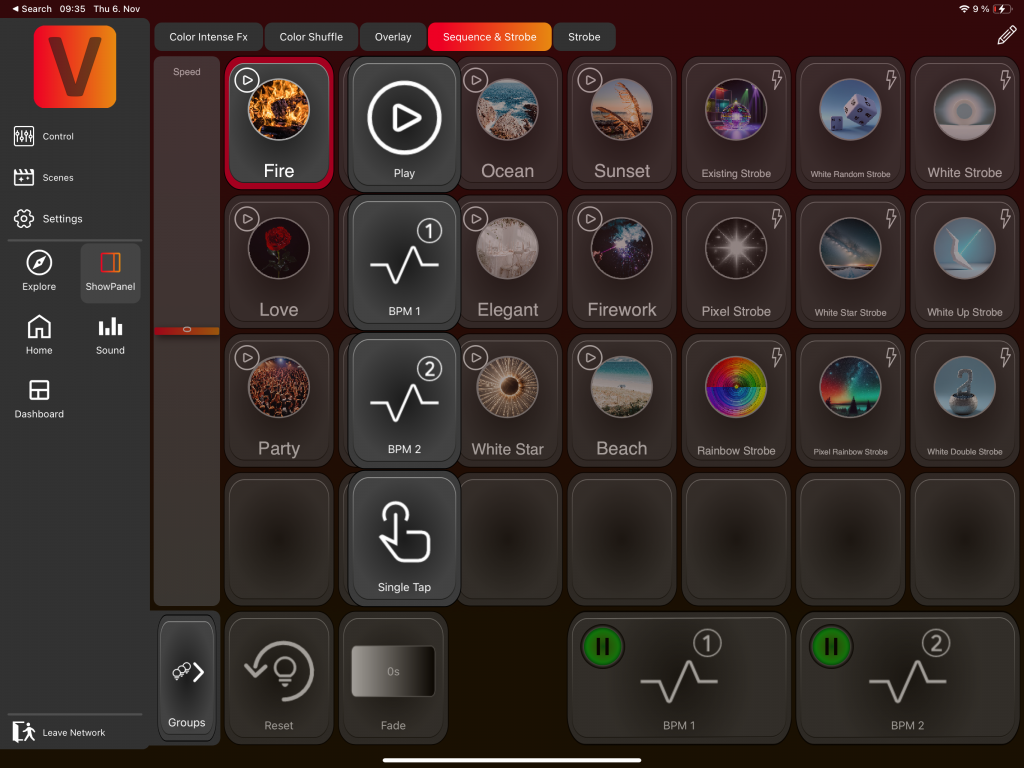
- Or: press and hold on a Template Scene or Sequence, then slightly move your finger to open the Trigger Menu. While keeping your finger pressed, drag it to the desired trigger.
BPM Buttons
- ›Located in the bottom right. Click the red dot to activate them (dot becomes green).
- ›The beat of the BPM Button changes the Scenes in all Template Sequences with a trigger for this BPM Button.
Press and hold on a BPM Button, then slightly move your finger to the top of the screen to open the BPM Menu. While keeping your finger pressed, drag it to the desired method:
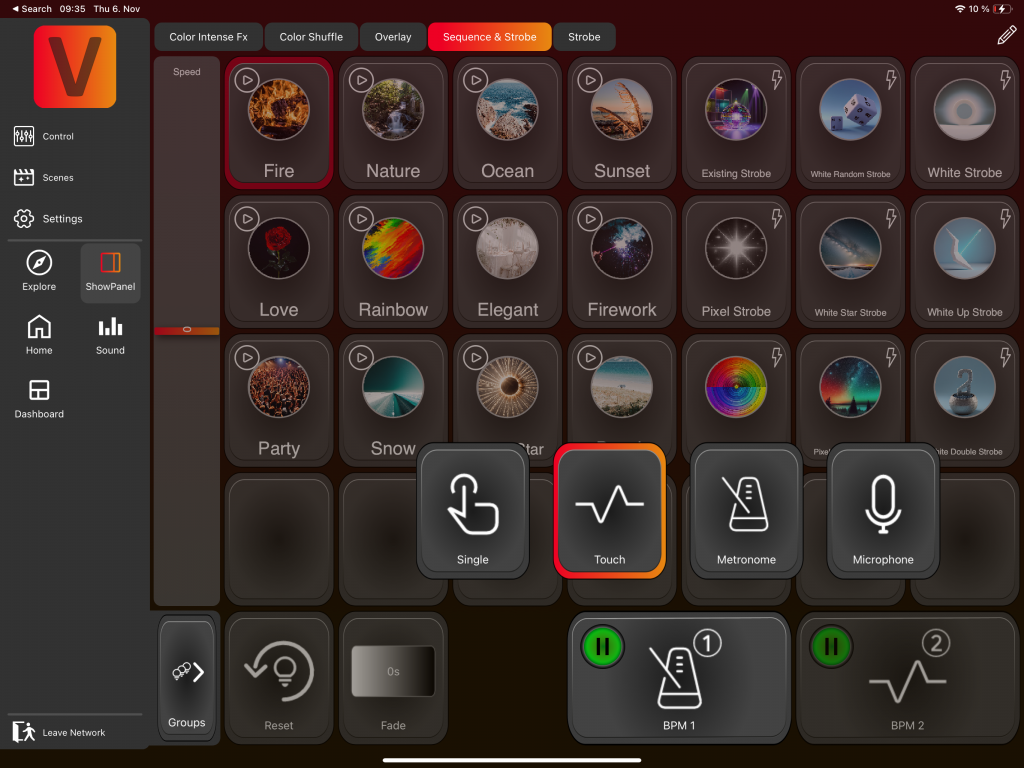
- ›Touch (default): Tap the BPM Button to the desired rhythm. The time between your last two taps sets the beat.
- ›Metronome: Click on the BPM Button and set the desired time interval in seconds.
- ›Microphone: The microphone will recognize the beat (feature in progress).
- ›Tap: Each tap on the BPM Button will change the Scene for the Template Sequences that have this BPM Button as their trigger.
Additional Controls
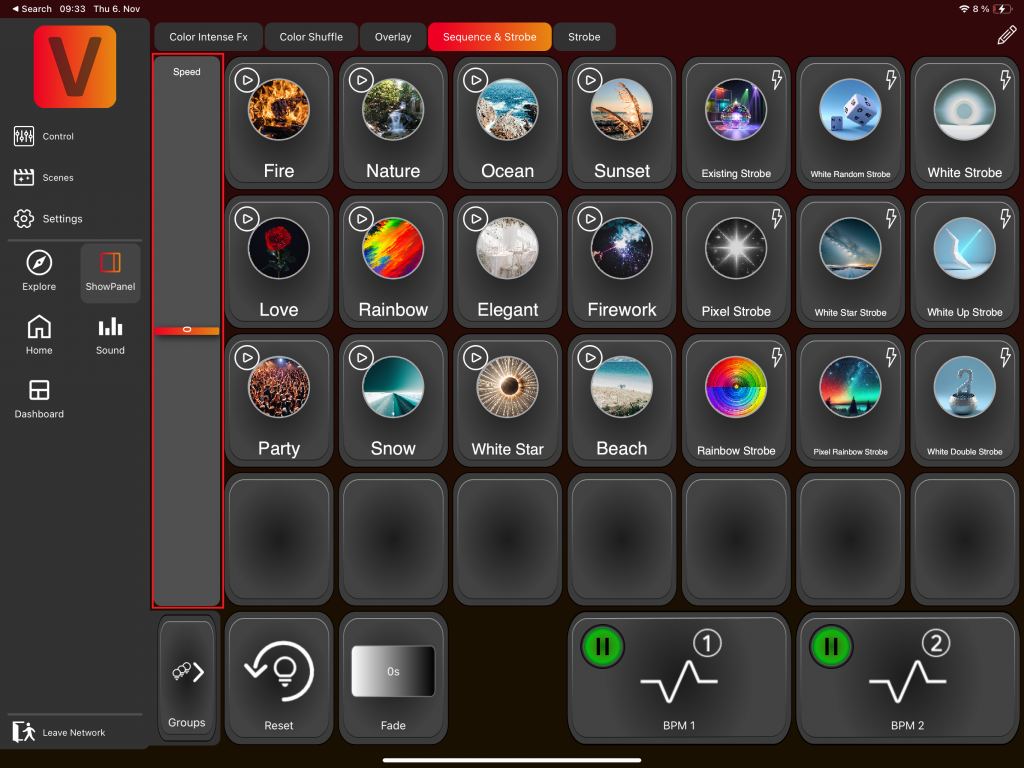
Adjust the speed of the FX components of a Template Scene or Sequence.
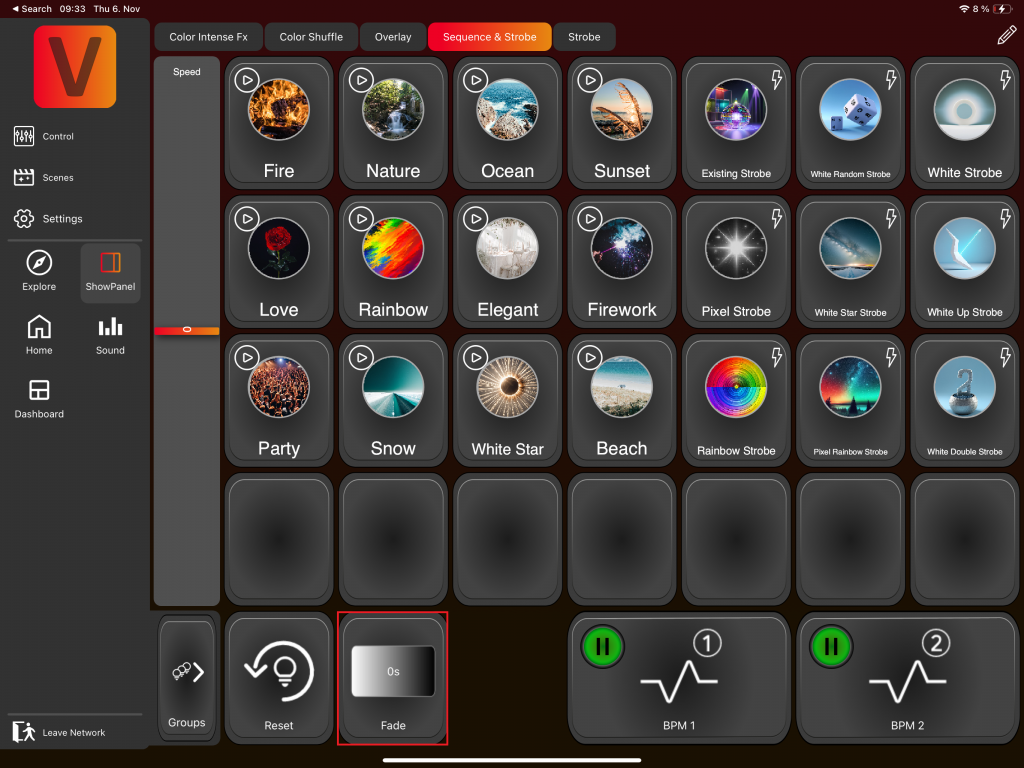
Set a fade time for transitions.
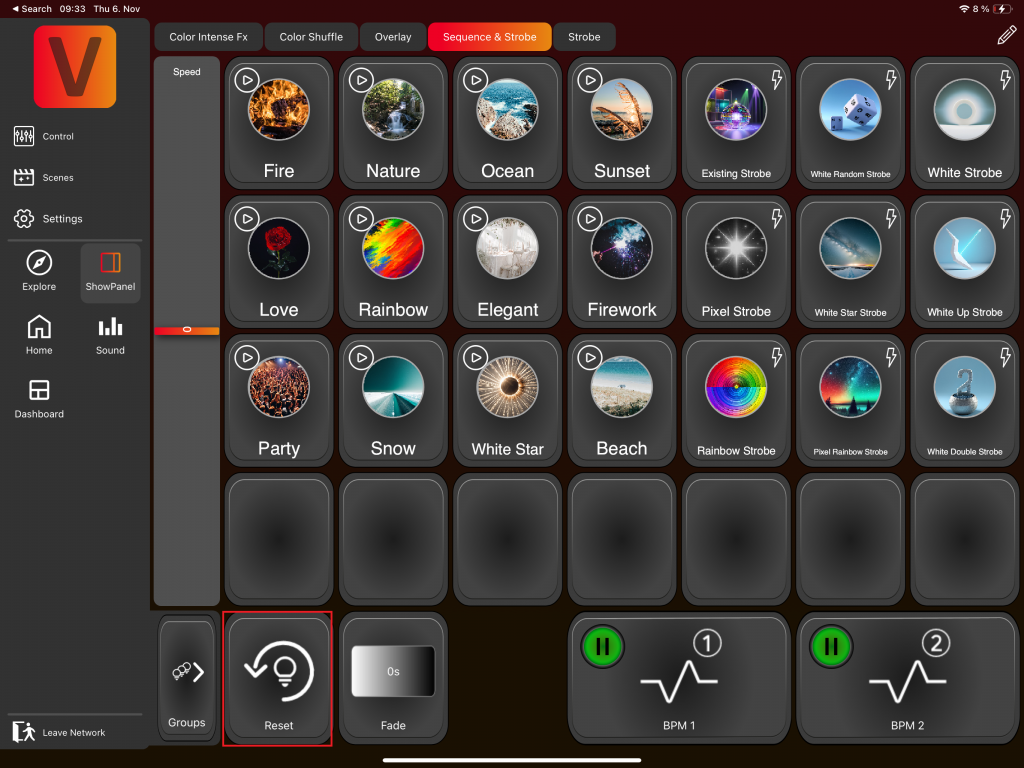
Reset all components of the selected groups.
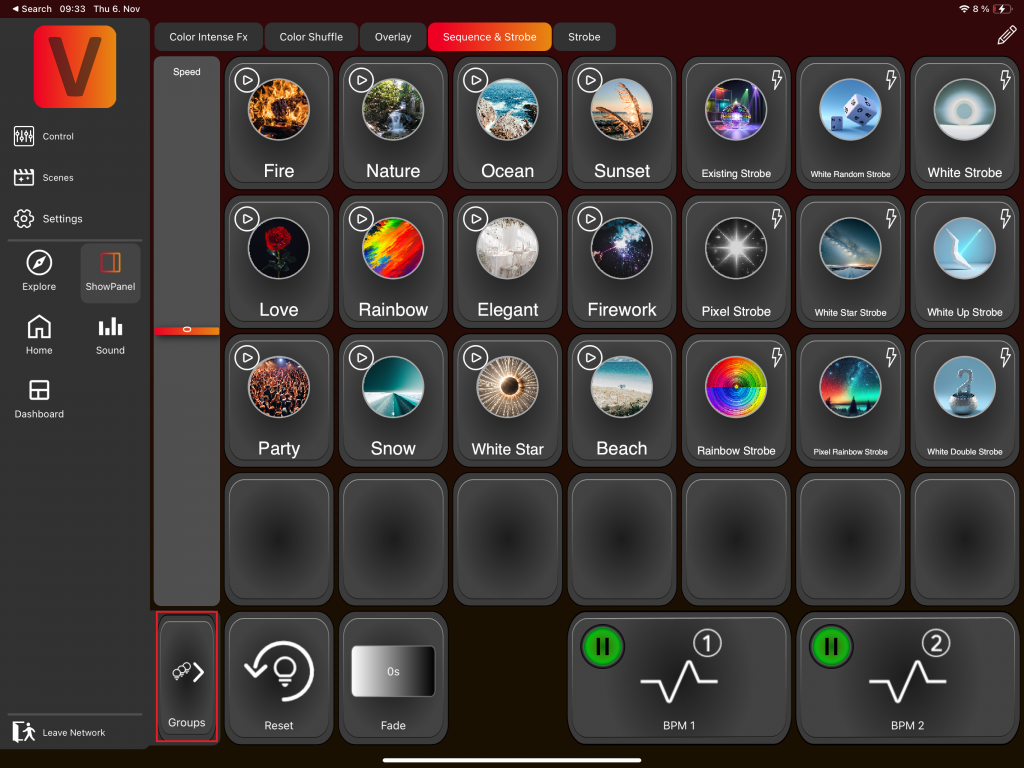
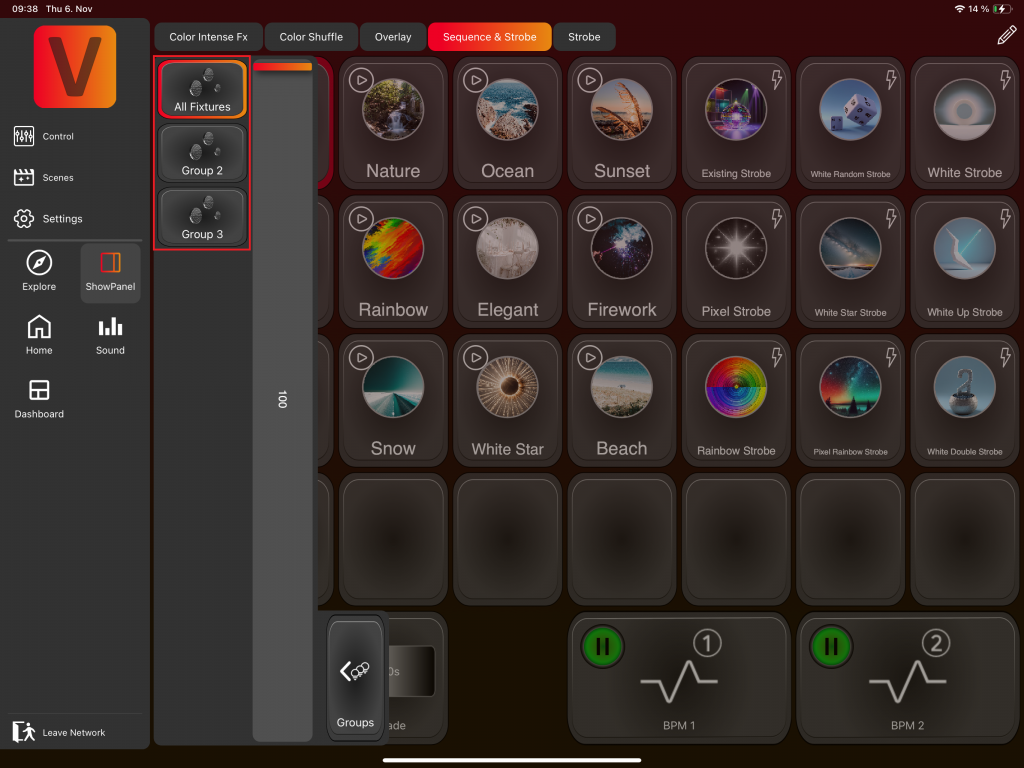
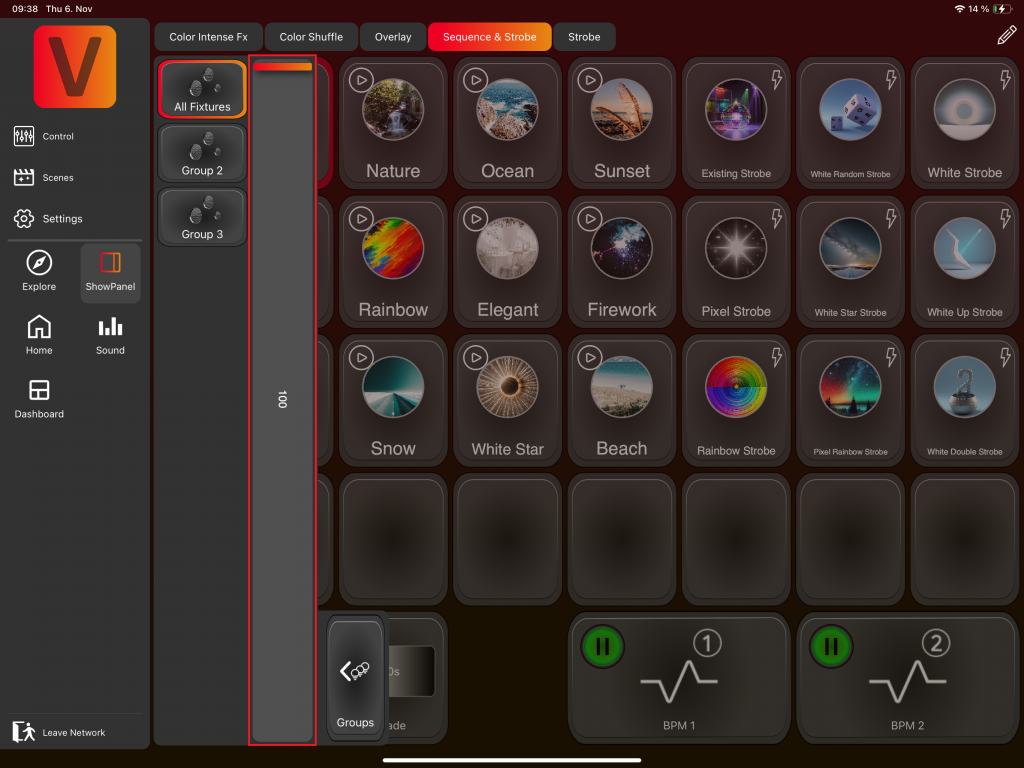
A new section opens on the left side where you can select the desired groups. For the Showpanel, only group selection is possible (not single fixtures — create a group with one fixture instead). The fader acts as a master dimmer.
Sound Page
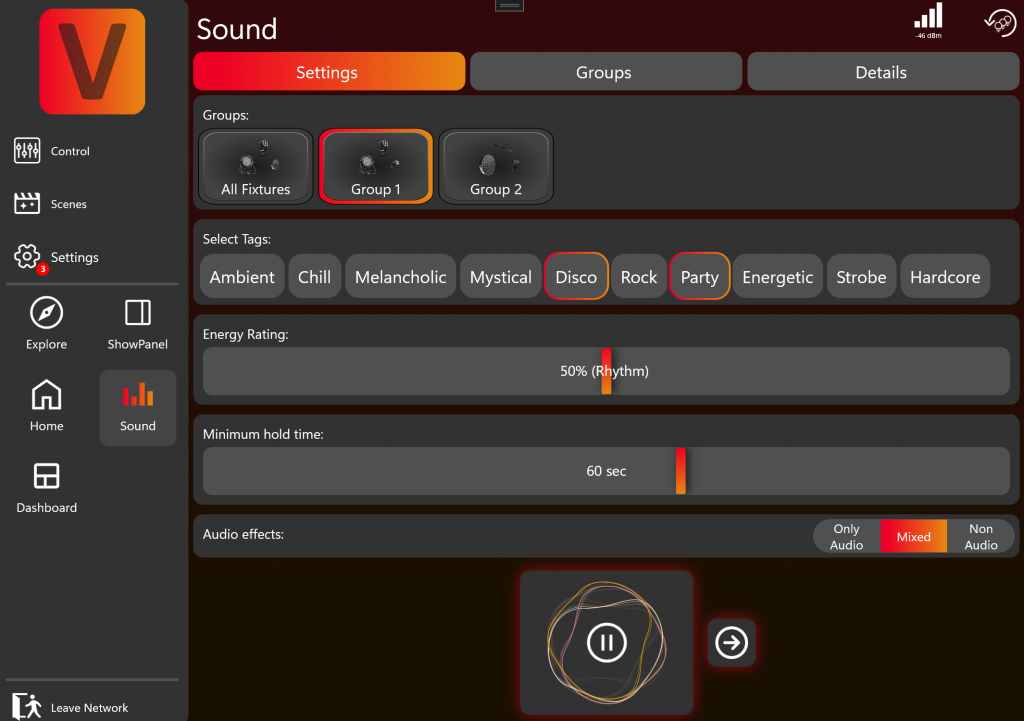
Automatically selects templates, mixes them, and switches between them in sync with the music. Perfect if you don't want to control anything yourself. If you already know which Sound-to-Light effect you want, create or select it manually instead.
When you press Play, your device listens to the music through its microphone and generates dynamic lighting effects.
Main Controls
- ›Play / Pause: Start or pause AI Sound-to-Light. Pausing does not turn off lights — the current effect continues until changed.
- ›Next Effect: Arrow icon triggers the next effect manually.
The page contains three tabs:

Settings Tab
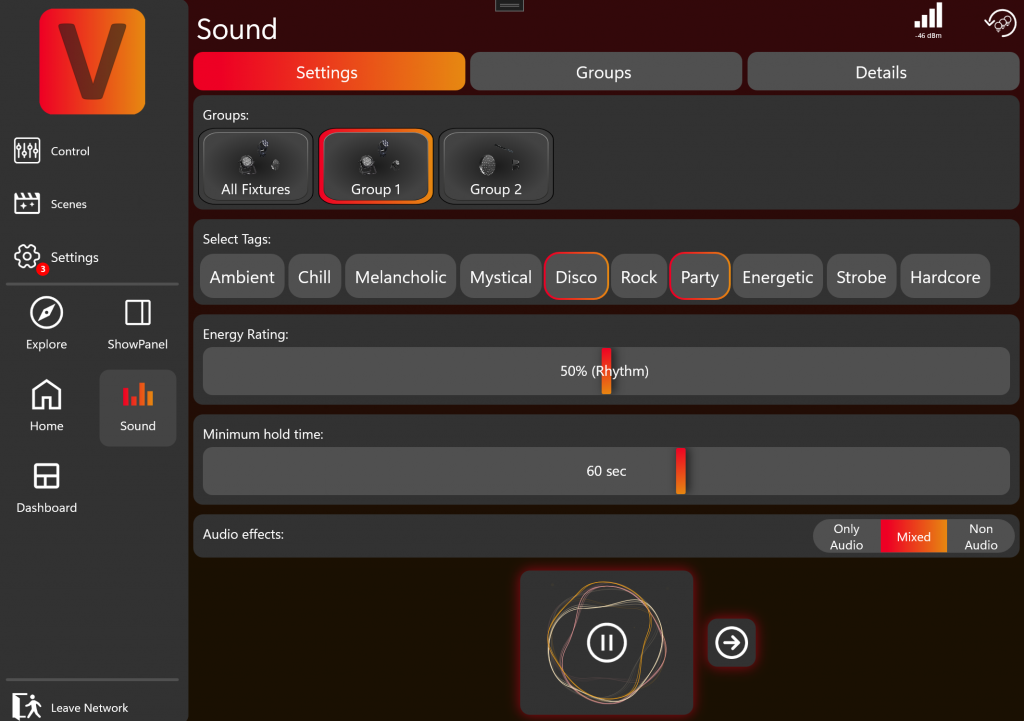
- ›Groups: Select which groups to control.
- ›Tags: Describe the desired atmosphere/mood — the AI uses these to choose matching effects.
- ›Energy Rating: Influences the overall mood — calmer or more energetic.
- ›Minimum Hold Time: Minimum duration before the AI triggers the next effect.
- ›Audio Effects: Choose Audio (all react to sound), Mixed, or No Audio (standard effects only).
Groups Tab
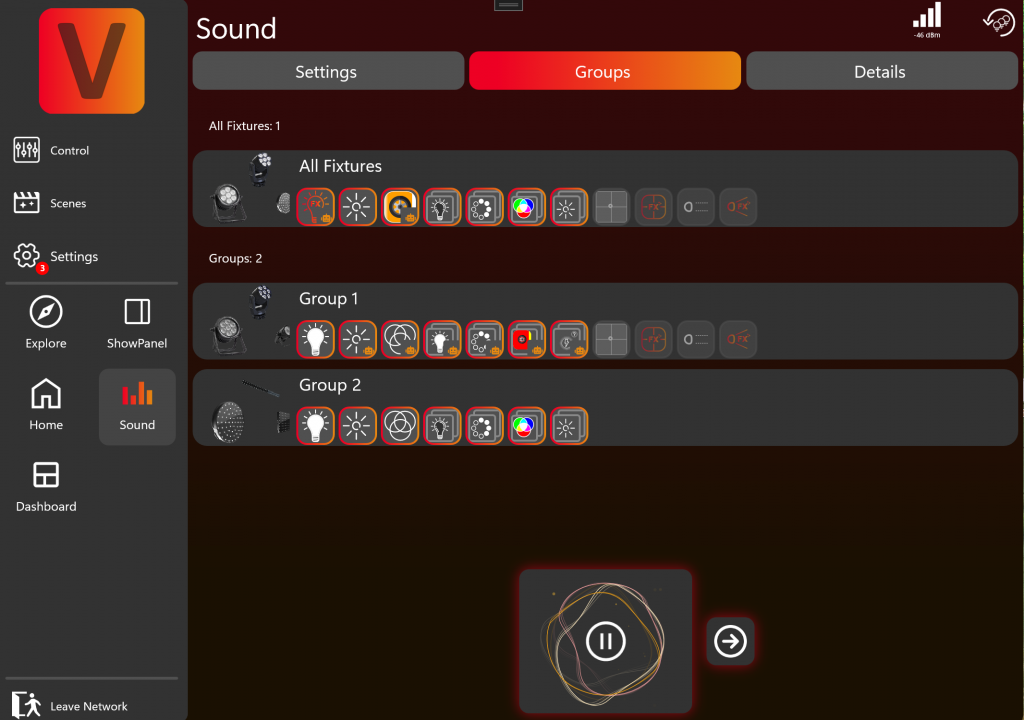
View all groups and their available components. Click a component to select/deselect it:
- ›Selected (red/orange border): AI is allowed to control this component.
- ›Deselected: Component will not be modified by the AI.
Useful for fixtures with Pan/Tilt: set the position manually and deselect those components so the AI won't override them.
Details Tab
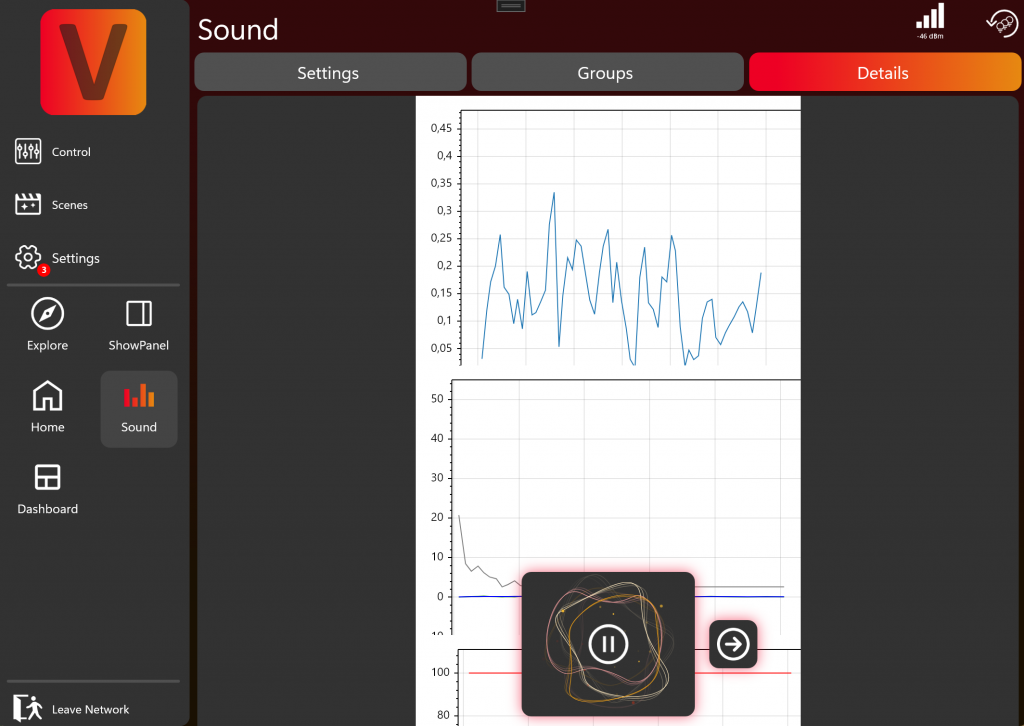
Displays detailed audio signal information from the microphone. Useful for troubleshooting if AI Sound-to-Light isn't working.
Trigger Page (Beta – Request access via Email)
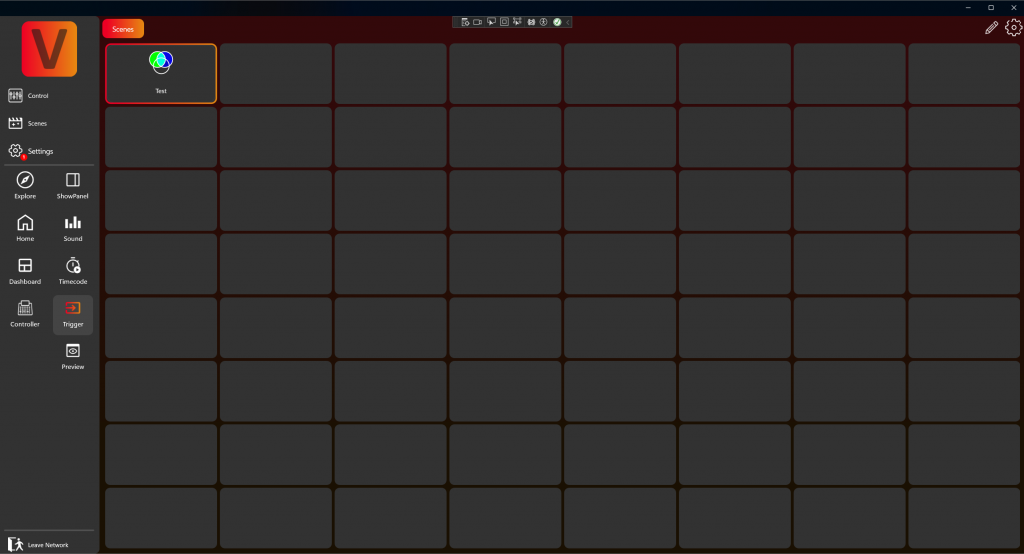
This page is mainly used to store scenes/sequences that should be triggered by external inputs like MIDI, Art-Net, etc. You can find how to configure external inputs in the External Inputs section.
- ›Store up to 8×8 Scenes/Sequences.
- ›The programming works like the dashboard, but is stored locally on your device.
- ›If edit mode is on, you can also drag and drop from the Scenes page into the Trigger Page.
Controller Page (Beta – Request access via Email)
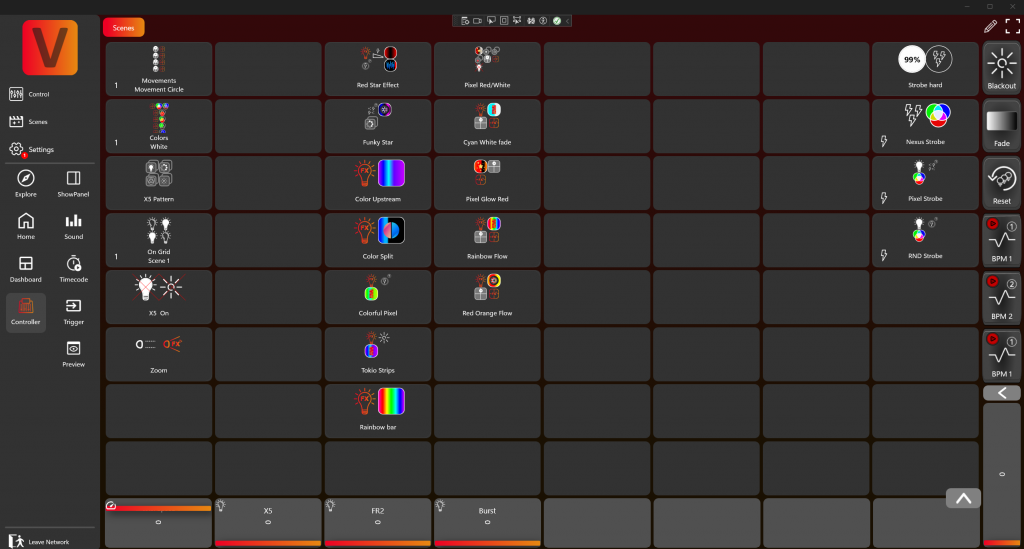
This page features a full-blown DMX controller. You can store 8×8 scenes/sequences with BPM, master speeds and group dimmers. It is designed to be used with an Akai APC Mini. The programming works like the dashboard with additional features, but is stored locally on your device.
8×8 Items
You can program different items on each free space. There are the following item types:
- ›Speed adjustable Scenes: Choose a master speed channel and your FX will listen to that speed change when the scene is active.
- ›Tapped Sequences: Step through a sequence by tapping the sequence.
- ›BPM Sequences: Use a tapped sequence with BPM trigger type to step through your sequence using the BPM beat.
- ›Component: Any component can be programmed with an address (Group/Fixture) and controlled via the item fader. Click on the item to activate it and the single fader on the right becomes your component fader, allowing you to directly alter the value of the component.
8× Faders
You can program different faders on each free space. There are the following fader types:
- ›Master Speed Fader: Changes the speed of FX scenes. For example, create a speed fader that controls the movement speed of your scenes. You can also limit the minimum and maximum speed value to prevent changing to innapropiate speeds.
- ›Group Dimmer Fader: Controls the group dimmers on the Home Page and enables direct dimmer control for your groups. Refer to the Home Page section for more information on how dimmers work.
- ›Component Fader: Assign a component and control it directly with a fader.
Item Settings
Every item has a settings icon. On this settings page you can change the following parameters:
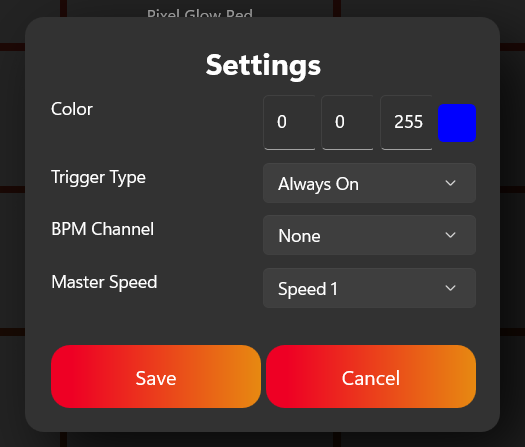
- ›Color: Choose a color shown on the buttons of the Akai Mini when used with MIDI. Standard colors are: Scene/Sequence – Blue, Scene/Sequence Flash – Red, Component – Yellow.
- ›Trigger Type: Different trigger types for scenes. "Always on" retriggers the scene, "On/Off" is the scene standard, and "BPM" always triggers the item on beat.
- ›BPM Channel: The BPM channel used when the trigger type is BPM.
- ›Master Speed: The master speed channel which affects the FX inside the item.
External Inputs (Beta – Request access via Email)
External inputs can be configured under Settings → Inputs and Trigger. For now there are 3 supported input types:
- ›MIDI
- ›Art-Net
- ›Ableton Link
MIDI
Novation Launchpad Mini MK3 and Akai APC Mini are automatically supported. Any generic MIDI device is also supported but has to be configured accordingly. Make sure to plug in the MIDI device before starting the app. You can find every MIDI device on the MIDI tab and enable it via the switch.
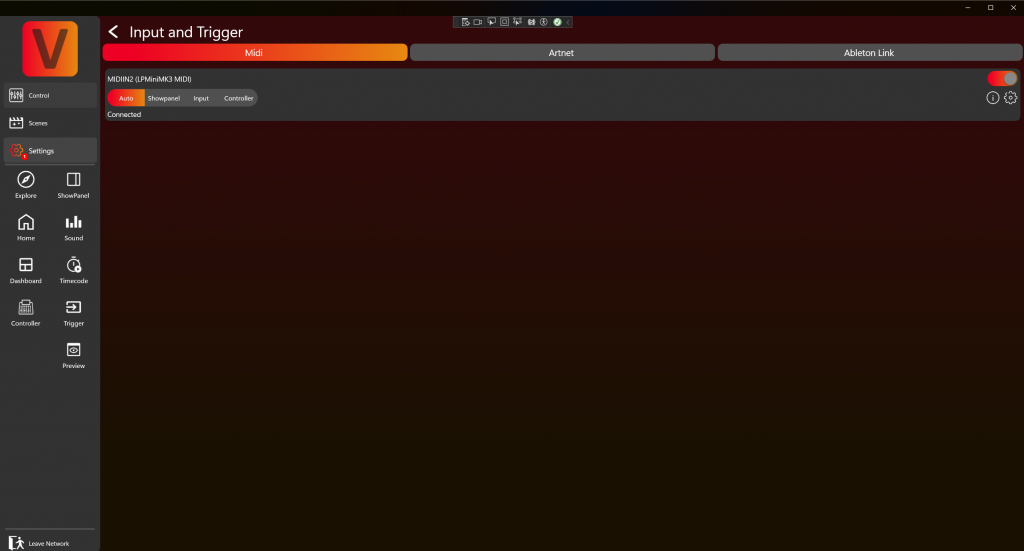
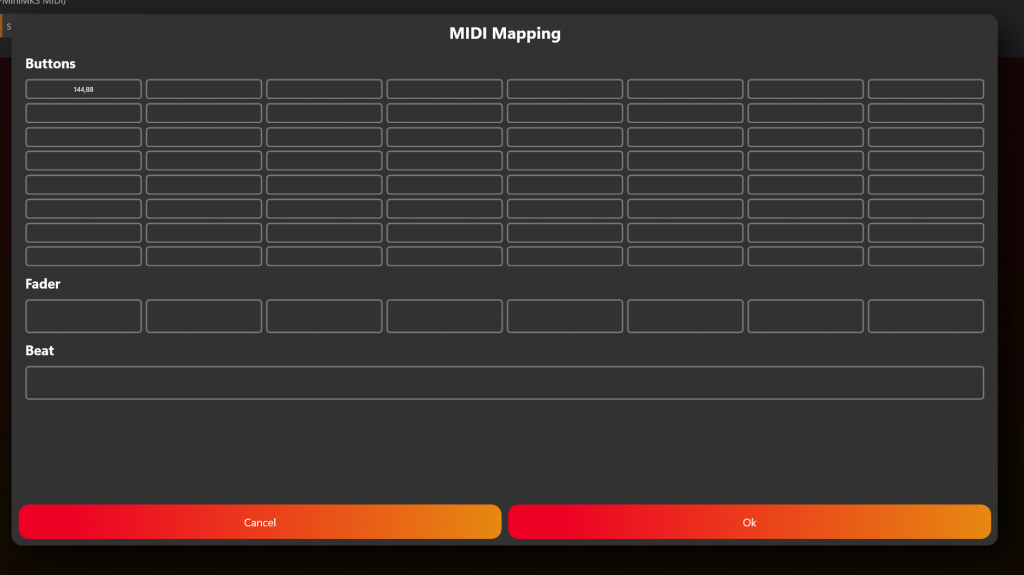
For generic MIDI devices, configure by clicking the settings icon. Map the corresponding MIDI signal by clicking on the position you want and then trigger a MIDI button to map it.
Art-Net
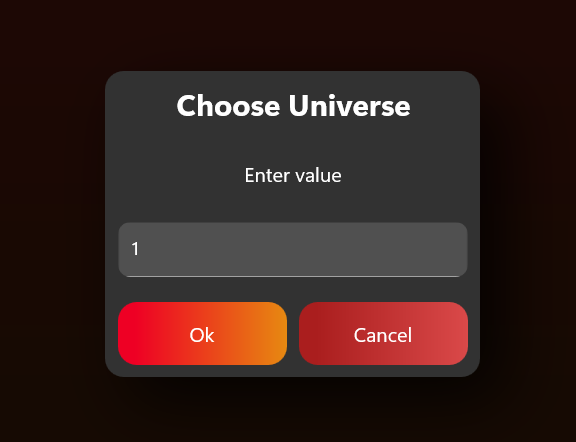
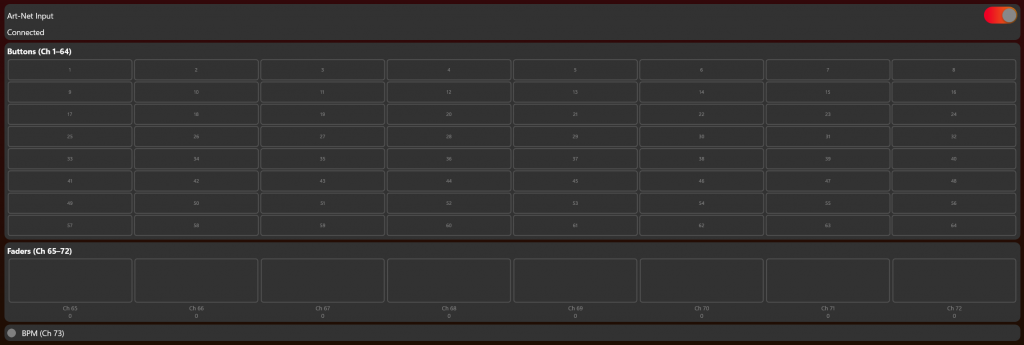
Choose the Art-Net DMX universe you want to receive. A value of 255 will trigger a button, and a value below 255 will turn off a button. Components on the Trigger Page can utilize the value.
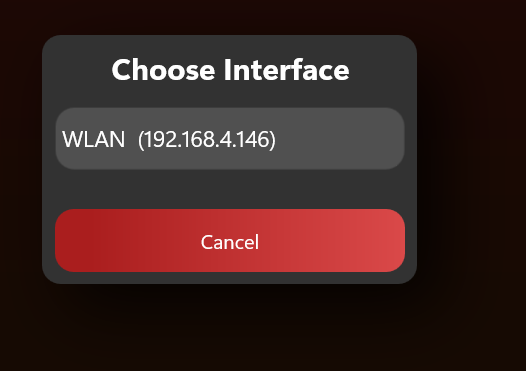
Choose your desired interface:
And your desired DMX universe:
Then test your DMX Art-Net input:
Ableton Link
The app includes an Ableton Link integration that enables wireless music synchronization with other Ableton Link-enabled apps and devices on the local network. It can be used by the BPM features (Showpanel, Controller) using the External/Microphone input. If Link is present, all sound-triggered beat effects will be controlled by the Ableton Link beat.
Link non‑Vision Fixtures via DMX Adapter
To link a non-Vision fixture, go to the fixture linking page and search for DMX Adapters.
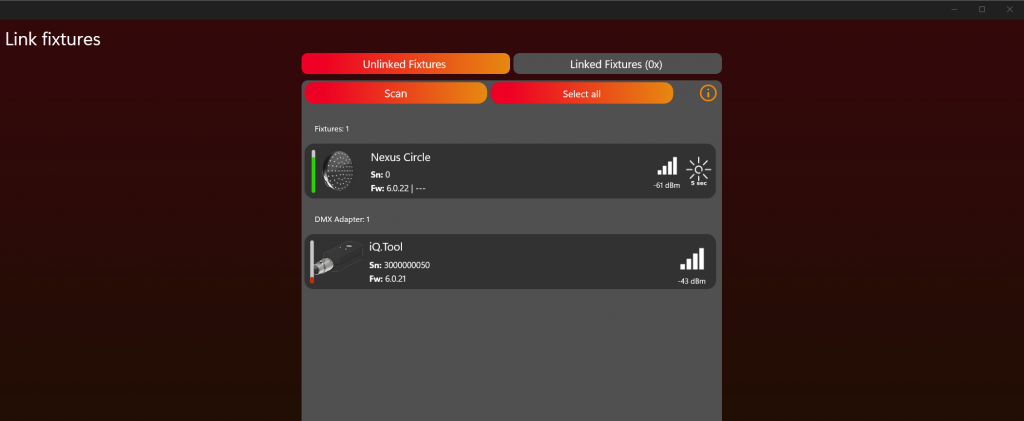
- Click on the DMX Adapter to link it. If the fixture is recognized via RDM and has a configuration, it is automatically linked. Otherwise, use the wizard.
- If the fixture has RDM support, it will be shown in the first panel.
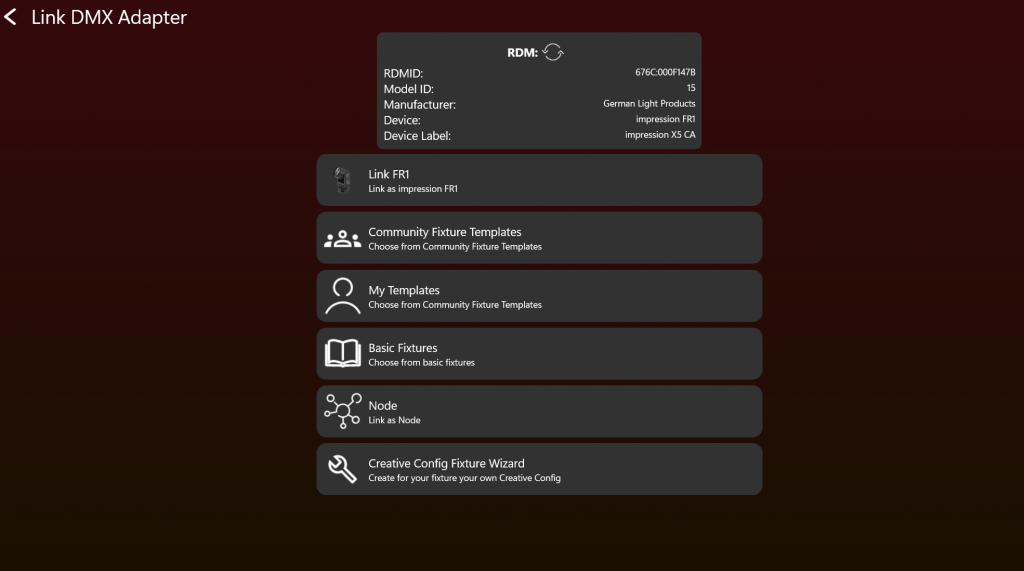
- If there is an official library, you can just link it. If not, search for community fixture templates.
- For basic fixtures (smoke machines, LED pars), standard configurations are available.
- To create a template yourself, use the Creative Config Fixture Wizard.
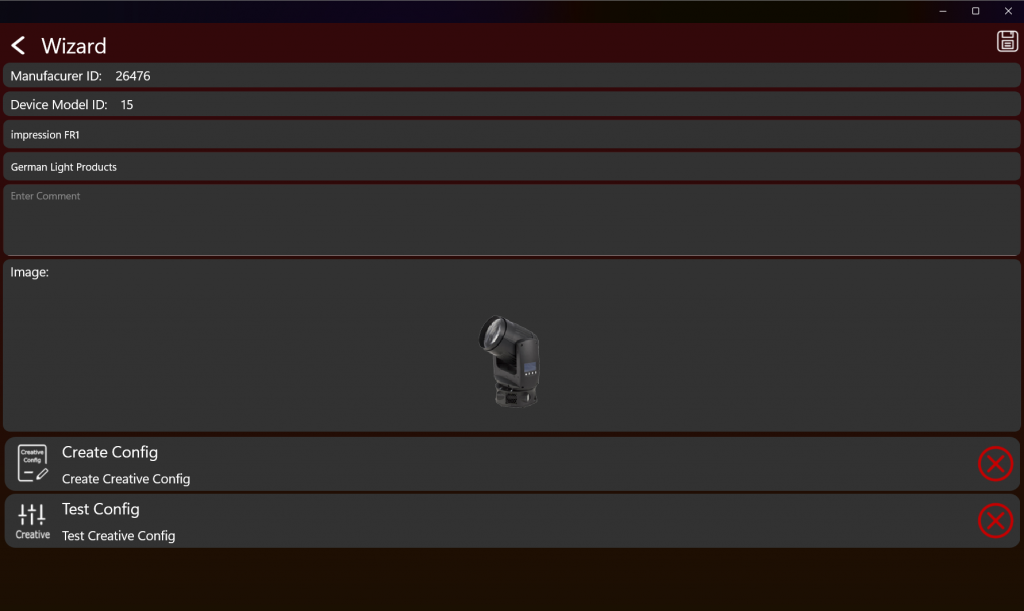
Creative Config Template:
Fill in the required information, upload a suitable picture (transparent, 200×150px), and leave a comment with important notes. Then create a creative configuration. Instructions are available at server.kk-t.eu/ExternalVision/TestCreative.
Please note: if you have a fixture with a multispectral LED Light Source, Creative Config Generation is only possible on Windows.
Controlling Multiple Identical Fixtures with One DMX Adapter
If you need to control a large number of identical fixtures — for example, 20 RGB LED pars — through a single Vision DMX Adapter, you can do so by creating a custom multi-pixel fixture configuration. Instead of linking each fixture individually, you define one fixture that represents all of them as individual pixels within a single Vision fixture.
How It Works
- Create a new fixture configuration in the Creative Config Wizard and give it a descriptive name (e.g. „RGB Par 20×").
- Define the fixture with 20 individual pixels, where each pixel represents one physical RGB par and its DMX channels.
- Spread the pixels across different fixture profiles in the library configuration. This ensures the DMX channels are mapped correctly so that each pixel addresses a separate fixture on the DMX bus.
- Patch the physical fixtures on your DMX line so their start addresses match the channel layout defined in your multi-pixel configuration. You can fill an entire DMX universe (512 channels) from a single adapter.
- Link the DMX Adapter in the Vision App. The adapter now appears as one Vision fixture containing 20 pixels.
Using FX for Dynamic Pixel Effects
Even though all 20 pars appear as a single Vision fixture, the FX engine treats each pixel independently. This means you can create dynamic effects — such as color chases, rainbow waves, or strobing patterns — that run across all 20 fixtures with individual pixel control. Combined with matrix positioning (see the Groups section), you can achieve complex spatial effects like walls, spirals, or fan-outs across the entire rig.
Vision Dimmer Module
Configure Vision PWM Dimmer Module
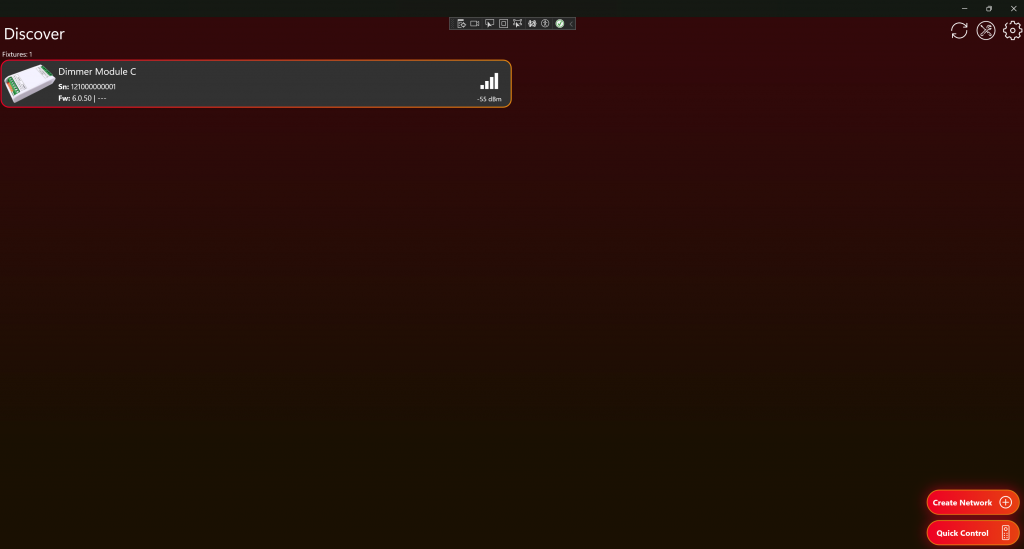
Scan for your Dimmer Module on the Discover page. You can identify an unconfigured module by "Unconfigured" being shown in its name. Click on the module to connect to it:
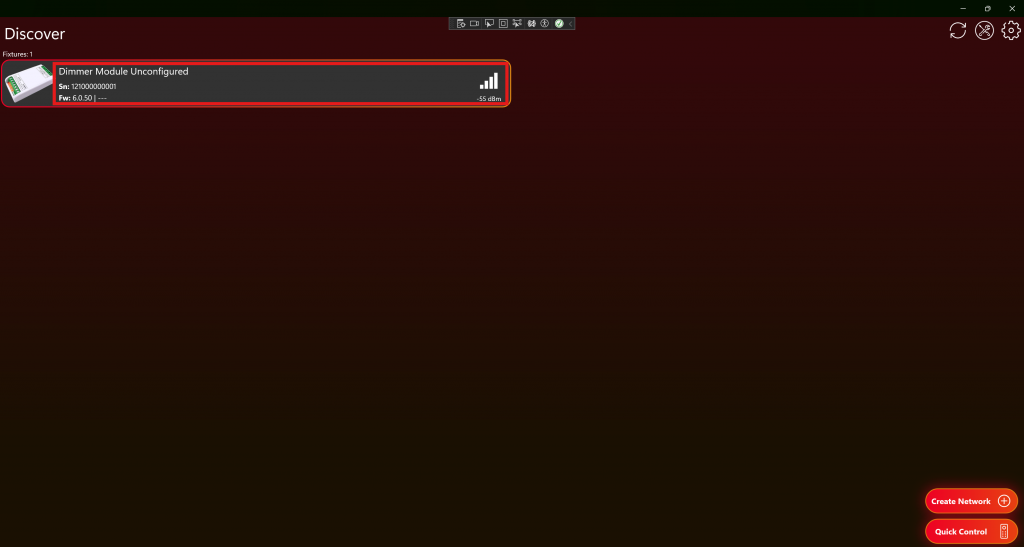
Click on the Configuration frame. If the module is unconfigured, you will see a red badge.
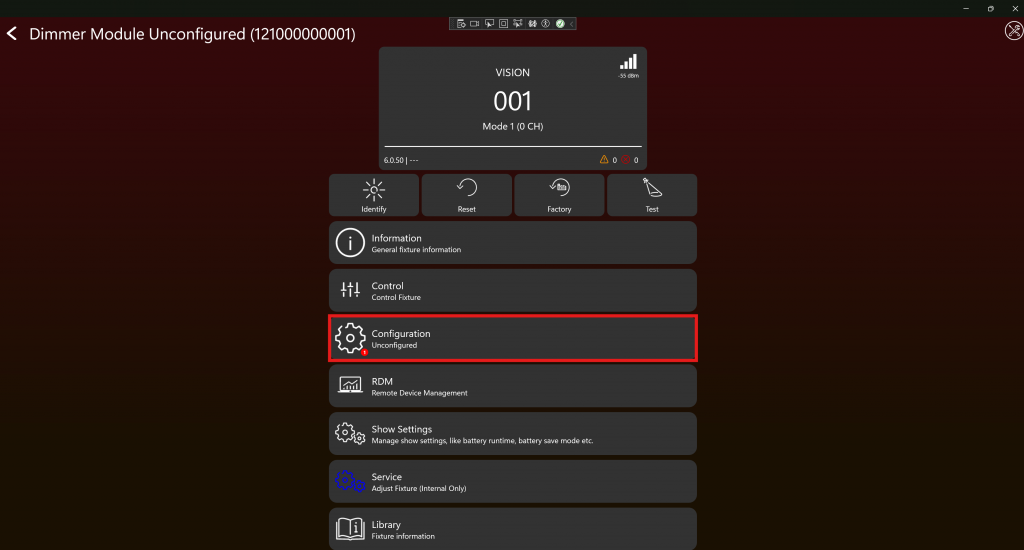
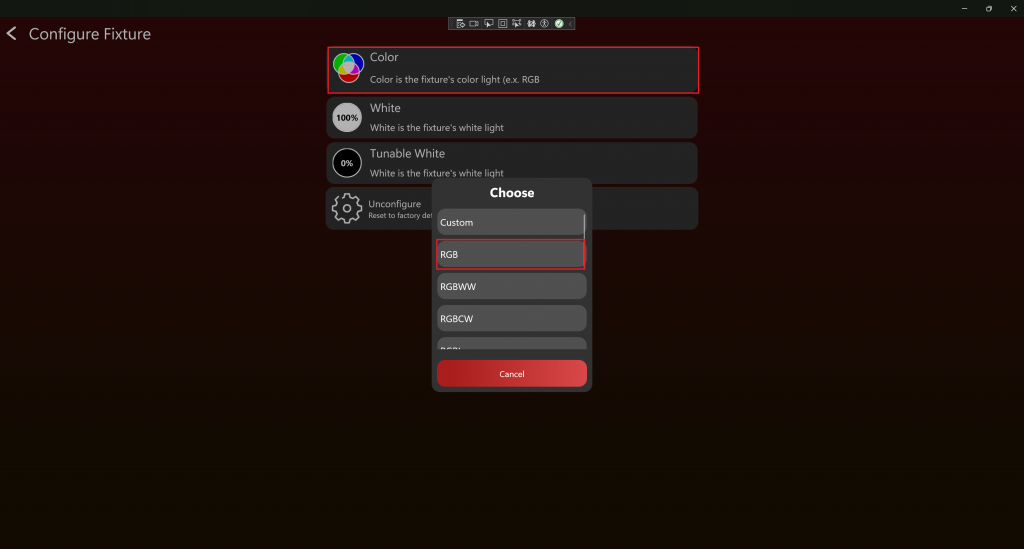
Here you can define which LED strips are connected to the PWM Dimmer Module. You can choose between Color, White, and Tunable White. In this example we select Color:
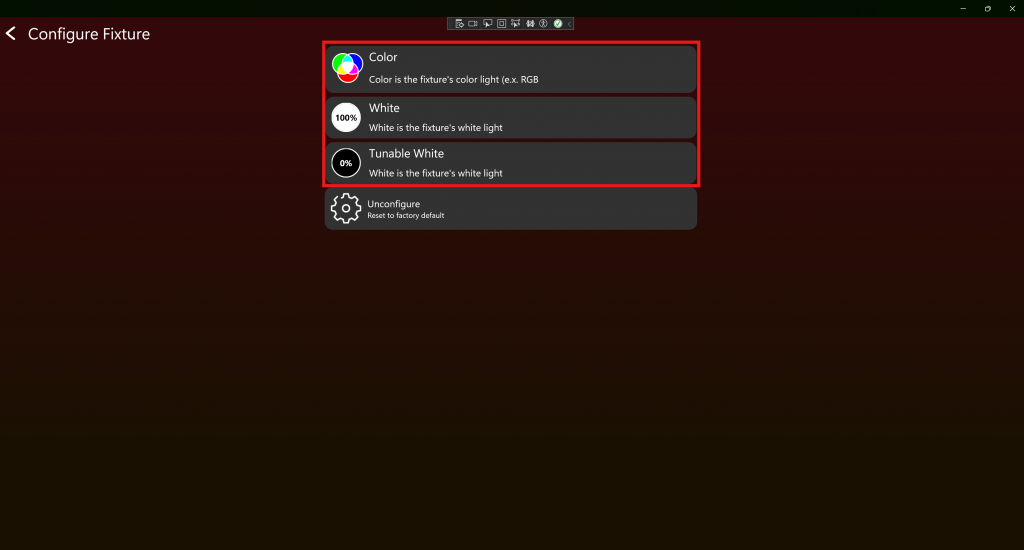
When you select Color or Tunable White, you can choose the LED colors, such as RGB, RGBL, etc., from a popup. In most cases, these predefined options are sufficient. If you have special LED colors or a different color order, only the Windows app offers an additional Custom option, where you can select your own LED colors and define their order. Be aware that the configuration becomes more advanced when using this option. If needed, you can even measure the spectrum of your LEDs and upload the spectrum data. This is a very advanced feature and is not needed in most use cases. The documentation for the spectrometer format can be found at server.kk-t.eu/ExternalVision/TestCreative. In this example we select RGB:
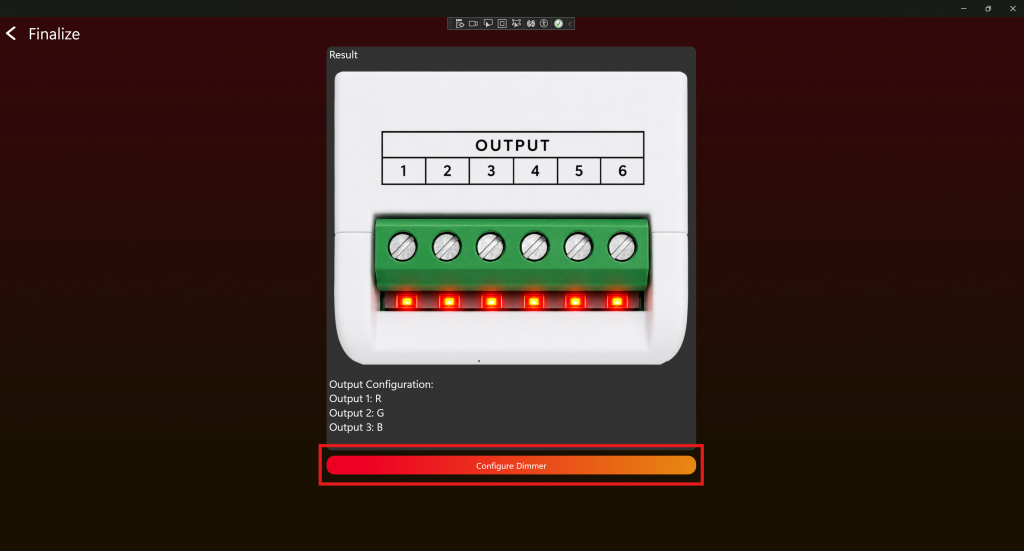
At the end, you will see some basic information about the configuration and can finalize it:
The PWM Dimmer Module is now configured, and "Unconfigured" will no longer be shown in the module name. Now you can control the PWM Dimmer Module and link it to a network in the Vision Control App.
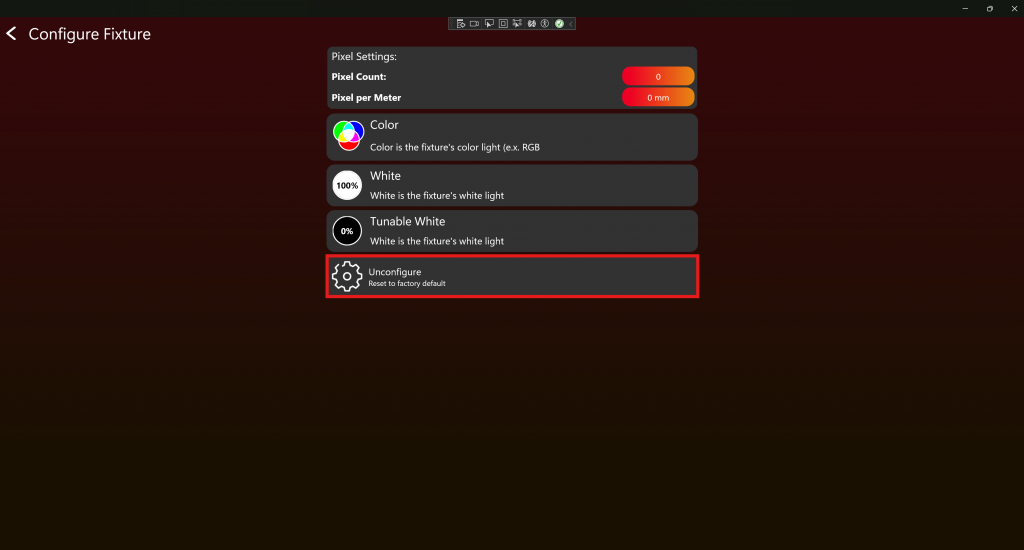
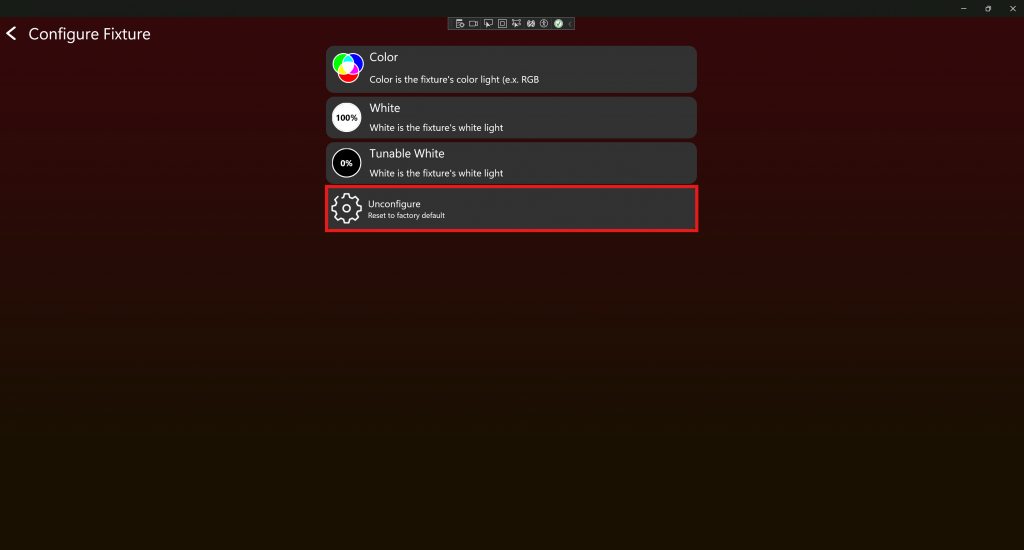
You can always change the configuration in the same way. You can also remove the current configuration by clicking the Unconfigure button:
Configure Vision WS2812 Pixel Dimmer Module
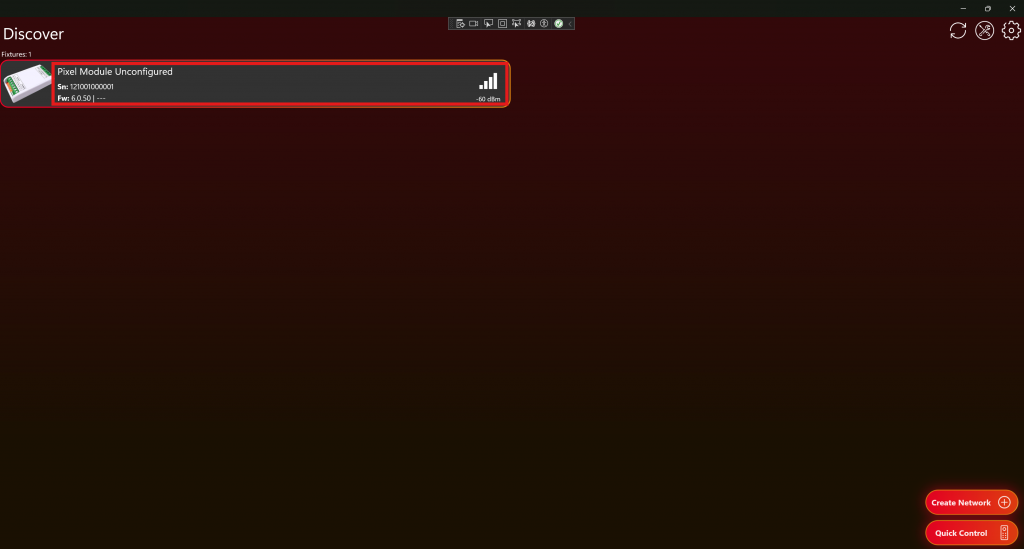
Scan for your Dimmer Module on the Discover page. You can identify an unconfigured module by "Unconfigured" being shown in its name. Click on the module to connect to it:
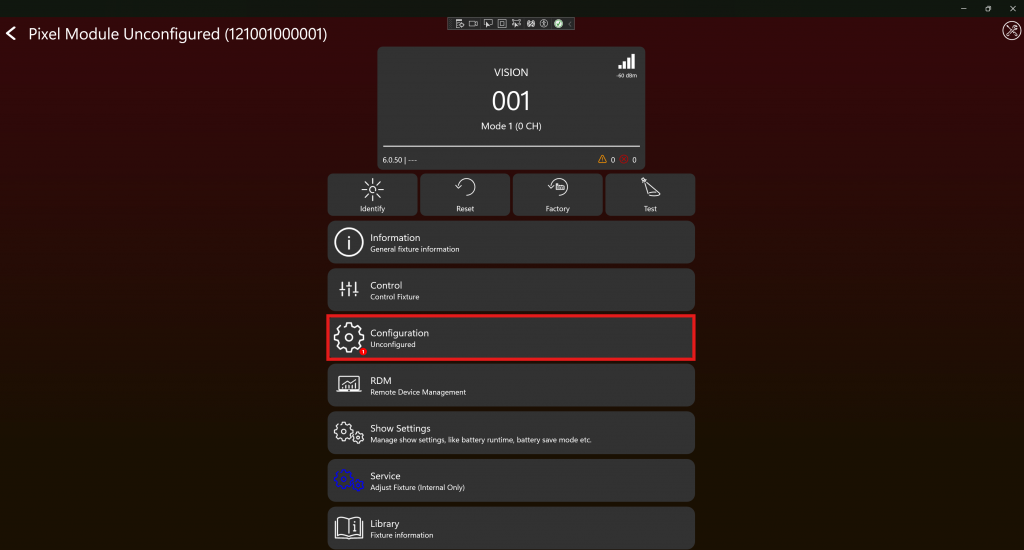
Click on the Configuration frame. If the module is unconfigured, you will see a red badge.
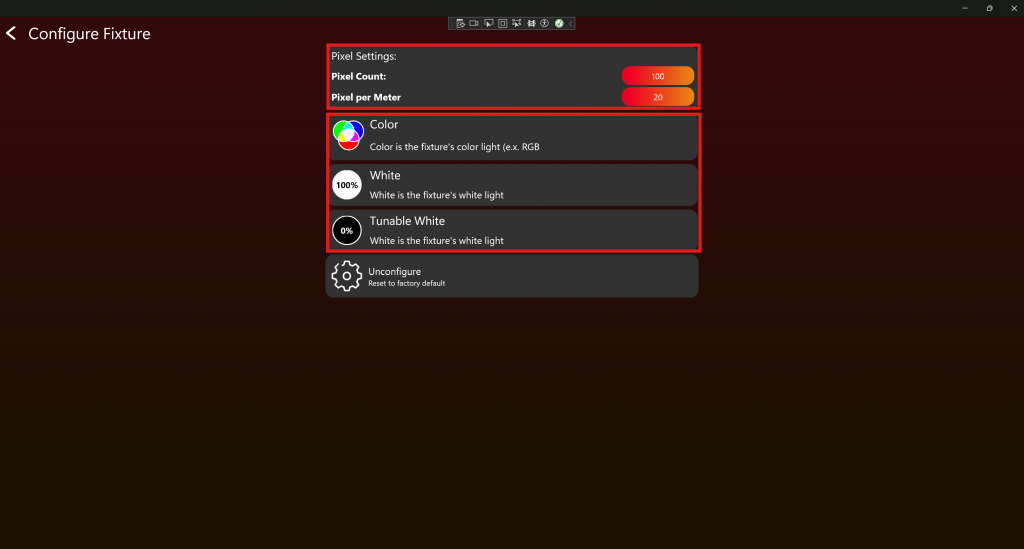
First, set the number of pixels in your LED strip and then select the pixel density in pixels per meter. If the available number of pixels does not exactly match your LED strip, select the next higher value. If the available pixels-per-meter value does not exactly match your LED strip, simply select the closest available value. Then you can define which LED strips are connected to the Pixel Dimmer Module. You can choose between Color, White, and Tunable White. In this example we select 100 Pixel, 20 Pixel per Meter and Color:
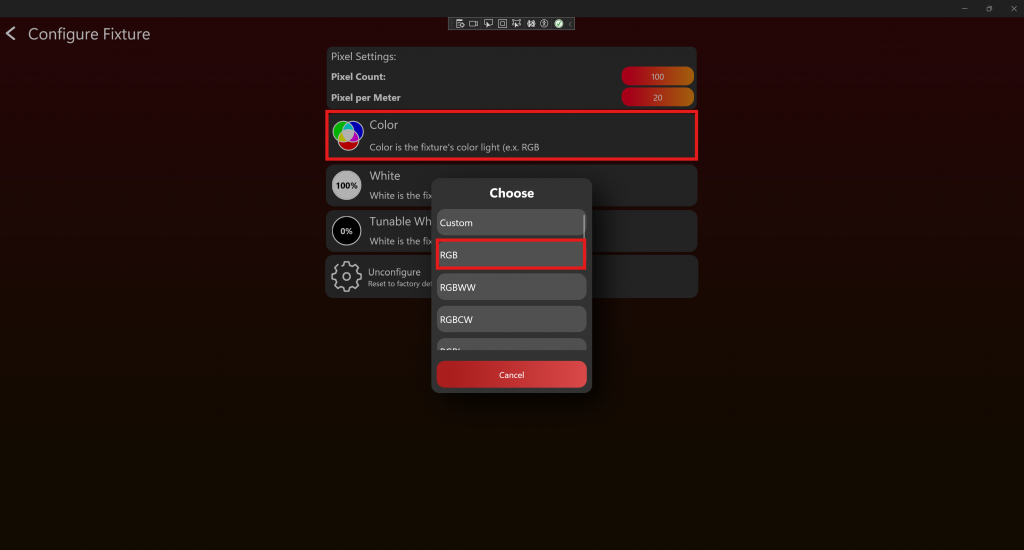
When you select Color or Tunable White, you can choose the LED colors, such as RGB, RGBL, etc., from a popup. In most cases, these predefined options are sufficient. If you have special LED colors or a different color order, only the Windows app offers an additional Custom option, where you can select your own LED colors and define their order. Be aware that the configuration becomes more advanced when using this option. If needed, you can even measure the spectrum of your LEDs and upload the spectrum data. This is a very advanced feature and is not needed in most use cases. The documentation for the spectrometer format can be found at server.kk-t.eu/ExternalVision/TestCreative. In this example we select RGB:
At the end, you will see some basic information about the configuration and can finalize it:
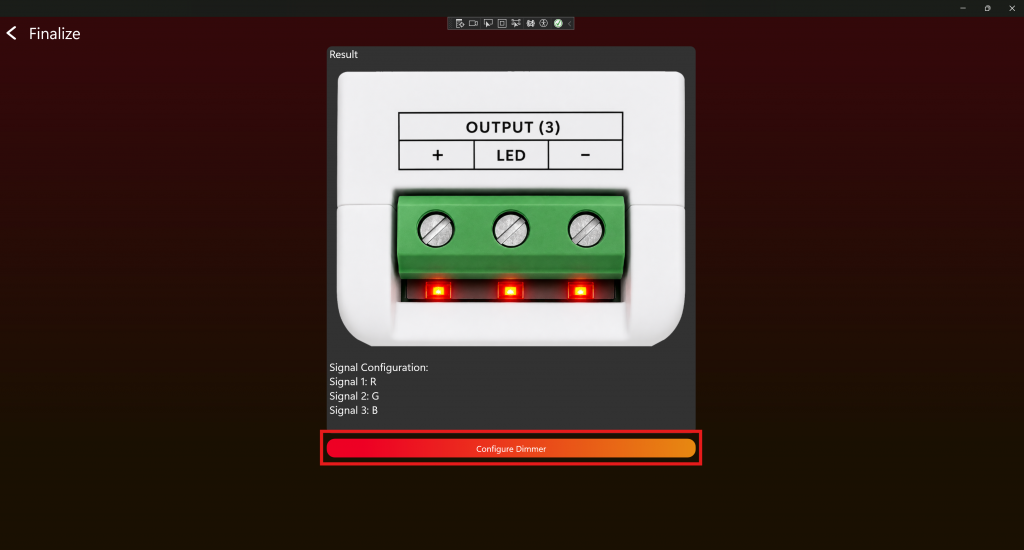
The Pixel Dimmer Module is now configured, and "Unconfigured" will no longer be shown in the module name. Now you can control the Pixel Dimmer Module and link it to a network in the Vision Control App.
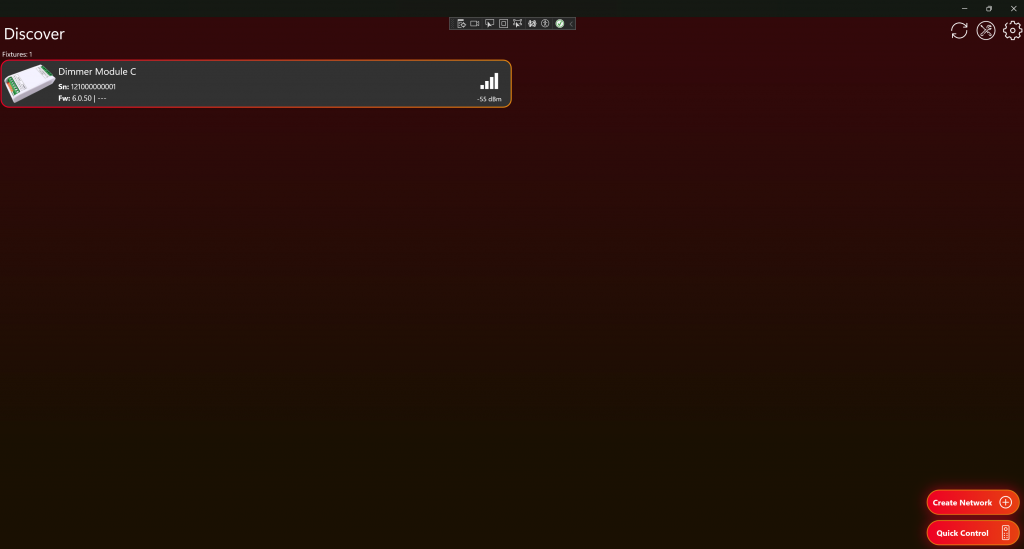
You can always change the configuration in the same way. You can also remove the current configuration by clicking the Unconfigure button: